
Once marks are in, the director of studies makes the report cards: the system works out each subject's average and grade, then each student's totals, aggregates, division and position. You can make them as often as you like. Make them again whenever marks change.
Before you start#
- The director of studies, head teacher, deputy and school administrator make the cards. Teachers can read the cards of the term (unless the term is closed to teachers).
- The term has report settings with at least one exam counted and a grading scale (see Report settings), and marks entry is prepared.
Make the cards#
The quickest way is step 4 of the term at a glance: Make the report cards works out the cards and the positions of every class with marks, and the missing comments if you tick it. To choose the steps and classes yourself, use the Generate tab of the term's settings.
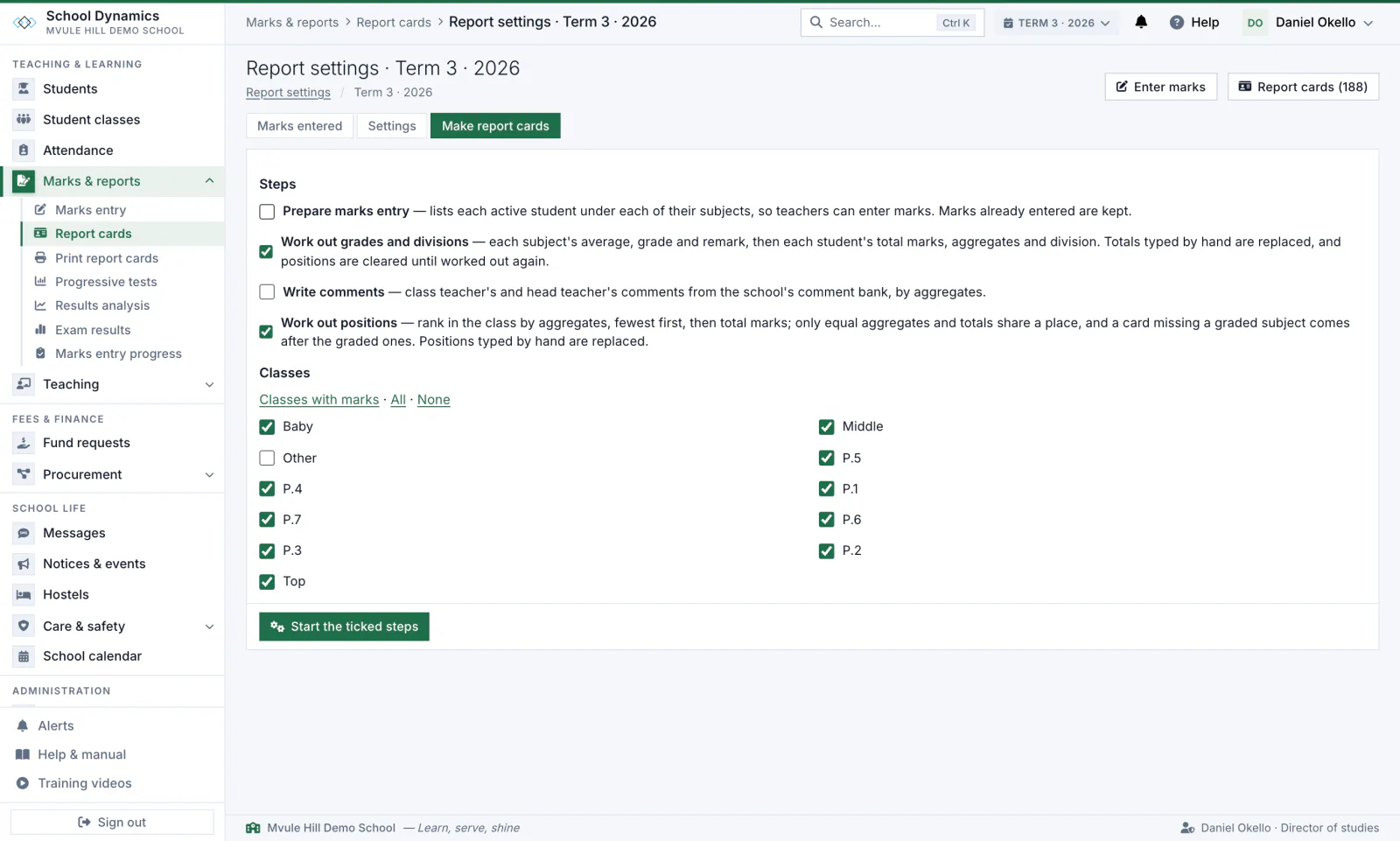
- Lists students in the subjects they are missing from. Marks entered are kept.
- Grades, totals, aggregates and divisions, from the marks.
- Rank the students: fewest aggregates first, then total marks.
- Choose the classes: those with marks, all, or none.
- Run the chosen steps.
- Open Marks & reports › Report cards, then Change settings on step 1 (or the Report settings tab, then the term).
- Open the Make report cards tab.
- Tick the steps 1 2 3. Write comments also fills comments from the comment bank (see Comments).
- Choose the classes 4: Classes with marks, All or None, then tick or untick single classes.
- Press Start the ticked steps 5 and confirm. The confirmation says what will be replaced.
A progress bar shows while it runs. You can leave the page: the job carries on, and its progress follows you on other pages. When it ends, the page says Last run and what was done, for example 1,214 report cards worked out; 1,214 students ranked.
What the system works out#
For each subject of each student:
- Each exam's grade from the grading scale. A score below 1 is graded X.
- The subject's mark: with Average of the counted exams, the average of the counted exams the student sat, cut to a whole mark. A missed exam (0) is left out. With One exam's mark, that exam's score.
- Grade and aggregates from the grading scale for that mark. A mark below 1 has no grade.
- Remark: below 39 Improve, below 49 Fair, below 59 F.Good, below 69 Q.Good, below 79 Good, below 90 V.Good, otherwise Excellent; a mark below 1 gets -. It is the same word marks entry fills in as the marks are typed; a remark a teacher typed there is kept.
For each student:
- Total marks and aggregates add up the subjects that count (subjects set as graded). Other subjects print but do not count.
- Division from the aggregates: below 4 is X, 4–12 Division 1, 13–24 Division 2, 25–29 Division 3, 30–35 Division 4, above 35 U.
- Position by total marks, in the class or in each stream (the settings say which). Equal totals share a place and the next place is skipped (1, 1, 3). Only students who are active now are ranked.
Classes already released to parents are left as they are: the job says so. To change one, reopen it first (see Check, approve and release).
When cards are out of date#
A card is out of date when a mark of its student changed after it was made, or when the exams counted, the method or the grading scale changed. The report cards list, the settings page and the print window then say … report cards are out of date and name the classes. Press Make them again: only those classes are computed and ranked again, and their comments stay. An out-of-date class cannot be checked or released.
The report cards list#
Open Marks & reports › Report cards, tab Report cards.
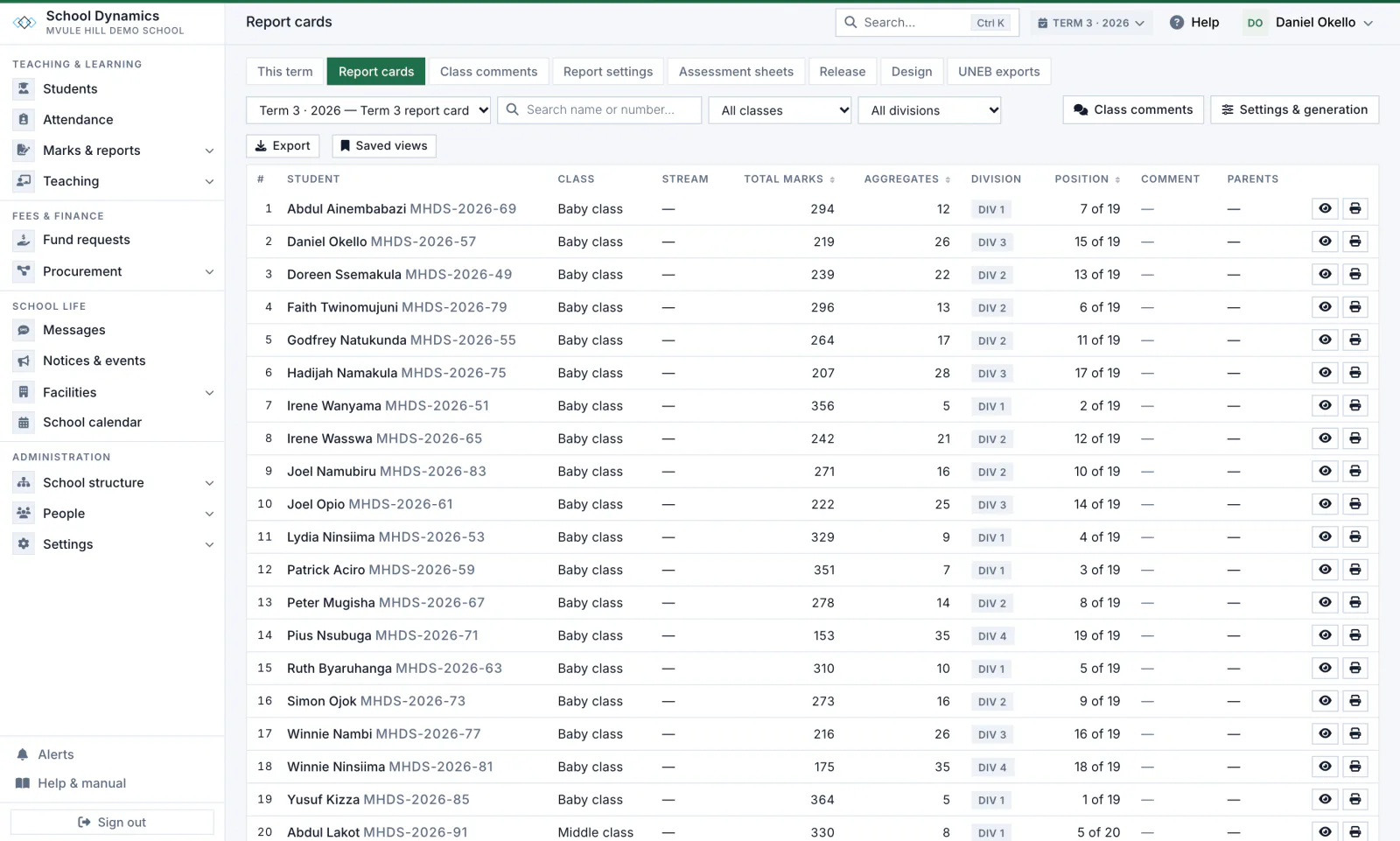
- The term's report.
- Show one division, or the cards missing a subject.
- Sort by total marks, aggregates or position.
- Open the card in a quick view.
- Print one card.
Choose the term's report 1, then search by name or number, or choose a class, stream or division 2. Missing a subject shows the cards with a counted subject that has no mark. Click a column heading 3 to sort. Each line shows the total marks, aggregates, division, position (3 of 41), whether a class teacher's comment is written, and Ready when the card is marked ready for parents.
Export downloads every line the filters show, to Excel or CSV. Saved views keeps a set of filters under a name. Class comments and Report settings open those pages for the term.
Click a student 4 for a quick view of the card, or the print icon 5 to see it as it prints.
Read and correct one card#
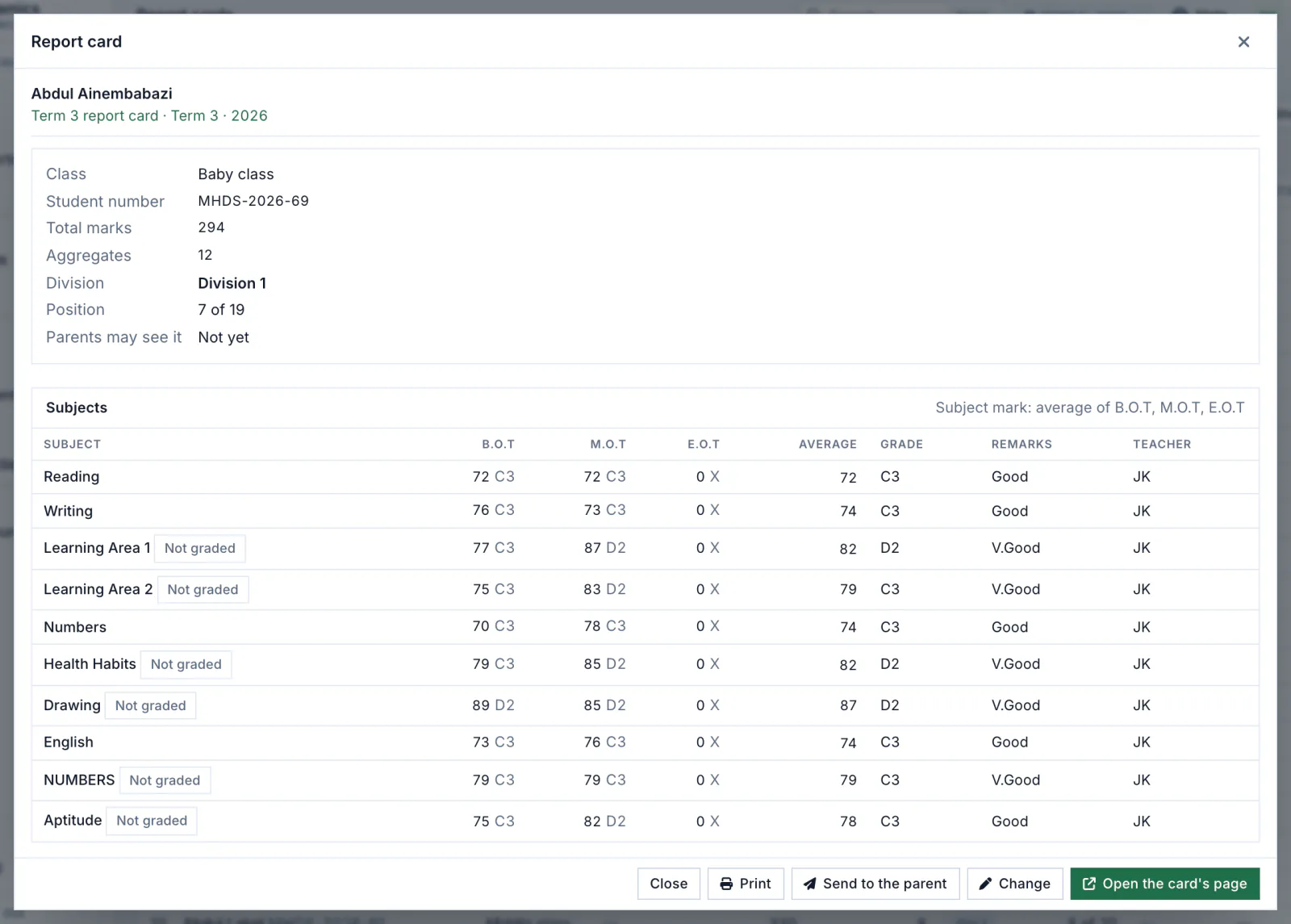
- Totals, aggregates, division and position.
- Each subject: the exams, the average, the grade and the remark.
- Correct the card or write its comments.
- The card on a page of its own.
The quick view shows the card as parents read it 1 2: the class, totals, aggregates, division, position, each subject's exams, average, grade, remark and teacher's initials, then the comments, the head teacher's message and the note.
- Change 3 opens Change the report card: Total marks, Aggregates, Division, Parents may see it, Position, Out of and the five comments. Press Save report card. A division is 1, 2, 3, 4, U or X; numbers cannot be below 0.
- Print opens the card as it prints, with Download.
- Send to the parent sends this one card's link again (see Check, approve and release).
- Open the card's page 4 shows the same card on its own page.
Teachers do not see Change. Any teacher can write the sports and mentor comments, and the class teacher also writes the class teacher's and nurse's comments, so they see Write comments instead (see Comments).
Good to know#
- Every change made by hand to a card is kept in the school's activity log, with the value before and after.
- If the old app left two cards for one student in a term, the newest is the one shown, printed and updated. An older copy says so and links to the card in use.
- When the director of studies closes the term's cards to teachers (in the report settings), teachers see Report cards for this term are closed to teachers for now instead of the list.