
Parents see a report card in the parents' app, on the parents' pages and through the link sent to them. Two things decide whether they can: the card must be ready for parents, and the student's fees must be cleared. This lesson explains both, and the page where you can see them for every card: Marks & reports › Print report cards, tab Parents & fees.
Before you start#
- Anyone who reads report cards can open the Parents & fees page. Only the director of studies, head teacher, deputy and school administrator can mark cards ready or not, and save copies.
- The rules below are for secular (primary) cards. Theology and new-curriculum cards are covered at the end of the next section.
When a card reaches parents#
Ready for parents. A secular card becomes ready when its class is released (see Check, approve and release). Reopening the class makes its cards not ready again. A class that has never entered the release steps can also be marked ready card by card on this page.
Fees cleared. The fees gate withholds a card while the student owes fees: a fees balance below zero. A balance of zero, or in credit, clears it. A withheld card is listed for the parent, with no results and this message: Report card is locked. Outstanding school fees of UGX … must be cleared before the report card for … can be viewed. Please contact the school bursar.
| Ready? | Fees | The parent sees |
|---|---|---|
| Not ready | any | Nothing |
| Ready | Cleared | The card |
| Ready | Owes | The card listed, locked, with the fees message |
Theology results reach parents inside the secular card. New-curriculum cards reach parents through the links sent after their class is released, and the link applies the same fees gate.
The Parents & fees page#
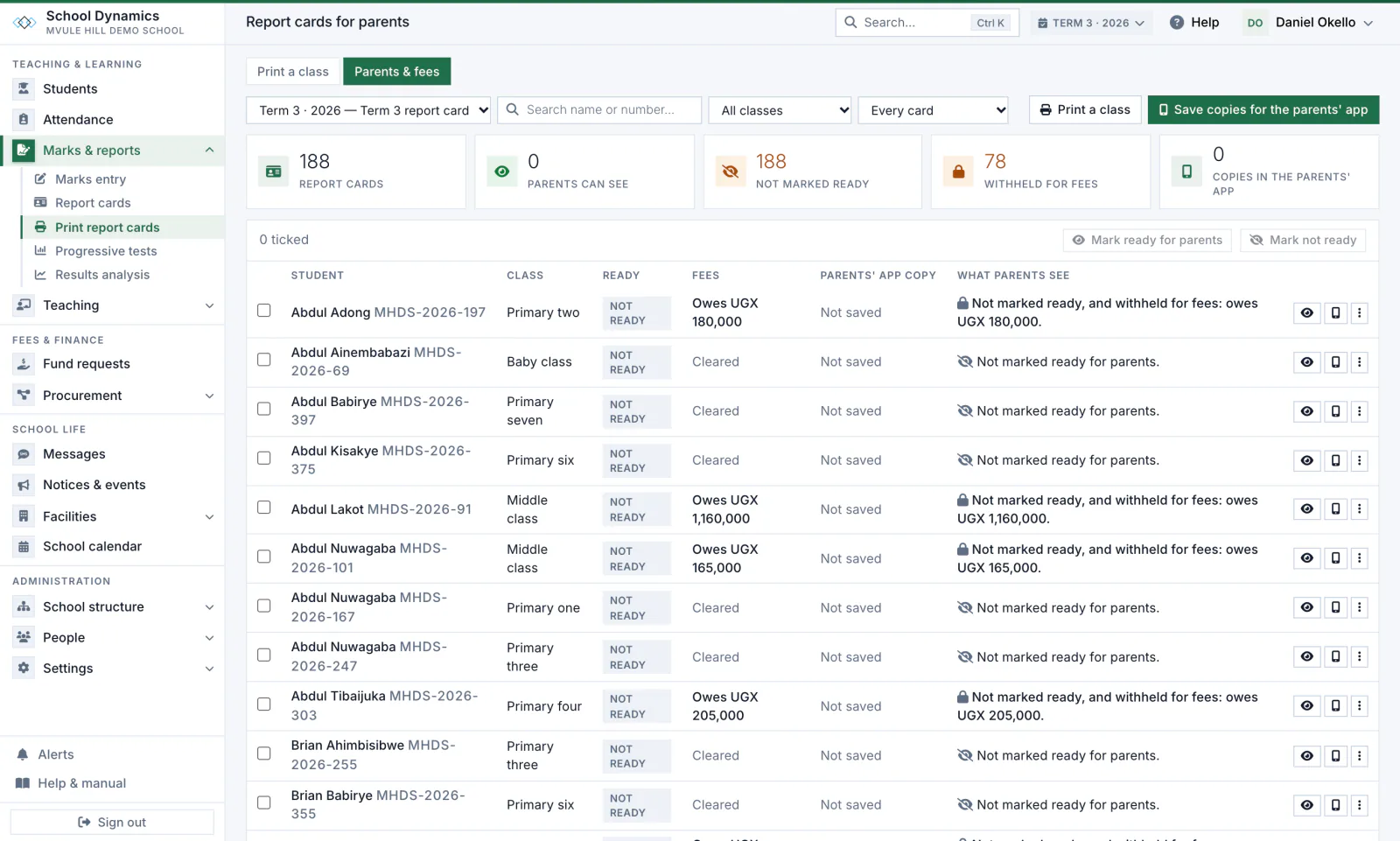
- The term's report.
- Show the cards parents can see, those not ready, withheld for fees or with no app copy.
- How many cards parents can see, and why the others are held back.
- For each card, what parents see and why.
- Save fresh copies for the parents' app.
Choose the term's report 1, then search, choose a class or stream, or show only some cards 2: Parents can see it, Not marked ready, Withheld for fees or No copy for the app. The figures 3 count the cards, those parents can see, those not marked ready, those withheld for fees and the copies saved for the app.
Each line shows the card's Ready state, the student's Fees (Owes UGX …, Cleared or In credit), whether the Parents' app copy is saved, and What parents see 4, in words: Parents can see it., Withheld for fees: owes UGX …, Not marked ready for parents. Hover over an amount to read the message the parent gets.
Each row's menu has Why it shows or not, Preview the report card and See the parents' copy.
Hold back or show one card#
The director of studies, head teacher, deputy and school administrator can tick cards and press Mark ready for parents or Mark not ready, or use the same words in a card's row menu.
- Mark not ready works on any card, even in a released class: use it to hold back one card while you look into it. In a class that never entered the release steps, this also unlocks the student's marks. In a released class, the marks stay locked until the class is reopened.
- Mark ready for parents is refused for a class in the release steps (checked, approved, or reopened): … report is in the release steps …: parents get its cards when the class is released under Report cards › Release. Release the class instead.
Save the copies for the parents' app#
The parents' app opens a saved PDF of each card, the parents' copy. Releasing a class saves fresh copies of its cards by itself. To save them yourself, for example after changing a design:
- Choose the term, and a class if you want only one.
- Press Save copies for the parents' app 5.
- Confirm. The confirmation says how many cards, and what ready for parents will be set to.
A progress bar shows while the copies are saved. One card's copy can be saved from its row (the phone icon), or from its preview with Save copy for the parents' app.
Good to know#
- The page's own note warns that today's parents' app applies the fees rule but also lists cards not marked ready, without the Published badge. The parents' pages list only cards that are ready.
- A link sent to a parent checks everything again each time it is opened: the class must still be released, the card ready, and the fees cleared.
- For what a parent does on their side, see Report cards for parents.