
The Design tab decides how your school's report cards look when they are printed and when parents download them. Pick a design from the gallery, set it the way you like, and every card of that kind prints the same way. A preview beside the settings shows the result on one of your own cards, or on a sample pupil.
Open Marks & reports › Report cards, tab Design.
Before you start#
- The school's owner, director of studies, head teacher, deputy and school administrator can open this tab.
- Put the school's logo and colours in the school profile first (see School profile).
Choose the design#
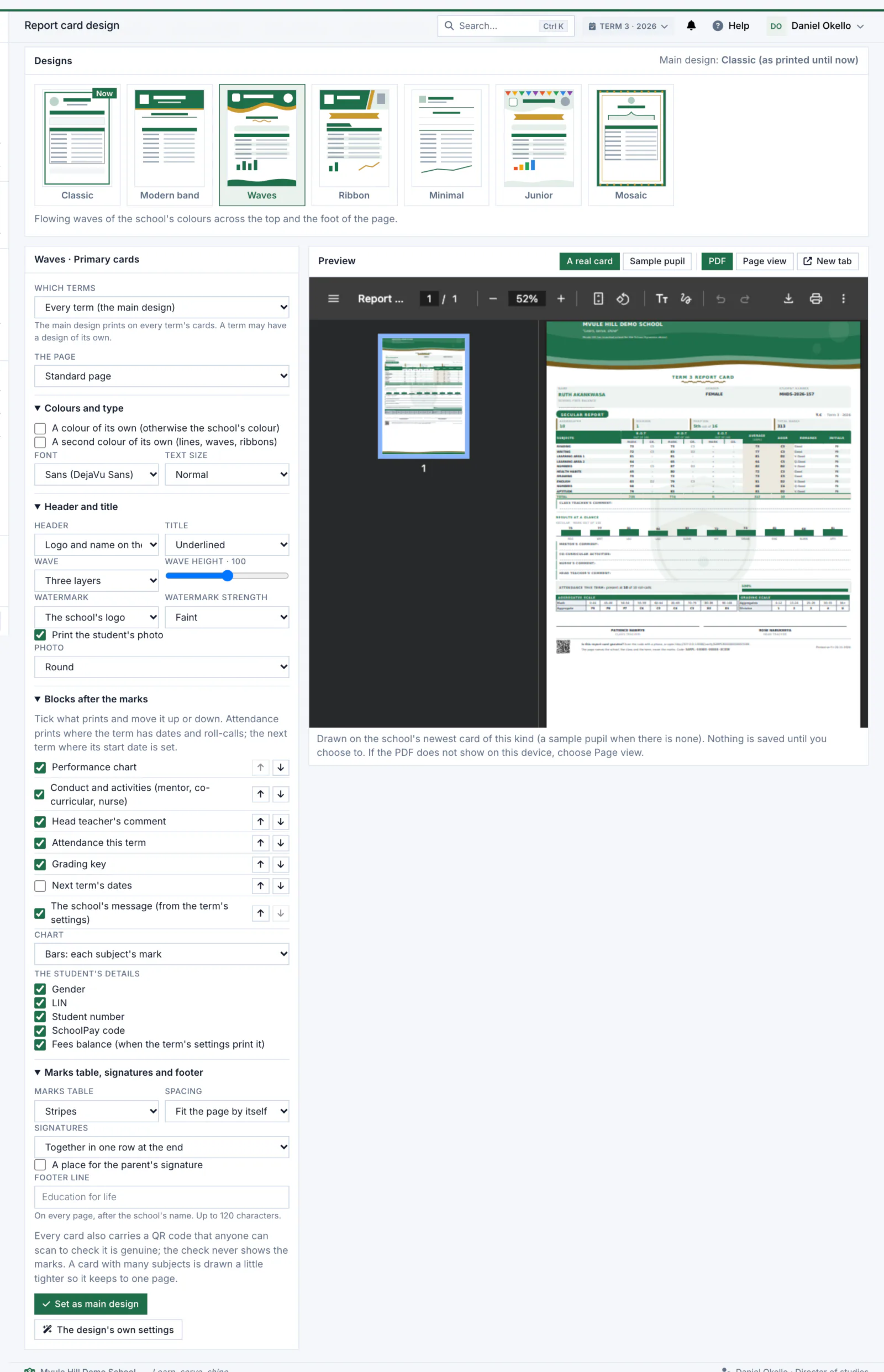
- The designs, drawn in your colours. Main marks the one you print.
- Every term, or one term's own design.
- The page: standard, or with the grading tables.
- What prints after the marks, and in what order.
- Set as main design: every card of this kind prints this way.
- The preview, drawn on one of your cards.
- If your school has more than one kind of card (primary, theology, new lower secondary, A-level), choose the kind at the top.
- Pick a design in the gallery 1. It starts with its own settings; the preview redraws.
- Leave Which terms 2 on Every term (or choose one term, below).
- Choose The page 3 (primary cards only).
- Change any setting (below), and look at the preview 6. Nothing is saved yet.
- Press Set as main design 5.
Set as the main design. Every primary report card prints this way now. The gallery marks it Main. Until a design is saved, Now marks Classic, the way the school printed until now.
The designs#
| Design | What it looks like |
|---|---|
| Classic | A framed page with the school's name in its colour, as printed until now. |
| Modern band | The header on a band of the school's colour, open tables, no frame. |
| Waves | Flowing waves of the school's colours across the top and the foot of the page; a chart of the marks. |
| Ribbon | A slanted band behind the header, a ribbon for the title, section tabs, bars and a line. |
| Minimal | White space, hairlines and one colour; a line of the term's exams. |
| Junior | Bunting, stars, bright bars and round shapes for young learners, with a place for the parent's signature. |
| Mosaic | A border of eight-pointed stars and an arched title; made for theology and combined cards. |
| Heritage | Warm paper in a double frame; a deep band with a gold-lined curve, the logo and photo in gold rings; the results as cards (aggregate and division, average score, position); every grade and aggregate on its colour from green to red; each comment in its own box, with a ring for the school stamp; the grading key in colour; and a closing band that says when the term ends. |
Every design prints primary cards (on any of their pages), theology cards, new-curriculum and A-level cards, and the parents' copies.
The settings#
| Setting | What it does |
|---|---|
| Colour, Second colour | The cards' own colours, or the school's. Too light a colour is darkened until white writing reads on it. |
| Font, Text size | Sans, serif or rounded (Quicksand, as Heritage starts); smaller, normal or larger. |
| Header | Logo, name in the middle and photo; logo and name on the left; or logo above the name. A school with theology also has The Bismillah above the school's name: untick it and no card prints it. |
| Title | On a band, on a ribbon, underlined, or plain capitals. |
| Wave, Wave height | The waves' shape and how deep they are (Waves and Junior). |
| Watermark | The school's logo, a drawn crest, the school's initials, or none; and how strong. |
| Frame | The border round the page, picked from small drawings: the design's own (Classic's two lines, Mosaic's stars, Heritage's three rounded lines; none for the others), no frame, one fine line, two lines in both colours, three rounded lines, a bold band of colour, or ornamental corners. Any design takes any frame; a header or wave that runs to the paper's edge stops just inside it. |
| Photo | Print the student's photo or not; square or round. A photo is cut to its frame's shape from its middle, keeping the face, so it is never squeezed. |
| Blocks after the marks | Tick what prints and move it up or down: the chart, conduct and activities (mentor, co-curricular, nurse), the head teacher's comment, attendance, the grading key, the next term's dates, the school's message. Under conduct and activities, each line (mentor, co-curricular, nurse) can be left off on its own or given the school's own heading, such as Matron's remarks or Games and clubs. |
| Chart | Bars of each subject's mark, a line of the term's exams, or both. |
| The student's details | Leave off the gender, LIN, student number, SchoolPay code or the fees balance. |
| Marks table, Spacing | Grid, stripes, lines or boxed rows; fit by itself, roomy or compact. |
| Signatures | Beside each comment, or together in one row at the end (with the parent's, if you like). |
| Footer line | A line on every page after the school's name, such as your motto. On Heritage it prints in the closing band, in place of "This card is not valid without the school stamp." |
Reset to the design's own settings puts the picked design back as it starts. It, and picking another design, keep the school's own choices: the Bismillah and the conduct lines.
A design for one term#
- Choose the term under Which terms. The page shows the design that term prints.
- Set the design, then press Use for … only.
That term's cards print this design; every other term keeps the main one. Remove this term's own design puts the term back on the main design.
The preview#
A real card draws the school's newest card of that kind (a sample pupil when there is none). Sample pupil draws an invented pupil with every block filled in. If the PDF does not show on your device, press Page view. New tab opens the preview on its own.
Good to know#
- Every card carries a QR code that anyone can scan to check it is genuine. The check never shows the marks.
- A card with many subjects is drawn a little tighter so it keeps to one page with its QR code.
- The print window starts on the saved page, and you can still choose another page for one print (see Print report cards).
- The parents' copies saved from now on use the saved primary design (see What parents see).
- Teachers and other staff cannot open this tab.