
Chapter 5 · Marks and report cards
  1. The term at a glance
  2. Set a term's report settings
  3. Enter marks
  4. Theology marks and report cards
  5. Make the report cards
  6. Write report card comments
  7. Check, approve and release report cards
  8. Print report cards
  9. Choose how report cards look
  10. What parents see, and when
  11. Competency reports (new lower secondary curriculum)
  12. Progressive tests
  13. Analyse results
  14. UNEB candidate lists and results files
  15. Old results (2022–23)
  16. Assess an exam
  17. See who has entered marks
  18. All chapters
Chapter 5 · Lesson 14

UNEB candidate lists and results files

Download a candidate list and photos for PLE, UCE or UACE registration, and a term's results as a spreadsheet for the district or a foundation body.

For: Director of studies Head teacher 2 min read Checked 11 Nov 2026

Chapter PDF

The UNEB exports tab gives you two kinds of file: a list of exam candidates with what UNEB's registration asks for, and a term's results as a spreadsheet for the district, a foundation body or your own records. Both are CSV files that open in Excel or Google Sheets.

Open Marks & reports › Report cards, tab UNEB exports.

Before you start#

  • The director of studies, head teacher, deputy and school administrator see this tab.
  • For the candidate list, the year needs a candidate class: P.7 for PLE, S.4 for UCE, S.6 for UACE.
  • For results, the term's report cards must be made.

The candidate list#
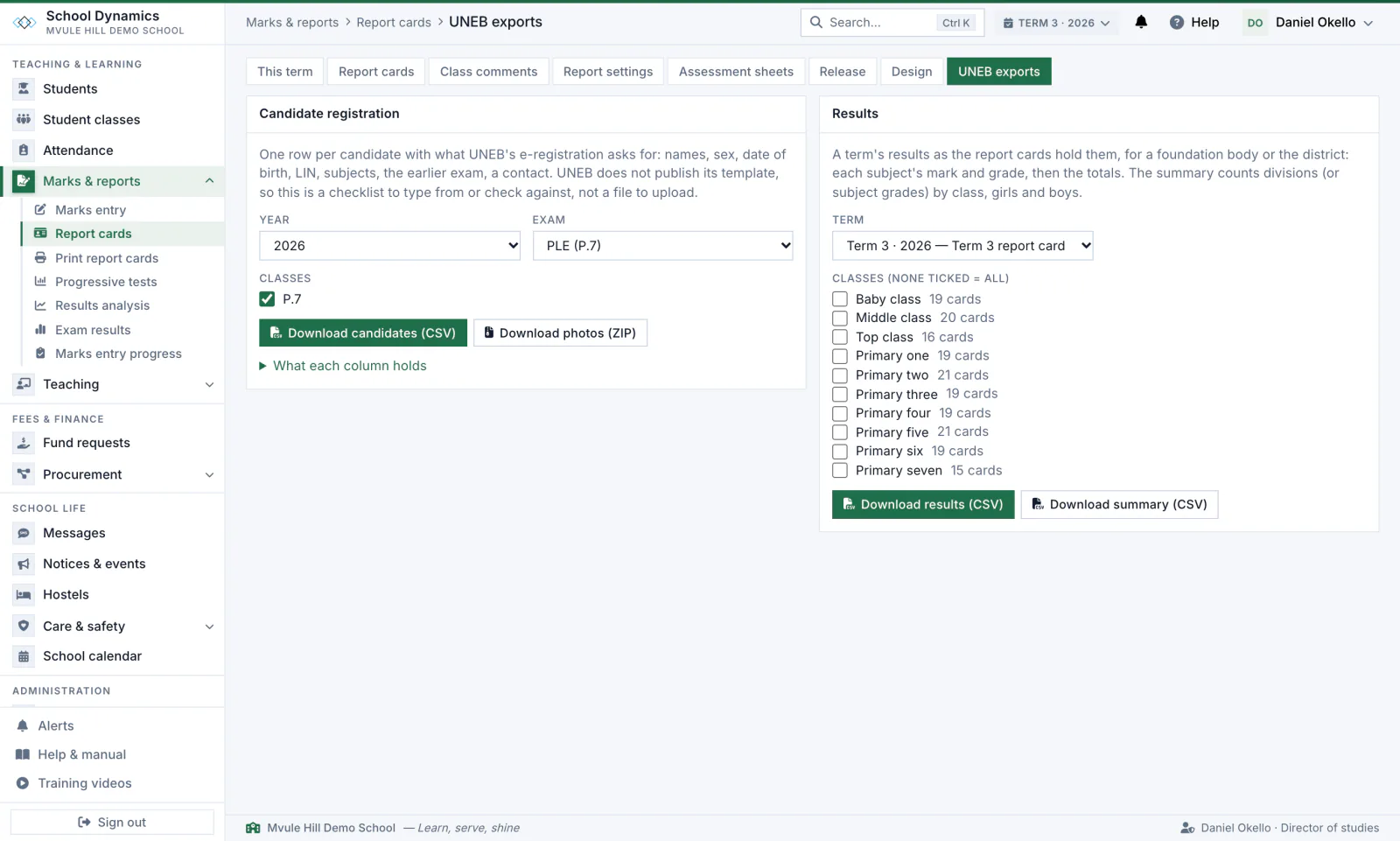
Screenshot: UNEB candidate lists and results files. The numbered marks are explained below the picture.
The demo school · invented names and figures
  1. The year of the candidates.
  2. The exam: PLE, UCE or UACE, by the candidate class.
  3. One row per candidate, for registration.
  4. The term whose results you want.
  5. Every student's marks and grades, and a summary.
  1. Choose the Year 1.
  2. Choose the Exam 2. Only exams whose candidate class exists that year are offered.
  3. Tick the Classes (all are ticked to start with).
  4. Press Download candidates (CSV) 3 for the list, and Download photos (ZIP) for the photos.

The list has one row per active student of the chosen classes, by name: number, surname and other names in capitals, sex (M or F), date of birth (DD/MM/YYYY), LIN, NIN, nationality, class, stream, subjects and subject codes, the previous exam (PLE for UCE, UCE for UACE), the parent or guardian with the relation and a telephone, the photo's file name and the school number. What each column holds on the page lists every column and where it comes from.

The photos ZIP names each photo to match the Photo file column, for example 001 SURNAME OTHERS.jpg.

The results files#

Under Results:

  1. Schools with new-curriculum cards too choose Report cards: Primary or New curriculum.
  2. Choose the Term 4. It starts on the term in the top bar.
  3. Tick classes under Classes (none ticked = all). Each shows how many cards it has.
  4. Press Download results (CSV) 5 or Download summary (CSV).

The results file has one row per student: number, name, LIN, sex, class and school number, then each subject's mark and grade, then the total marks, aggregates, division, position and class size (for new-curriculum cards: the average score and the number of subjects).

The summary file counts, for each class, the students in each division by girls and boys (for new-curriculum cards, the subject grades).

Good to know#

  • The files hold what the report cards hold when you download them. Make the cards again first if marks changed.
  • A subject a primary student did not sit shows as 0 in the results file.
  • Every download is written in the school's activity log.

Questions

Can I upload the candidates file to UNEB?

No. UNEB does not publish its template, so the file is a checklist to type from or to check against, not a file to upload.

Why are some columns empty?

The file fills only what the school has recorded: a student without a LIN, a photo or a parent's phone number has those cells blank. Previous index number, special needs and funding are always left for you to fill in.

I pressed Download photos (ZIP) and got a page that was not found.

None of the chosen candidates has a photo on record. Add the students' photos first.

Your feedback

WhatsApp us