
Use Messages to text the parents of whole classes, streams or chosen students, members of staff, or any phone numbers. Each text is paid for from the school's SMS wallet, and the page shows the cost before anything goes.
Before you start#
- You need to be the school administrator, the head teacher, the deputy, the director of studies, the bursar or the secretary.
- Your school must be able to send texts, and the wallet must cover the cost. See How text messages work.
- The classes and streams you can choose are those of the school's active academic year.
Write and send a message#
Open School life › Messages and press New message.
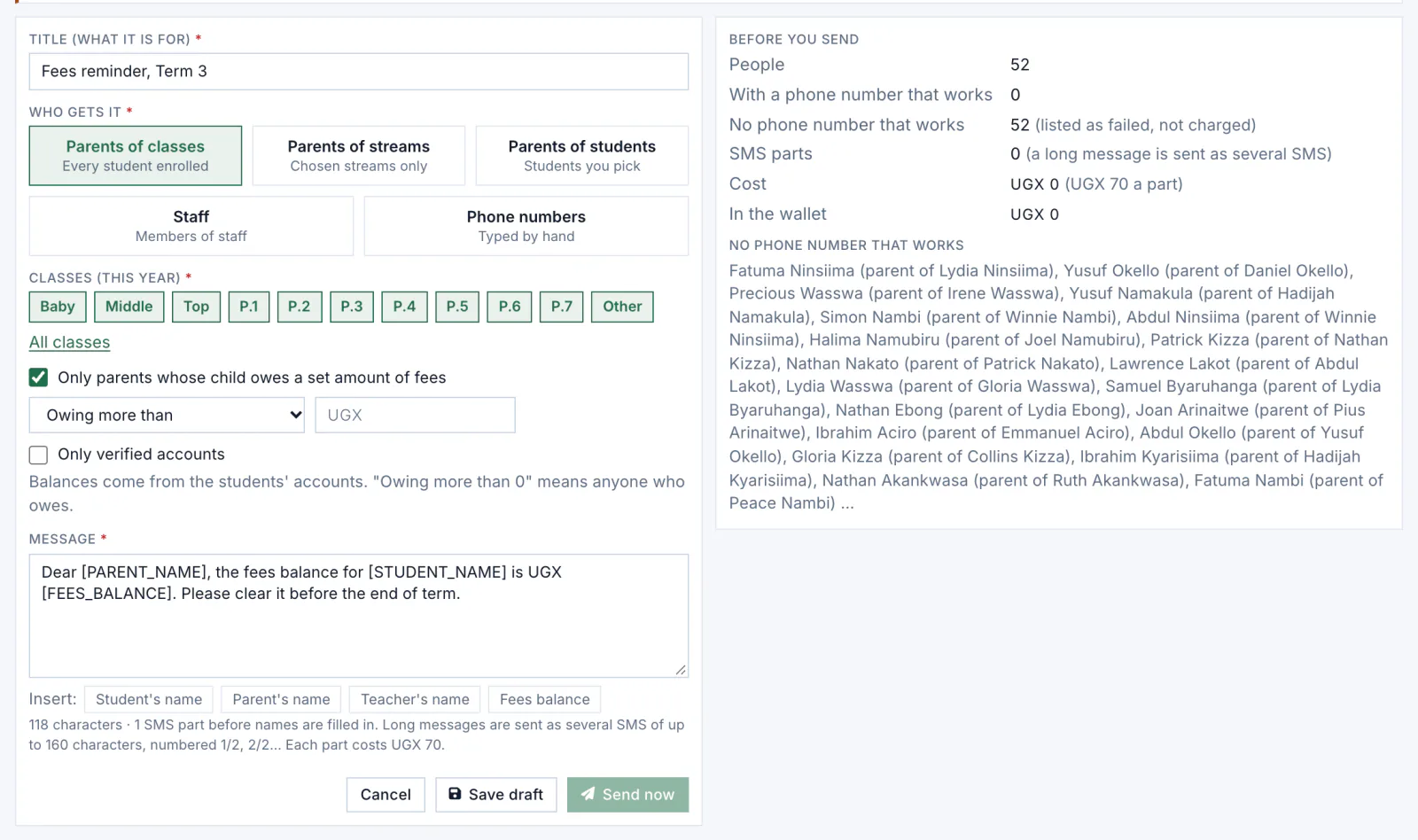
- A title, so you can find the message later. Parents do not see it.
- Who gets it.
- Only parents of students who owe (or whose balance is exactly an amount).
- The message. The buttons under it put in names and the fees balance.
- Before you send: how many people, how many SMS parts, the cost and the wallet.
- Send now asks you to confirm the number of people and the cost.
- Type a Title (what it is for) 1, for example Fees reminder, Term 3. Only staff see it: it names the message in the list.
- Choose Who gets it 2 (see the table below), then tick the classes, streams or staff, pick the students, or type the numbers.
- To text only parents who owe, tick Only parents whose child owes a set amount of fees 3. Choose Owing more than and type an amount (0 means anyone who owes), or Balance exactly. Tick Only verified accounts to leave out student accounts that are not marked verified under Fees.
- Write the Message 4. Use the buttons under it to put in names and the balance (see Names and the balance in a message).
- Read Before you send 5, and the examples under As they will read it.
- Press Send now 6. A box asks, for example, Send this message to 245 people for UGX 17,150? A text cannot be called back once it has gone. Press OK.
The message's own page opens, and a note says how many it went to. The texts go out one by one in the background: the page shows Sending until they have all gone.
| Who gets it | Who receives the text |
|---|---|
| Parents of classes | The parent of every student in the classes you tick, active or pending. All classes ticks them all. |
| Parents of streams | The same, for the streams you tick. |
| Parents of students | The parents of the students you pick. Type a name or student number, then click the student. |
| Staff | The members of staff you tick. All staff ticks everyone. |
| Phone numbers | The numbers you type, one per line or separated by commas: 07…, 256… or +256…. |
For a student, the text goes to the parent on record. With no parent on record, it goes to a parent whose phone is the student's emergency number, and failing that to the numbers on the student's own record.
Before you send#
The box on the right 5 works itself out again each time you change the message or the people:
| Line | Means |
|---|---|
| People | Everyone the message is for. |
| With a phone number that works | Those it will be sent to. |
| No phone number that works | Their texts are listed as failed and not charged. Their names are listed below. |
| Asked not to get SMS | Parents who said no to texts. They are left out and not charged. |
| Same text, same number | Texts sent once because the same words would go to the same phone twice. |
| SMS parts and Cost | A long message is sent as several SMS of up to 160 characters, called parts. This is the number of parts in all, at UGX 70 a part. |
| In the wallet | What the wallet holds now. If it does not cover the cost, the box says so. |
Under the message, a line counts the characters and the SMS parts before names are filled in. A long name or balance can add a part for some people; the Cost line counts every text as it will really go.
Names and the balance in a message#
The buttons under the message put a placeholder where the cursor is. Each person's text gets their own detail:
| Button | Puts in | Becomes |
|---|---|---|
| Student's name | [STUDENT_NAME] | The student's name. For a message to staff, the staff member's name. |
| Parent's name | [PARENT_NAME] | The parent's name. |
| Teacher's name | [TEACHER_NAME] | For a message to staff, the staff member's name. |
| Fees balance | UGX [FEES_BALANCE] | The student's fees balance, as a number: UGX 280,000. |
Save a draft#
Press Save draft to keep the message without sending it. You can save a draft even while your school cannot send.
A draft keeps the title, the message and who it is for. The recipients and their balances are worked out only when it is sent, so a draft sent next week uses next week's balances. To finish it later, choose Drafts in the list and press the pencil button (or Edit draft in its quick view, or Edit and send on its page).
When the page refuses#
| You see | Do this |
|---|---|
| Give the message a title (what it is for). | Type a title. |
| Choose at least one class. (or stream, student, member of staff) | Tick or pick someone. |
| These are not valid Ugandan phone numbers: … | Correct the numbers listed. |
| No one matches who you chose. | The classes chosen have no students, or nobody meets the fees condition. |
| None of these people has a phone number that works. | Correct their numbers first. See When a text does not arrive. |
| This message costs … Top up the wallet first. | Buy SMS credit, or send to fewer people. |
| The message is too long: at most 1000 characters. | Shorten it. |
The list of messages#
School life › Messages opens on Bulk messages: every message, newest first, with who it went to, People, Sent, Failed and Cost. Use All, Sent and Drafts, or search the title and text. At the top, Failed this month opens the failed ones.
Click a title for a quick view: the text, how many were Reached and Failed, and under Why some were not sent the first numbers not reached with the reason. From there, See everyone it went to opens the message's page, and Copy into a new message starts a new draft with the same people and words.
A message's page#
The page of one message shows the text and, beside it, who it was for, the State (Draft, Sending, Sent, Partly sent or Not sent), the counts, and SMS charged.
Below is one row per person: their name (and the student it was about), the number used, the Status, the SMS Parts and the Tries. Search for a name or number, or choose a status. The eye button opens the full details of one text.
- Send failed ones again sends every failed text again. It asks first: Each part sent costs UGX 70.
- Copy into a new message starts a new draft from this one.
- Edit and send shows on a draft.
What each status means, and how to fix a failed text, is in When a text does not arrive.