
A purchase request is how anyone on the staff asks for goods or services: kitchen supplies for the term, chemicals for the lab, a repair. A leader approves it, then procurement buys it.
Open it from Fees & finance › Procurement › Purchase requests.
Before you start#
- Every member of staff can write a purchase request.
- The head teacher, the deputy and the school administrator approve or reject requests. Nobody approves their own.
- To file the request under a budget item, the school's budget accounts must be set up. The account is optional, but without it the approver sees no budget.
Ask for something#
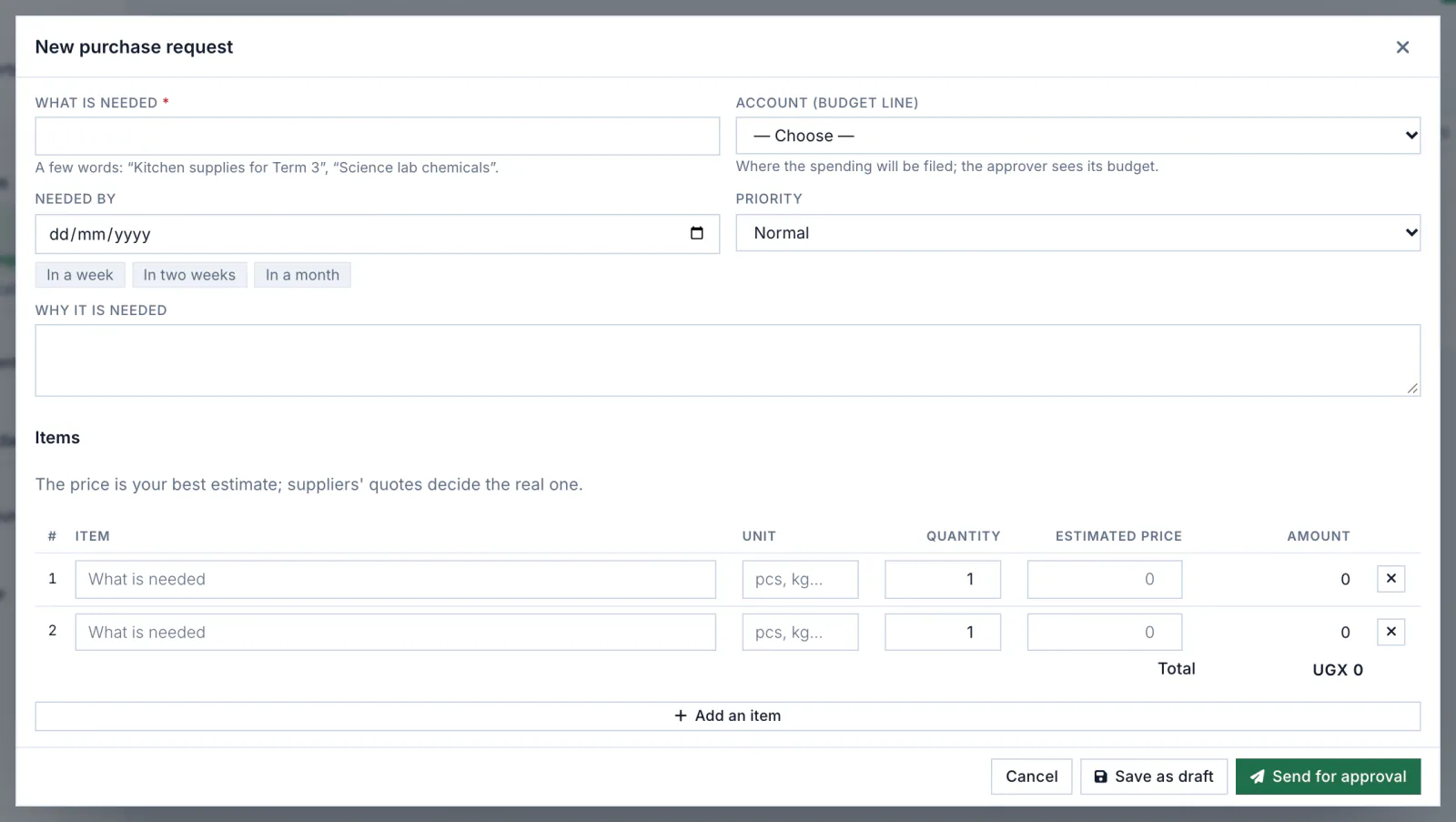
- Say in a few words what is needed.
- The budget item the spending will be filed under. The approver sees its budget.
- When it is needed, and below it the priority.
- The items: unit, quantity and your best estimate of the price.
- Send it to an approver. Save as draft keeps it for later.
- Press New purchase request.
- Under What is needed 1, type a few words: Kitchen supplies for Term 3.
- Choose the Account (budget item) 2 the spending belongs to.
- Choose Needed by 3 (or press In a week, In two weeks, In a month) and the Priority: Normal or Urgent.
- Under Why it is needed, say what it is for.
- List the items 4: what is needed, the unit (pcs, kg…), the quantity and the estimated price. Press Add an item for more items. If the store keeps the item, choose it in the list under it (Store: …): its name and unit fill in, and the goods go into Stores when they arrive.
- Press Send for approval 5, or Save as draft to finish later.
The request gets its number, for example REQ-2026-0014, and opens so you can check it. The price is only your best estimate; the suppliers' quotes decide the real one.
Following your request#
The list has chips: My requests, and for those who see procurement, Waiting for approval, Approved, to buy and All. Search by number or by what is needed. Click a request to open it.
| Status | Means |
|---|---|
| Draft | Saved, not sent. You can change it. |
| Waiting for approval | Sent; an approver decides. |
| Approved | Procurement can buy it. |
| Rejected | Sent back with a note. You can change it and send it again. |
| Ordered | A purchase order made from it has been approved. |
| Cancelled | Stopped, with the reason. Kept, never deleted. |
An open request shows the estimate, the status, who decided, the items, any purchase orders made from it, and its History. Print gives the purchase requisition as a PDF.
Approving or rejecting#
When requests wait, approvers land on Waiting for approval. Open one.
A box shows the budget item's money this term: the budget, what is spent, what is committed in orders (approved orders on that account not yet invoiced), what is left, and what would be left After this request. When that goes below nothing it turns red and says over budget. You may still approve it.
- Press Approve request to let procurement buy it.
- To reject, type the reason in Note first, then press Reject request. The note is required: the person needs to know what to correct.
The buttons do not show on a request you wrote yourself.
Changing or cancelling a request#
- Change request works on a draft or a rejected request, for the person who asked (and for procurement). A rejected request you change becomes a draft again: send it again when it is ready.
- Cancel request stops a request that is not yet ordered, for the person who asked and for procurement. Type the reason in Note first; it is required and kept.
What happens next#
An approved request waits for procurement under Approved, to buy, and appears as Approved requests waiting to be bought on the Quotations, Auctions and Purchase orders pages. On the request, procurement chooses one of three ways to buy:
- Ask suppliers for quotes: see Quotations.
- Put out to auction: see Auctions.
- Order directly: see Purchase orders.
When an order made from the request is approved, the request becomes Ordered. If that order is later cancelled, and no other order stands on it, the request goes back to Approved.