
A request for quotation asks several suppliers to price the same list before a closing time. Their quotes stay sealed until then. After closing, the page sets them side by side, and the one you award becomes a draft purchase order.
Open it from Fees & finance › Procurement › Quotations.
Before you start#
- The bursar, the finance officer, the purchaser and the school administrator ask for quotes and award them. The head teacher, the deputy and the store keeper can look.
- The suppliers must be on the Suppliers list and active. A suspended or blacklisted supplier cannot be invited.
- Suppliers with portal access quote themselves on the supplier portal. For the others, print the request and type in their paper quotes.
Ask suppliers to quote#
Start from an approved purchase request (its Ask suppliers for quotes button, or its number under Approved requests waiting to be bought): its title, purpose and items are copied in. Or press Ask for quotes to write one from nothing.
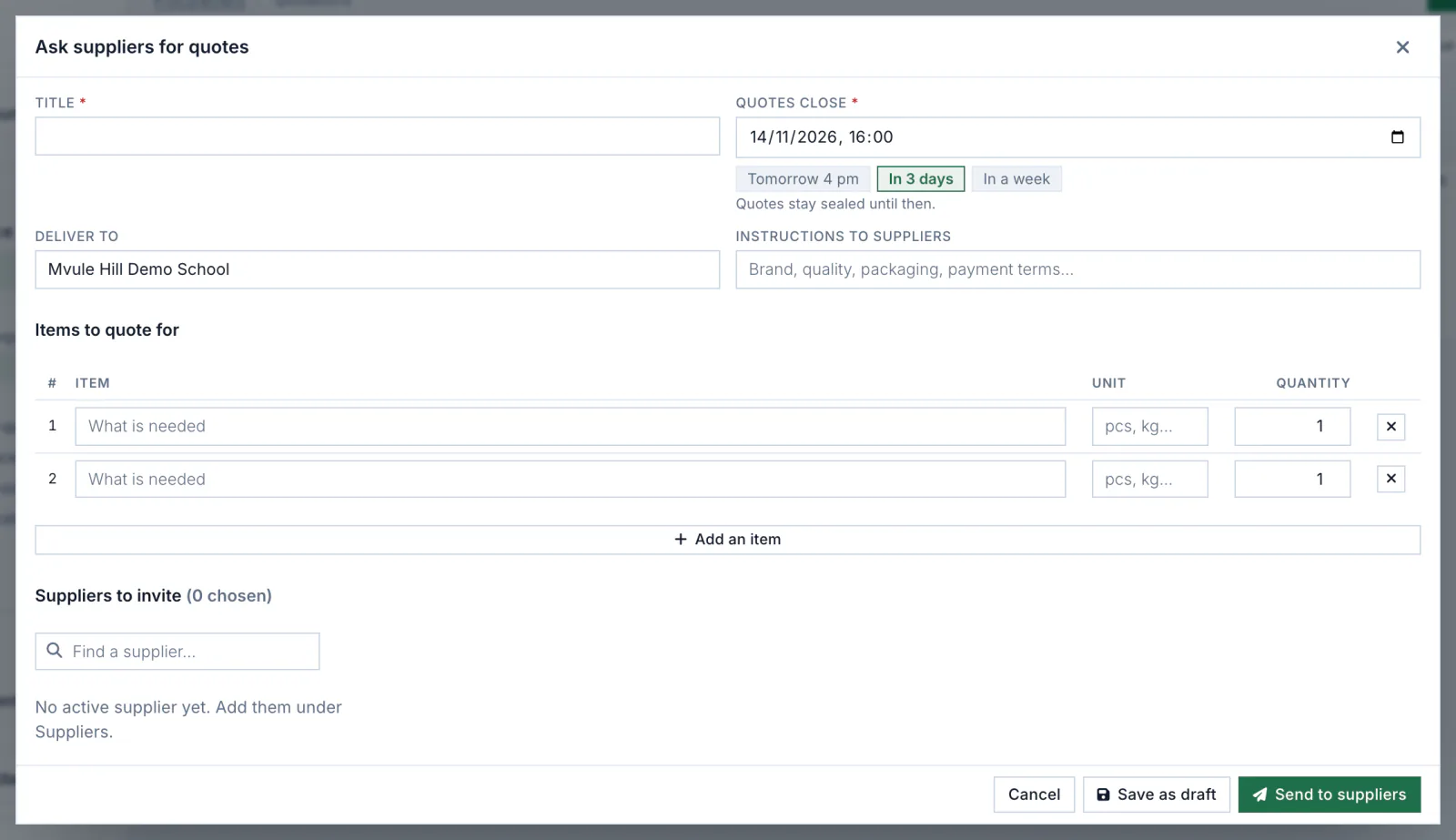
- When quotes close. They stay sealed until then.
- What suppliers must know: brand, quality, packaging, payment terms.
- The items and quantities, without prices.
- Tick the suppliers to invite.
- Open it to the invited suppliers.
- Check the Title.
- Set Quotes close 1: at least half an hour from now. Tomorrow 4 pm, In 3 days and In a week fill it for you.
- Check Deliver to (the school's name is filled in) and write the Instructions to suppliers 2.
- List the items to quote for 3: what, unit and quantity. No prices here.
- Tick the suppliers to invite 4. Find a supplier narrows the list.
- Press Send to suppliers 5, or Save as draft.
The request opens on its own page with its number (RFQ-2026-0003). Invited suppliers see it on their portal. Print RFQ gives a PDF for a supplier who does not use the portal.
While quotes come in#
Suppliers invited shows each supplier's answer: Quoted (with on paper when you typed it in), Declined with their reason, Looked, or Not yet. The items card says Sealed until … and how many quotes are in.
- Type in a paper quote records a quote that came on paper: choose the supplier, their quote number, the delivery days, the date it is valid until, and a unit price for each item (leave blank what they do not offer). Press Record the quote.
- Close and compare stops taking quotes now, before the closing time, and opens the sealed quotes.
Compare and award#
After the closing time, or after Close and compare, the card becomes Quotes compared: one column per supplier, with each item's unit price and amount, and the delivery days and validity under the supplier's name.
- The cheapest price for each item is highlighted.
- The total row says all items or some items missing. The cheapest quote that prices every item is marked cheapest, and its Award button is the main one.
To award:
- If you choose a quote that is not the cheapest complete one, type why in Note (why a quote is chosen, or why cancelled).
- Press Award under the chosen quote and confirm.
The other quotes become Not chosen, and a draft purchase order is made from the winning prices (only the items that supplier priced). The order opens: check it, then it goes for approval as usual. The suppliers are told on their portal: the winner that the order follows, the others that another quote was chosen.
Comparison sheet prints every quote side by side, with the reason for the choice.
Cancelling#
Type the reason in the Note box and press Cancel this request. Every invited supplier is told why. A request already awarded cannot be cancelled.
If nobody quoted, the page says No supplier quoted: cancel it, or write another and invite other suppliers.
Statuses#
| Status | Means |
|---|---|
| Draft | Saved, not sent. Press Send to suppliers on its page. |
| Open for quotes | Suppliers can quote until the closing time. |
| Closed | Closed early; quotes can be compared. |
| Awarded | A quote was chosen and its order drafted. |
| Cancelled | Stopped, with the reason. |