
A purchase order (LPO) is the school's written order to one supplier: the items, the prices, the delivery date and the budget account it is paid from. It is approved by a leader who did not write it, sent to the supplier, received at the store, invoiced and paid.
Open it from Fees & finance › Procurement › Purchase orders.
Before you start#
- The bursar, the finance officer, the purchaser and the school administrator write and send orders.
- The head teacher, the deputy and the school administrator approve them, never one they wrote.
- The supplier must be active (see Suppliers).
Three ways an order is made#
- From quotes. Awarding a quotation drafts the order at the winning prices. See Quotations.
- From an auction. Awarding the winning bid drafts the order at the bid's prices. See Auctions.
- Directly. Press Order directly on an approved purchase request (or its number under Approved requests waiting to be bought), or New order for an order of its own.
Write an order directly#
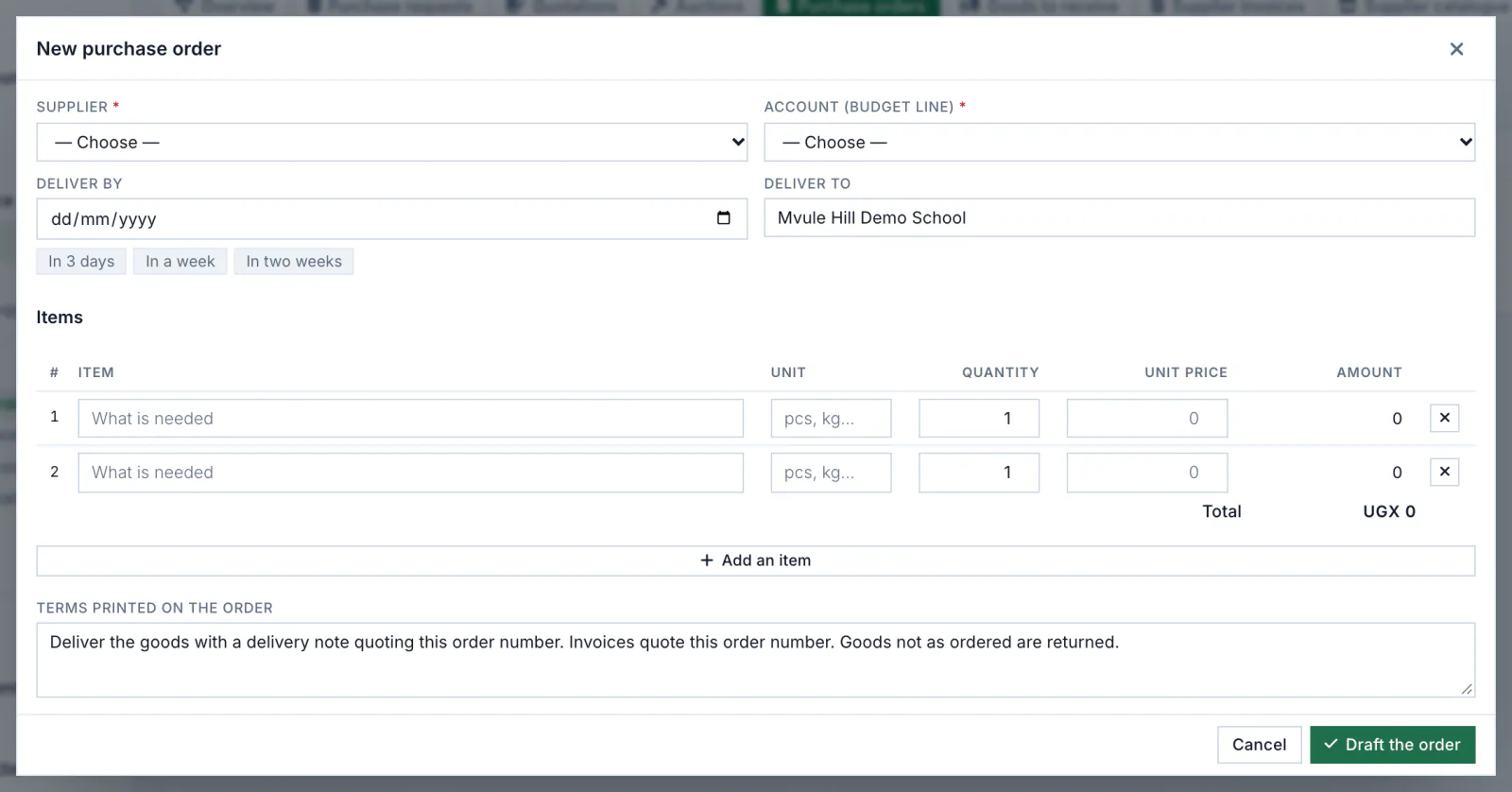
- The supplier. Only active suppliers are listed.
- The budget account the spending is filed under.
- When the goods must arrive.
- Items, quantities and the agreed unit prices.
- Save it as a draft, for approval.
- Press Draft an order (or Order directly on an approved request: its account, date and items are copied, with the estimated prices).
- Choose the Supplier 1.
- Choose the Account (budget item) 2. It is required.
- Set Deliver by 3 and check Deliver to.
- List the items 4 with the unit prices agreed with the supplier. Choose the store item under each row when the store keeps it.
- Check the Terms printed on the order. The usual terms are filled in: deliver with a delivery note quoting the order number, invoices quote the order number, goods not as ordered are returned.
- Press Draft the order 5.
The order gets its number (LPO-2026-0008) and opens. It is a Draft until approved.
Approve and send#
- The approver opens the order and presses Approve order, then confirms the amount.
- Procurement presses Send to supplier.
After approval the purchase request it came from becomes Ordered. Once sent, the supplier sees the order on their portal and is asked to accept it. Print LPO gives the order as a PDF, for a supplier who does not use the portal.
Reading an order#
The top shows four figures: Ordered, Received, Invoiced and Paid. Below them:
- Items: ordered, unit price, amount, received, and what is Still due. Store items are marked store item.
- Deliveries: each goods received note (with GRN to print it), and deliveries the supplier announced (On its way).
- Invoices: each invoice with its status. Supplier invoices opens the finance page.
- History: who did what, from the school and from the supplier.
If the supplier asked a question about the order, it shows at the top: From the supplier: and their words.
The list#
The list shows Waiting for approval, Approved, to send and With suppliers (with the value ordered). Filter by status and by supplier, or search by order number or supplier. A delivery date that has passed on an order still waiting for goods shows in red.
| Status | Means |
|---|---|
| Draft | Written, waiting for approval. Can be changed. |
| Approved | Approved; procurement sends it. |
| Sent to supplier | Waiting for the supplier to accept it. |
| Accepted by supplier | The supplier will deliver. |
| Partly received | Some goods counted in. |
| Received | Everything counted in. |
| Closed | Received, invoiced and paid in full. |
| Cancelled | Stopped, with the reason. |
Change or cancel#
- Change the order works only on a draft.
- To cancel, type the reason in Reason (to cancel the order) and press Cancel order. This works until goods have been received on it. A supplier who already had the order is told why, any delivery they announced is cancelled, and the purchase request goes back to Approved if no other order stands on it.
What happens next#
The store receives the goods on this order: see Receive goods. Then the supplier invoices it, and finance checks and pays: see Supplier invoices.