Start here · print edition of 23 November 2026 Back to the manual
School Dynamics
The School Dynamics manual · Chapter 1

Start here

Sign in, find your way round, and learn how School Dynamics is organised — for everyone, on the first day.

1chapter
8lessons
6screens
Nov 2026edition

Edition of 23 November 2026. The latest version, with search and questions answered by the team, is at app.schooldynamics.ug/help.
Screens show the demo school: every name and figure is invented. © 2026 Newline Technologies Limited, Kampala.

Contents

  1. 01Start here
    1. Welcome to School Dynamics
    2. Sign in and sign out
    3. Find your way round
    4. Your profile, password and devices
    5. Who can do what
    6. The School Dynamics phone app
    7. Get help
    8. Training videos
01

Start here

Sign in, find your way round, and learn how School Dynamics is organised — for everyone, on the first day.

Read this chapter first, whatever your job. It shows how to sign in, how the menu and the top bar work, how to find any student or receipt in a second, and who can do what. Everything after it builds on these few pages.

  1. Welcome to School Dynamics4 min
  2. Sign in and sign out5 min
  3. Find your way round6 min
  4. Your profile, password and devices6 min
  5. Who can do what4 min
  6. The School Dynamics phone app3 min
  7. Get help3 min
  8. Training videos1 min
Chapter 1 · Start here

Welcome to School Dynamics

What School Dynamics does, how this manual is organised, and how to use its pictures, steps and guides beside the page you are on.

For: Everyone · app.schooldynamics.ug/help/start-here/welcome

School Dynamics runs a school's daily work in one place: students and classes, roll-calls, marks and report cards, fees and receipts, the school's spending and buying, messages to parents, staff, and boarding and facilities. Staff use it in a web browser and in the School Dynamics phone app. Parents have their own page and the same app.

This manual teaches it one job at a time, in plain words, with pictures of the real pages.

How the manual is organised

The menu on the left of every page follows the way a school day runs. Each part of the menu has its chapters here:

Menu section Chapters
Teaching & learning Students, Attendance, Marks and report cards, Teaching
Fees & finance Fees, School finance, Procurement
School life Messages and notices, Boarding and facilities
Administration Setting up your school, Staff

Three chapters stand apart: Start here (this one, for everyone), Parents (for parents and the staff who help them) and Leaders and owners (the dashboard, alerts and groups of schools).

Where to start

Read this chapter first, whatever your job. Then go to the lessons for your work:

You are Start with
Head teacher or owner The dashboard, then Alerts
Director of studies The term at a glance
Bursar How fees work, then Recording a payment
Teacher Entering marks and Taking a roll-call
Secretary Admitting a student and Sending a message
Setting up a new school The first-week checklist
Parent What parents can do

Learning paths put the lessons for one job in the order you will need them: head teacher, director of studies, bursar, teacher, secretary, parent and school owner.

How a lesson works

Each lesson is one job, named the way you would say it: Record a payment, Make the report cards. At the top it says who it is for and how long it takes to read.

  • Before you start says what must be true first: who may do it, and what must be set up.
  • Numbered pictures. Numbered boxes on a picture point at the buttons and boxes the lesson talks about. The small numbers in the text match them: point at one, or tap it, and its box lights up. The button in a picture's corner shows it larger.
  • Steps are numbered, one action each. Steps you follow once, such as setting something up, have boxes you can tick as you go.
  • Boxes. Tip is a quicker way or a good habit. Careful is about money, deleting or sending texts: things that cannot be undone. Good to know says why it works that way.
  • School Dynamics words, such as term switch or quick view, are underlined. Point at one, or tap it, to see what it means. Every word is also in the glossary.
  • Common questions are answered at the end.

Reading the manual inside School Dynamics

Help & manual, at the foot of the menu, opens the manual for you:

  • Continue where you left off, and how many lessons you have learned;
  • Your path: the lessons for your job, in order. Another path shows the others;
  • Set for you by your school: lessons your school's leaders asked you to read;
  • every chapter, and the Glossary.

On any page, open Help in the top bar:

  • Guide for this page opens the lessons about the page you are on in a panel beside it, so you can follow the steps without leaving your work. Show me here walks you through the page itself.
  • The manual opens the manual's first page.

In a lesson:

  • Open this page opens the real page, if your role may use it.
  • Show me on the page opens the page and points at each part, one by one. Under a picture, Show me this on the page does the same for that picture.
  • Mark as learned keeps track of what you have read. Steps you tick stay ticked.
  • Was this lesson helpful? Press Yes or No: it tells the School Dynamics team which lessons to improve.
  • Ask the School Dynamics team: type a question under the lesson and press Send the question. The answer shows on the lesson.

For leaders

People who see the staff list (the school administrator, head teacher, deputy, director of studies and bursar) can also:

  • press Add your school's note to this lesson to pin a note of your own to it, such as At our school, the bursar approves every refund. Only your school sees it;
  • open Staff training from the manual's first page, set lessons for a member of staff or for everyone with a role, and see who has learned them.

In the demo school you can read and tick, but not ask questions or write notes.

On paper

Print this lesson, beside a lesson's contents, prints it with its pictures and their numbered marks. A chapter's page has Print the chapter. When the PDFs have been made, This chapter as a PDF and The whole manual (PDF) download them, to print or to share with a new member of staff.

Next

Go on to Sign in and sign out, then Find your way round.

Questions

Are the names and figures in the pictures real?

No. Every picture is taken from the demo school, which is filled with invented names and figures. Your school's pages look the same, with your own students and figures.

Do I have to read the whole manual?

No. Read this chapter first, then only the lessons for your job. Each lesson is one job, such as recording a payment, and stands on its own.

Can I print a lesson?

Yes. Press Print this lesson beside the lesson's contents. A whole chapter prints from Print the chapter, and the manual also comes as a PDF.
Chapter 1 · Start here

Sign in and sign out

Sign in with your username, email or phone, use two-step sign-in, get a new password when you forget it, choose your own the first time, and sign out.

For: Everyone · app.schooldynamics.ug/help/start-here/signing-in

Every member of staff signs in with their own details. What you see afterwards depends on your roles (see Who can do what).

Sign in

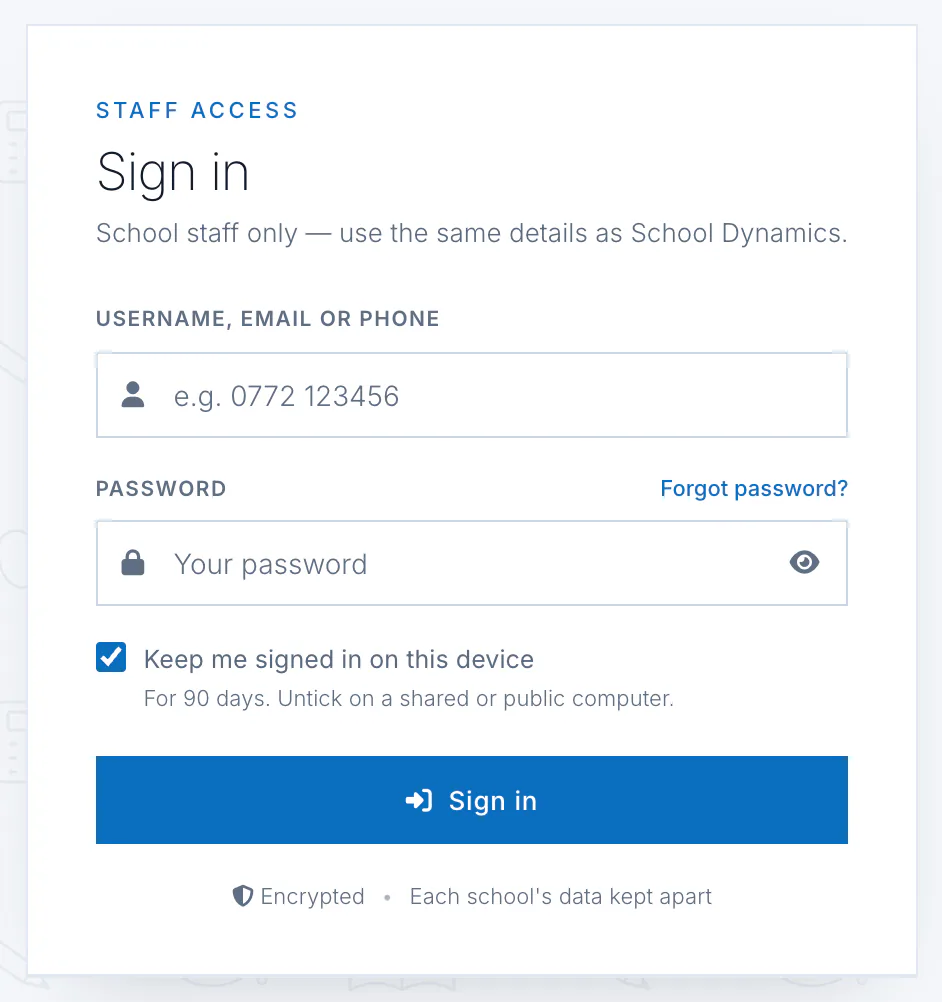
Screenshot: Sign in and sign out. The numbered marks are explained below the picture.
The demo school · invented names and figures
  1. Your username, email address or phone number.
  2. Your password. The eye button shows what you typed.
  3. Forgot it? Get a link to set a new one.
  4. Keep this ticked on your own computer. Untick it on a shared one.
  5. Sign in.
  1. Open School Dynamics in your browser: app.schooldynamics.ug, or your school's own web address.
  2. In Username, email or phone 1, type your username, your email address or your phone number. Any usual way of writing the number works (0772 123456, +256 772 123456).
  3. Type your Password 2. Press the eye to check what you typed.
  4. Leave Keep me signed in on this device 4 ticked on your own computer: it stays signed in for 90 days. Untick it on a shared or public computer.
  5. Press Sign in 5. The dashboard opens, or the page you were going to.

When it does not let you in

You see What to do
The username or the password is wrong. Check both and try again, or press Forgot password? The name or the password is wrong. Check both, or press Forgot password? 3.
Quick check — type the characters in the picture After two wrong tries the page asks for the characters in a small picture. Type them and try again.
Too many wrong tries. Wait … seconds, then try again. Five wrong tries in a row. Wait that long, then try again.
This account is switched off. Ask the school office to switch it back on. Your account was switched off. Only the school can switch it back on.

Under the form, Trouble signing in? opens WhatsApp to School Dynamics support.

The first time: choose your own password

If the school gave you the default password, School Dynamics lets you in only as far as My profile. It says Choose your own password to carry on.

  1. Type the default password in Current password.
  2. Type a password of your own, at least 4 characters, in New password and again in New password again.
  3. Press Change password. The rest of the system opens.

You cannot keep the default password: many people know it.

Two-step sign-in

If you use two-step sign-in, the page Enter your code opens after your password.

  1. Open your authenticator app and find School Dynamics.
  2. Type the six-digit code it shows in Code.
  3. On your own computer or phone, you may tick Don’t ask for a code on this device for … days. Never tick it on a shared one.
  4. Press Sign in.

Phone not with you? The links under the form give two other ways in:

  • Text me a code instead, then Text me a code: a code goes by text to the phone number on your record. It works for 10 minutes. Send another code asks again after a minute.
  • Use a recovery code: type one of the ten recovery codes you saved. Each works once.

After five wrong codes the page sends you back to sign in again. The code page also gives up after 10 minutes: Your sign-in timed out. Sign in again.

To turn two-step sign-in on, see Your profile, password and devices.

Asked to turn it on

The school's owner, the school administrator, the head teacher and the bursar must use two-step sign-in. Until they turn it on, a page Turn on two-step sign-in opens each time they sign in. Not now puts it off until the date the page shows. After that date it is the only way on.

Forgot your password

  1. On the sign-in page, press Forgot password?
  2. Type your username, email or phone in Username, email or phone, and the characters in the picture.
  3. Press Email me a reset link.
  4. Open the email and press its link. It works for one hour.
  5. On Set a new password, check your Email address, then type your new password in New password and again in Type the new password again.
  6. Press Save new password. The sign-in page opens and says Your new password is saved. Sign in with it.

The link goes only to the email address on your account. The page gives the same answer whether or not it found you, so it never tells anyone who has an account.

No email address on your account? Ask the school administrator. They choose Set a new password in your row's menu on the Staff page.

From the phone app

The School Dynamics app can open the web in your phone's browser already signed in, with no password to type. Its link works once, for two minutes. If you use two-step sign-in and this browser is not remembered for it, you still type a code.

A link that was already used, or is older than two minutes, shows This link has ended. Open the web from the app again, or press Staff sign in. See The School Dynamics phone app.

Sign out

Press Sign out at the foot of the menu, or open your name at the top right and press Sign out. The sign-in page says You have been signed out.

This signs out this browser only. To sign out your other computers and phones, use Sign out everywhere else on My profile.

If the licence has expired

When the school's licence is unpaid past its date, every page leads to one that says (your school)'s licence has expired. The school's records are safe; nothing is lost.

  • The people who handle the bill (the school administrator, bursar, finance officer, head teacher and deputy) see the invoice: the amount, the due date and how many days it is overdue. Depending on the school, they can press Pay UGX …, or How to pay and I have paid, and open Invoice PDF or Payment link.
  • Everyone else sees who to speak to at the school.

Once the bill is paid, the system opens again on its own. It may take a few minutes. See Licence and billing.

Questions

Is my password the same in the phone app?

Yes. You sign in to the School Dynamics app with the same details as on the web. A new password works in both at once.

Why was I signed out on my other computer?

Choosing a new password signs you out everywhere else: other browsers, the app on your phones and the devices remembered for two-step sign-in. Sign in there again with the new password.

I have a new phone and no codes. How do I get in?

Use one of your recovery codes (Use a recovery code on the code page). If you have none left, ask the school administrator to reset your two-step sign-in. Nobody can reset their own.

The sign-in page shows my school's name and logo. Is that right?

Yes. On your school's own web address, the sign-in page wears your school's name and colours. The details you type are the same.

Chapter 1 · Start here

Find your way round

The menu, the top bar, the term switch, search with Ctrl+K, quick views and row menus: how every page of School Dynamics works.

For: Everyone · app.schooldynamics.ug/help/start-here/finding-your-way

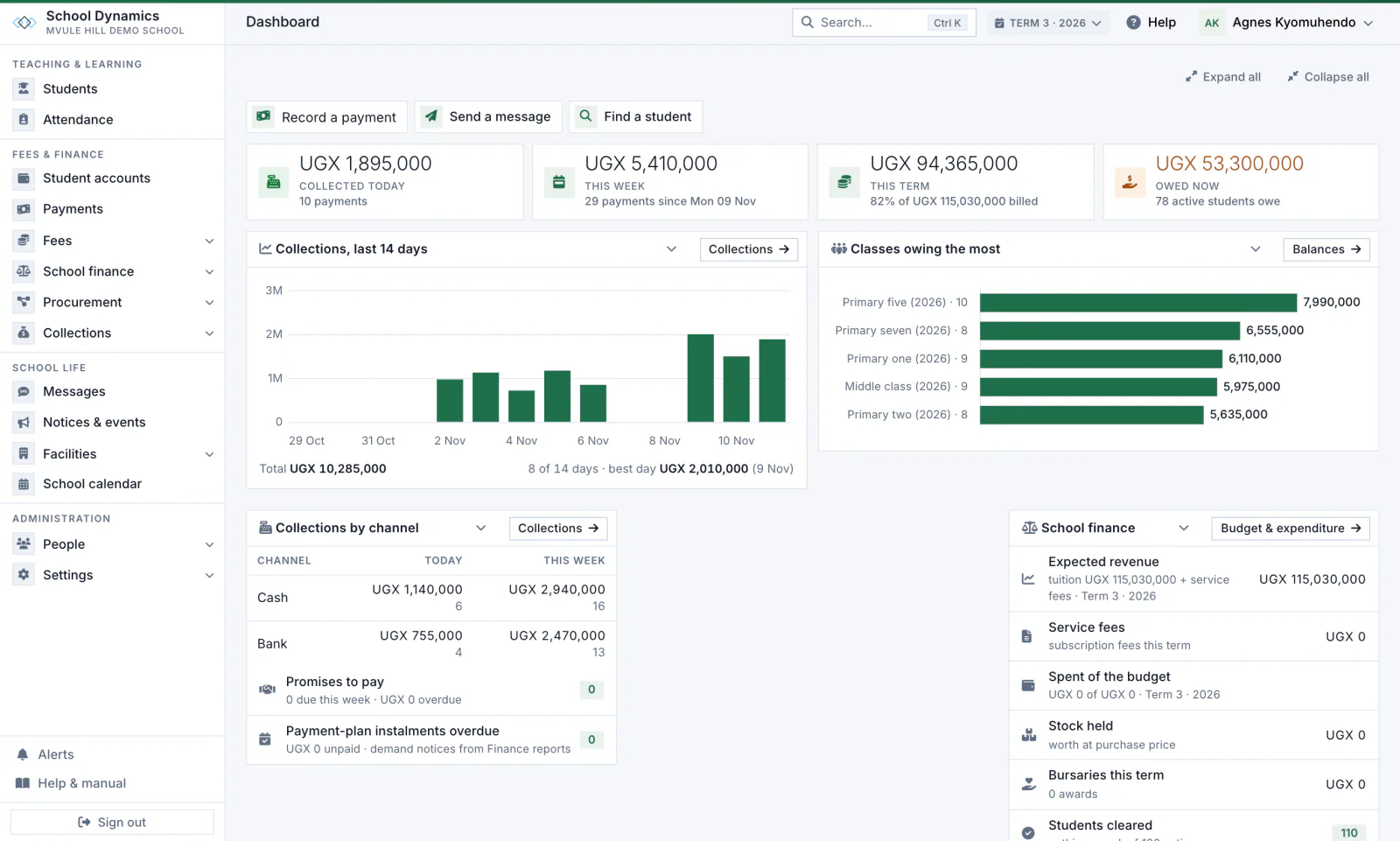
Every page of School Dynamics has the same frame: the menu on the left, the top bar above, and the page itself. Learn them once and every module works the same way.

Screenshot: Find your way round. The numbered marks are explained below the picture.
The demo school · invented names and figures
  1. The school's name and logo: they open the dashboard.
  2. The menu: only the pages your roles may use.
  3. Search and go (Ctrl+K).
  4. The term you are looking at.
  5. Help and support.
  6. Your account: My profile, light or dark, Sign out.
  7. Alerts, with how many are open, and Help & manual.

The menu

The menu 2 lists the pages you may use, in the order a school day runs:

  • Teaching & learning: students, attendance, marks and report cards, teaching.
  • Fees & finance: student accounts, payments, fees, school finance, procurement and collections.
  • School life: messages, notices and events, facilities, the school calendar.
  • Administration: the school's structure, people and settings.

A name with an arrow, such as Marks & reports, is a group: click it to open or close its pages. Only one group is open at a time.

The menu always shows where you are: the group of the page you are on is open and its page is lit, even on a page you reached by a tab at the top of another page (Report cards › Design lights Report cards), after you press the browser's back button, and after the page is refreshed.

You see only what your roles allow, and only what fits your school: Theology marks only in a school with theology classes, Competency reports only in secondary schools. See Who can do what.

  • The school's name and logo at the top 1 open the dashboard.
  • Alerts 7 at the foot shows how many alerts are open for you. See Alerts.
  • Help & manual, under it, opens this manual (see Welcome).
  • Sign out is at the very bottom.

On a phone, the menu is hidden. Press the button with three lines at the top left to open it.

The top bar

From left to right:

  • Where you are: the menu group, the menu page (press it to go back to that page's first tab), then the name of the page you are on, for example Marks & reports › Report cards › Design. On a phone only the page's name shows.
  • Search… 3: search and go (below).
  • The school switch, only for people who work in more than one school of a school group.
  • The term switch 4 (below).
  • The SMS wallet, for people who send messages: signal bars, like a phone's, and the credit left. Press it for the details. See How SMS works.
  • A licence notice, for the people who handle the bill, when an invoice is due.
  • Help 5: Guide for this page (the lessons about the page you are on), The manual, and WhatsApp, a call or an email to support. See Get help.
  • Your name 6: My profile, light or dark, compact or comfortable spacing, and Sign out. See Your profile.

Look at another term

Marks, report cards, fees and finance reports show one term at a time: the school's active term, unless you choose another with the term switch.

  1. Press the term in the top bar.
  2. Choose a term. The terms are listed by year; the school's active term says Active.
  3. The page now shows that term. The button says Viewing … and its icon changes, so you do not forget.
  4. To go back, open it again and press Back to the active term.

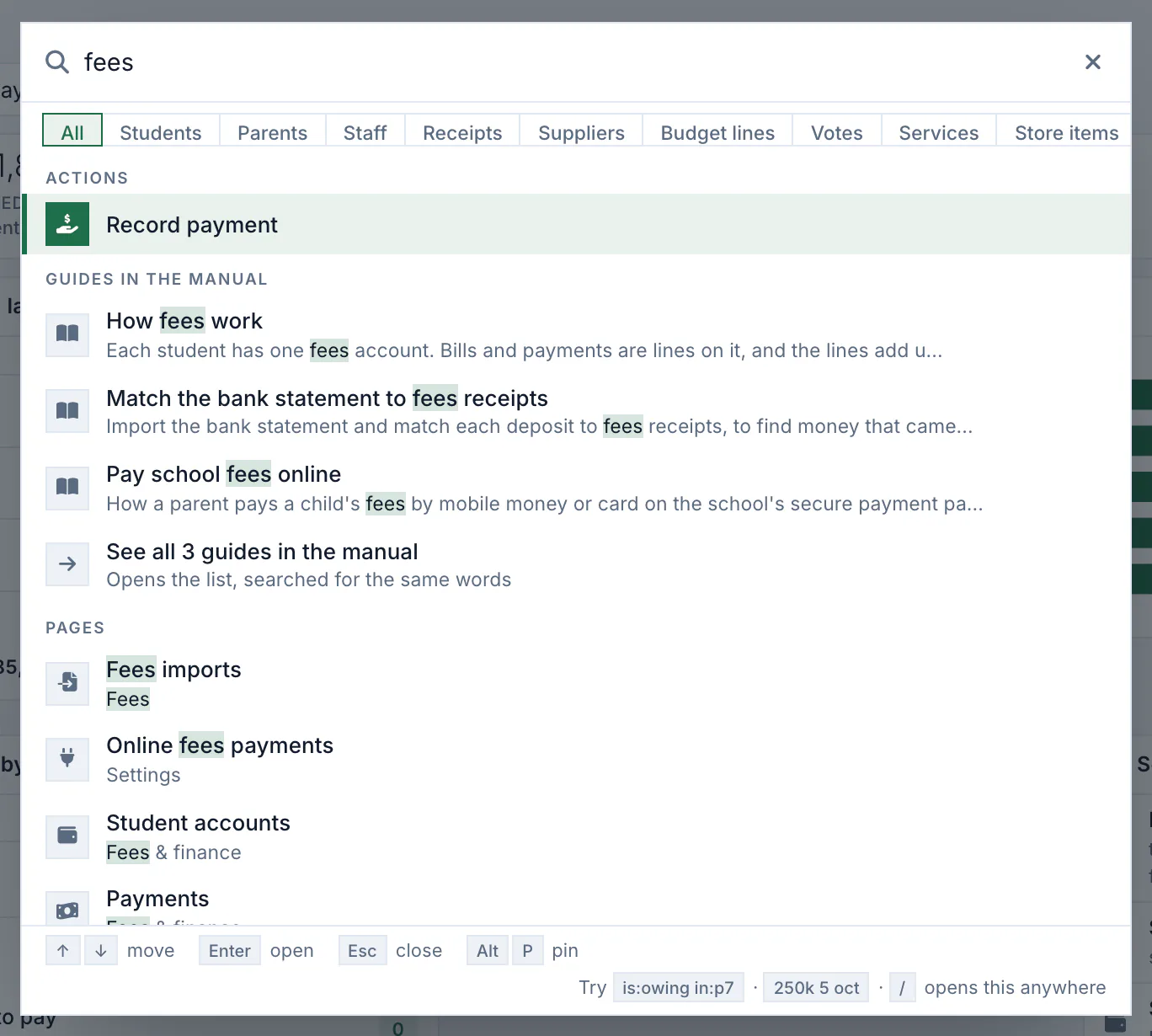
Search and go (Ctrl+K)

The quickest way to anything. Press Search… in the top bar, or Ctrl + K (Cmd + K on a Mac), or / on any page when you are not typing in a box.

Screenshot: Find your way round. The numbered marks are explained below the picture.
The demo school · invented names and figures
  1. Type a name, a class, a code, a phone number or a page.
  2. Look in one kind of record only.
  3. Actions: start a job straight away.
  4. Pages of your menu that match.
  5. The keys: arrows to move, Enter to open, Esc to close.

Type 1 and the results appear as you type:

  • Records: students, parents, staff, receipts and classes, and also suppliers, budget items, votes, services, store items, library books and subjects. You see only the kinds your role may see. Search by name (any spelling), class, admission number, SchoolPay code, phone number or receipt number.
  • Actions 3: Record payment, Record a promise to pay, Enter marks, Print report cards, Take attendance and Send a message, each only for the roles that may.
  • Pages 4: every page of your menu, also by everyday words (type debtors for student accounts, salaries for payroll).

A student shows what they owe (Owes UGX 250,000, Cleared). A name spelt another way is marked close match.

Move with the arrow keys and press Enter to open 5. Ctrl + Enter opens a page in a new tab. Esc closes the box.

Some results have buttons of their own: a student's Fees account and Record payment, a receipt's Print receipt, a class's Enter marks and Print report cards.

Search tricks

  • Look in one kind only. Press a chip 2 (Students, Receipts …), press Tab to move to the next kind (Shift + Tab to go back), or start with the kind: students: nakato, receipts: 4512. Each chip says how many were found of its kind; a kind with none shows 0 on a dashed edge. Looking in one kind shows up to 20 of it; if that kind has none, Look in everything instead searches all of them again.
  • The chips stay in sight. However many results there are, the chips and the search box stay at the top; each group's heading stays at the top of the list while you scroll its results.
  • Students who owe, in one class. is:owing in:p7. Other words after is: are cleared, credit, boarder, day, active and left.
  • A payment by amount and day. 250k 5 oct finds payments of UGX 250,000 on 5 October.
  • Pin a record you open often: the pin button on its result, or Alt + P. With nothing typed, the box shows your Pinned records, then Recent ones and Recent searches, then Actions.

Quick views and row menus

Lists do not send you away to another page. Click a record's name, or the eye button at the end of its row, and a quick view opens over the list: the record's main figures, its facts, its latest activity and its buttons. Close it with the ✕ or Esc and you are back where you were in the list.

The button with three dots at the end of a row is its row menu: the actions for that one record, such as Set a new password on a member of staff.

Adding and changing records happens in dialogs too. The main button of a dialog says what it does (Add stream, Send 2 messages). After it is done, the list updates in place and a short message says what happened. Anything that deletes asks you to confirm first. Anything that costs money or touches many records shows what will happen before you press its button.

While a page works

  • Loading… covers the screen while a page is on its way. If it takes long it says Still working — this is taking longer than usual. and offers Cancel.
  • Long jobs, such as printing a class's report cards, an import or a big send, show a box with a progress bar. It keeps going while you work on other pages, and ends with Download or a link to the result.
  • No connection? A bar says You're offline — changes can't be saved until the connection returns. Wait for it to go before saving.

Questions

A page I need is not in my menu. Why?

The menu shows only the pages your roles may use, and only those that fit your school. Ask the school administrator to change your roles. See Who can do what.

I chose last term in the top bar. Do new payments go to last term now?

No. The term switch changes only what you look at. Payments, marks and roll-calls you record still go to the school's active term.

How do I get back to the dashboard?

Click the school's name and logo at the top of the menu.

Does search find a student whose name I spell differently?

Usually, yes. Names spelt another way (Mohammed, Muhammad) or one or two letters off are shown with close match.

Chapter 1 · Start here

Your profile, password and devices

My profile: your details, a new password, two-step sign-in and recovery codes, where you are signed in, and light or dark.

For: Everyone · app.schooldynamics.ug/help/start-here/your-profile

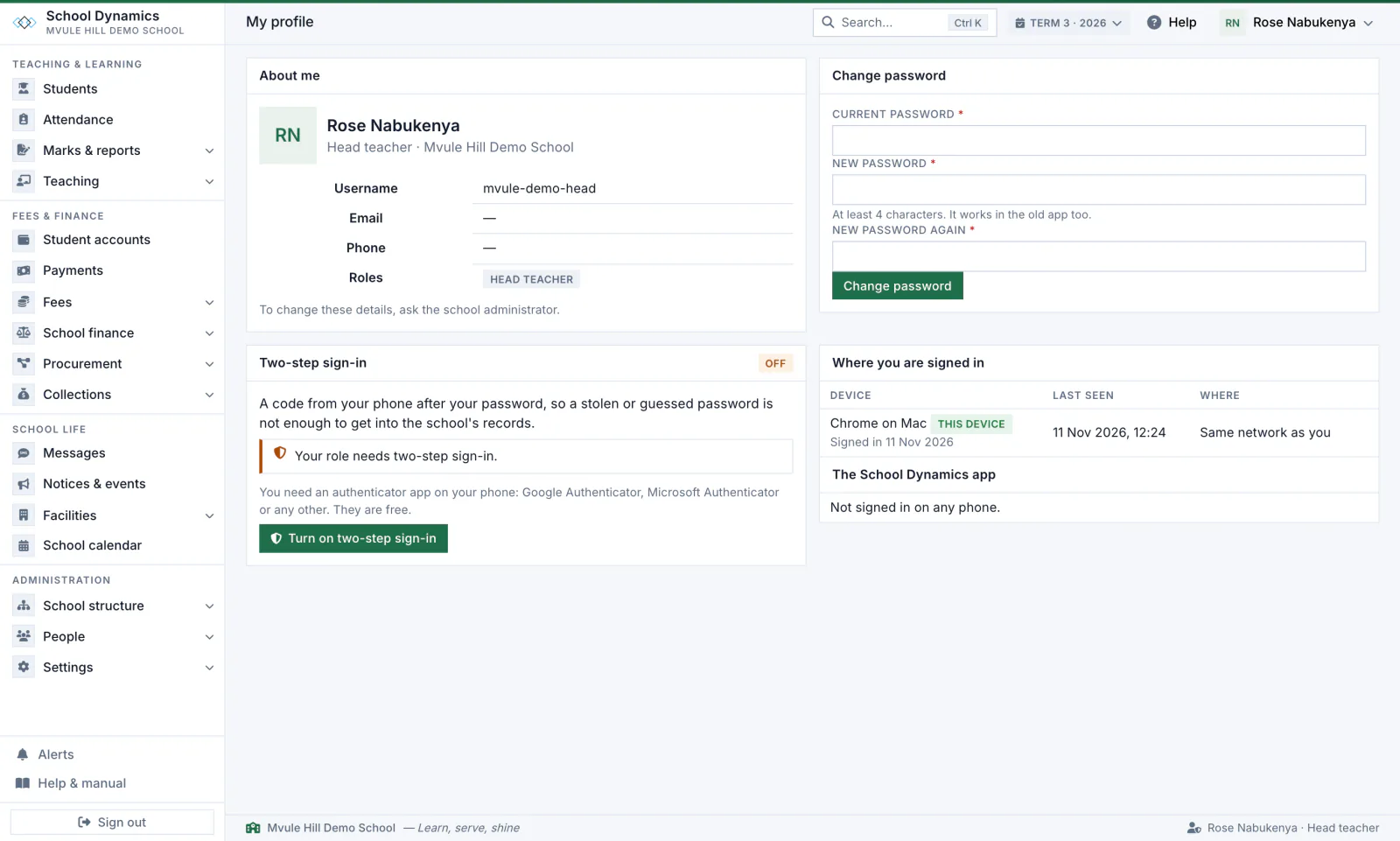
My profile is your own page: who you are in the school, your password, two-step sign-in and the devices you are signed in on. Open it from your name at the top right › My profile.

Screenshot: Your profile, password and devices. The numbered marks are explained below the picture.
The demo school · invented names and figures
  1. Your details. To change them, ask the school administrator.
  2. Your password now.
  3. Your new password: at least 4 characters.
  4. Saves it, and signs out your other devices.
  5. Two-step sign-in: on or off, and your recovery codes.
  6. Every browser and phone where you are signed in.

About me

The first card 1 shows your name, your role and school, your username, email, phone and roles. To change these details, ask the school office. They change them on the Staff page (see Staff and their accounts).

Change your password

  1. Type your password now in Current password 2.
  2. Type the new one in New password 3: at least 4 characters. It works in the old School Dynamics too.
  3. Type it again in New password again.
  4. Press Change password 4. A message says Password changed. Other devices are signed out.

You stay signed in here. Every other browser, the app on your phones and the devices remembered for two-step sign-in are signed out, and need the new password.

You see Why
That is not your current password. The first box is wrong.
Choose a password different from the current one. The new password is the old one.
That is the default password. Choose your own. The default password cannot be chosen again.
The two new passwords do not match. The second box differs from the first.
Too many tries. Wait a minute and try again. Five wrong current passwords in a row.

Turn on two-step sign-in

With two-step sign-in, your password alone does not open your account: you also type a six-digit code from your phone. You need an authenticator app on your phone, such as Google Authenticator or Microsoft Authenticator. They are free.

  1. In the Two-step sign-in card 5, press Turn on two-step sign-in.
  2. In your authenticator app, add an account and scan the square code on the screen. Cannot scan? Type the key shown under it instead.
  3. Type the six digits the app now shows in Code from the app.
  4. Press Turn it on.
  5. Your recovery codes opens with ten codes. Press Print, or write them down, and keep them somewhere safe. They are shown only now.
  6. Press I have saved them.

From now on, School Dynamics asks for a code after your password on any device not remembered for it. See Sign in and sign out.

Who must use it

The school's owner, the school administrator, the head teacher and the bursar must use two-step sign-in: their roles look after the school's money, staff or records. Their card says Your role needs two-step sign-in and the date to turn it on by. After that date, School Dynamics asks for it before anything else. Everyone else may turn it on.

Recovery codes and turning it off

When two-step sign-in is on, the card says how many of the 10 recovery codes are left.

  • New recovery codes: type a code from your app and press Make 10 new codes. The old ones stop working. Do this when few are left.
  • Turn off: type your password and press Turn off. This button is there only if your role does not need two-step sign-in.

Lost your phone?

Sign in with a recovery code. If the phone number on your record still works on another phone, Text me a code instead gets you in too. Then move two-step sign-in to your new phone:

  • If your role does not need it: press Turn off, then Turn on two-step sign-in again and scan the code with the new phone.
  • If your role needs it: ask the school administrator. They choose Reset two-step sign-in in your row's menu on the Staff page. You sign in with your password alone until you turn it on again with the new phone.

With no recovery code left and no phone, only the administrator's reset gets you in. Nobody can reset their own.

Sign in with Google

Connect your Google account once, and from then on choose it on the sign-in page instead of typing your password, here and in the School Dynamics app. Your password keeps working, and if two-step sign-in is on, it still asks for its code.

  1. Open your name at the top right. While Google sign-in is off, the menu shows Sign in with Google · Off: press it, or open My profile and find the Sign in with Google card.
  2. Press Continue with Google and choose your Google account.
  3. A message says Google sign-in is on. Next time, choose your email to sign in.

To stop it, press Turn off in the same card. If you joined with Google and never set a password, set one first, so you can still sign in without Google.

Asked after signing in

When you sign in with your password and Google sign-in is off, School Dynamics asks once: Next time, sign in with one tap. Google may also show its own small chooser at the top of the page. Pick your account there, or press Continue with Google, and you carry on to the page you were going to.

On the dashboard, the same question opens as a window once each time you sign in. Close it with ✕ and a slim line stays at the top of the dashboard, Sign in with one tap next time, with Connect Google; its ✕ hides it until you next sign in.

  • Not now: asked again after 7 days, then after 30, then after 90 each time.
  • Don't ask me again: never asked again. The menu and My profile still have the button.

Google tells School Dynamics only your name and email, so we know it is you. Nothing is posted to your Google account.

Where you are signed in

The last card 6 lists every browser where you are signed in: the device, when it was last used, and where (Same network as you, or another network). Your own says This device.

  • To sign out one of them, press the sign-out button at the end of its row and confirm.
  • Sign out everywhere else signs out every other browser and the School Dynamics app on your phones. They will need your password (and code) again. This browser stays signed in.

Below the browsers, The School Dynamics app lists the phones where you are signed in to the app. Sign out a phone you no longer have with the button at the end of its row.

Not asked for a code lists the devices you told not to ask for a two-step code. The ✕ at the end of a row makes that device ask again.

Light or dark, compact or comfortable

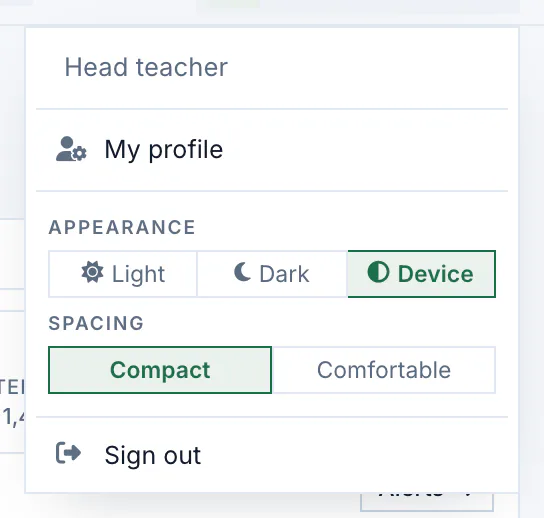
Screenshot: Your profile, password and devices. The numbered marks are explained below the picture.
The demo school · invented names and figures
  1. My profile.
  2. Light, dark, or as your device is set.
  3. Compact rows, or bigger ones for a tablet.
  4. Sign out of this browser.

Open your name at the top right:

  • Appearance 2: Light (what everyone starts with), Dark, or Device to follow your computer's or phone's own setting. Your choice follows you to any computer.
  • Spacing 3: Compact fits more on the screen; Comfortable gives bigger rows and buttons, easier on a tablet.

The change shows at once and is kept for you, so your other computers show it too.

Questions

How do I change my name, email or phone number?

Ask the school administrator. They change them on the Staff page. My profile shows your details but does not change them.

I lost my phone. What now?

Sign in with a recovery code (Use a recovery code on the code page), then on My profile sign the lost phone out of the app. If you have no recovery code left, the school administrator can reset your two-step sign-in.

Does my new password work in the old School Dynamics too?

Yes. The page says so under New password. It also works in the phone app.

Can I turn two-step sign-in off?

Only if your role does not need it. For the school's owner, the school administrator, the head teacher and the bursar it stays on.

Why am I asked to connect my Google account after signing in?

So that next time you can sign in with one tap instead of typing your password. It is your choice: Not now asks again after 7 days, then 30, then 90; Don't ask me again stops it. Your password keeps working either way.

I have no Gmail. Can I still use Google sign-in?

Any Google account that is yours works: Gmail, or your school's Google Workspace. Without one, keep signing in with your password.

Chapter 1 · Start here

Who can do what

The school roles, what each one may see and do, the school owner's place, and what to do when a page is not open to you.

For: Everyone · app.schooldynamics.ug/help/start-here/who-can-do-what

What you see in School Dynamics depends on your roles. The menu shows only the pages your roles open, and a page shows only the buttons your roles may press. A person may hold several roles; they can do everything any of them allows.

The school administrator gives roles on the Staff page (see Roles and permissions). Settings › Roles & access shows every role with what it allows and who holds it (see Roles & access).

Everyone on the staff

Every member of staff, whatever their role, can:

  • read Notices & events, the School calendar and the School profile;
  • ask for money (Fund requests) and for things the school must buy (Purchase requests, the Supplier catalogue);
  • ask for leave, see the Duty roster, clock in and out under Staff attendance, and see My payslips;
  • see the Alerts meant for them, and their own My profile.

The roles

Role What it opens, beyond what everyone has
School administrator Everything in the school: settings, staff and their roles, students, marks and report cards, fees and payments, messages, facilities and the school's data. The one thing kept back: deleting a payment, which only the bursar may do.
Head teacher The whole school's academic side: marks for any subject, report cards, results analysis, the exam timetable, reviewing schemes of work and lesson plans, staff monitoring. Messages and notices, the staff list, approving leave and purchases, approving payroll, the activity log, parents' requests for records, account deletions, and Check now on Alerts. Fees and finance: may look, not change. Also the sick bay, the visitors' book, fixed assets, and adding or correcting parents. Not admitting students, nor setting up classes and subjects.
Deputy head teacher As the head teacher, except payroll, account deletions and Check now on Alerts.
Director of studies Years, classes and subjects; admitting students; marks for any subject; report cards; results analysis; the exam timetable; reviewing schemes of work and lesson plans; staff monitoring; the duty roster; hostels; messages and notices; documents and ID cards; the staff list. The visitors' book. No fees.
Bursar Fees, payments and receipts (and deleting a payment), student accounts, school finance, buying and receiving goods, stores, transport, payroll (preparing and paying), the online-payments keys, requirements lists, the canteen and messages. Sees students and the staff list.; adding and correcting parents.
Finance officer Fees, payments, student accounts and school finance, buying, requirements lists and the canteen. Not deleting payments, payroll, stores, transport or messages.
Secretary Admitting and changing students and parents, documents and ID cards, messages and notices, the school calendar, visiting days, correcting staff attendance, parents' requests for records and parents' consent. Sees classes, timetables and report cards.
Teacher Marks for the subjects they teach, roll-calls, discipline records and sharing learning resources. Sees students, classes, timetables and report cards. The night roll-call in a dormitory where they are the matron or patron.
Librarian The library.
Store keeper Stores, receiving goods, requirements lists and the canteen.
Purchaser Buying, receiving goods, stores and requirements lists.
Nurse The sick bay. Sees students.
Warden Hostels, roll-calls and the night roll-call, and visiting days. Sees students.
Receptionist Visitors at the gate and visiting-day bookings. Sees students.
Security, Gate keeper Visitors at the gate and visiting-day bookings.
Driver Transport.
Supervisor, Administrative assistant, Marketing agent, Staff What every member of staff has.

The school's owner

The person who owns the school's account may do everything in the school, whatever roles they hold. They must use two-step sign-in. Owners of several schools can also see them side by side: see School groups.

Rules that hold whatever your role

  • A teacher enters marks only for the subjects they teach.
  • Nobody approves their own purchase request, or an order they wrote. Nobody decides their own leave, except the school's owner.
  • Salaries are private: each member of staff sees only their own payslips.
  • A parent never signs in to the staff pages: parents have their own page (see What parents can do).

When a page is not open to you

If you open a page your roles do not include, you see This page is not open to your account and Your role does not include it. If you need it for your work, ask an administrator to change your access.

A page you may open can still hold buttons you cannot press. For example, a teacher can see The term at a glance for report cards, but only the director of studies and the school's leaders can press its buttons.

Questions

Can one person have more than one role?

Yes. A person may hold several roles, for example teacher and director of studies. They can do everything any of their roles allows.

Who gives roles?

The school administrator, on the Staff page. See Roles and permissions.

Why can the head teacher see fees but not record a payment?

The head teacher and the deputy may look at fees and finance, not change them. Recording payments is for the bursar, the finance officer and the school administrator.

Can a teacher enter marks for any subject?

No. A teacher enters marks only for the subjects they teach. The head teacher, deputy, director of studies and school administrator may enter any subject.

Chapter 1 · Start here

The School Dynamics phone app

What staff can do in the School Dynamics app, how to get it and sign in, how to open the web from it, and how to sign out a lost phone.

For: Teacher, Head teacher, Director of studies, Bursar, Secretary · app.schooldynamics.ug/help/start-here/phone-app

The School Dynamics app puts the daily work of a school on your phone: roll-calls, marks, your day's lessons, students' details and, for the bursar, the school's money. It works with the same records as the web, by the same rules. What you do in one shows in the other.

Get the app

The app is free from Google Play (Android phones) and the App Store (iPhone). The Get the app page on the School Dynamics website has both store buttons, and a square code to scan from a computer with your phone's camera.

Sign in

Sign in with the same details as on the web: your phone number (or username or email) and your password. If you have no password yet, ask the school's office.

  • You see the same things as on the web: only what your roles allow (see Who can do what).
  • A new password chosen on the web works in the app at once, and signs the app out on your other phones.
  • If the app says you are using the default password, sign in on the web once and choose your own (see Sign in and sign out).

What staff can do in it

What you see depends on your roles, as on the web.

  • Teachers: take roll-calls, even where there is no network; enter marks for the subjects you teach; see your lessons and duties for the day and your timetable; schemes of work and assignments; write report-card comments as the class teacher.
  • Everyone on the staff: messages from the school; ask for leave and see what is left; clock in and out; your payslips; ask for money with a fund request.
  • Office and gate: visitors at the gate, visiting days, transport trips and the night roll-call, for the staff who handle them.
  • Leaders: the school's figures for today and the alerts; deciding leave requests; report cards by class.
  • The bursar and finance officer: the term's collections and who owes; a student's account; recording payments and promises to pay; spending, income, creditors, bursaries, payment plans and pocket money.
  • Searching: students, parents, staff, receipts and classes, as with search on the web.

Open the web from the app

Some work is easier on a big screen, such as printing a class's report cards or the committee reports. The app can open the web in your phone's browser already signed in, at the page you choose, with no password to type.

  • The link works once, for two minutes. After that the browser shows This link has ended: open it from the app again.
  • If you use two-step sign-in and that browser is not remembered for it, you still type a code.
  • The web's own rules still apply: you land only on pages your roles open.

Sign out a phone

In the app, sign out from the app itself. To sign out a phone you do not have with you, open My profile on the web: The School Dynamics app lists every phone where you are signed in, with the last time it was used. Press the sign-out button at the end of its row. See Your profile, password and devices.

Try the demo in the app

Before signing in, the app can also open the demo school, as a head teacher, director of studies, bursar, teacher or parent, with invented names and figures. In the demo you can look at everything, and practise marks and roll-calls. Money, messages and settings are switched off there, because everyone shares it.

For parents

Parents use the same app with their own sign-in, and see only their own children. See The parents' app.

Questions

Is the app free?

Yes. It is free from Google Play and the App Store, and comes with every school's package.

Do I need a separate account for the app?

No. You sign in with the same details as on the web, and you see the same records.

The app says I am using the default password. What do I do?

Sign in on the web once. School Dynamics opens My profile and asks you to choose your own password. Then sign in to the app with it.

My phone was stolen. Can someone open the school's records with it?

Sign that phone out at once: on the web, My profile › The School Dynamics app, the sign-out button on its row. Choosing a new password also signs out the app on every phone.

Chapter 1 · Start here

Get help

Where to find answers: this manual and the guide for each page, the Help menu (WhatsApp, a call, an email), the contact form, and what to send when something goes wrong.

For: Everyone · app.schooldynamics.ug/help/start-here/getting-help

Most answers are in this manual. When they are not, help is one press away on every page.

Look it up in this manual

  • Help & manual, at the foot of the menu, opens the manual. Search it for the job you want to do: record a payment, release report cards.
  • Each chapter follows a part of the menu (see Welcome). Each lesson ends with common questions.
  • Words you do not know, such as quick view, explain themselves when you point at them. They are all in the glossary.
  • Still stuck on a lesson? Ask the School Dynamics team at the bottom of the lesson. The answer shows on the lesson.

The Help menu

Press Help in the top bar, on any page.

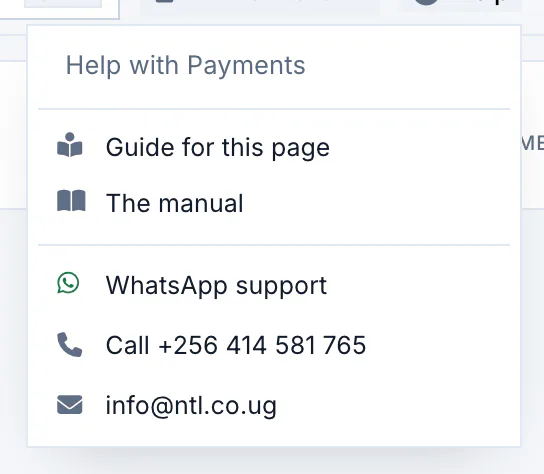
Screenshot: Get help. The numbered marks are explained below the picture.
The demo school · invented names and figures
  1. The page you are on, by its name in the menu.
  2. The lessons about this page, in a panel beside it.
  3. The whole manual.
  4. WhatsApp support, with your school, role and page already written.
  5. Call support.
  • At the top 1, the menu names the page you are on: Help with Payments.
  • Guide for this page 2 opens the lessons about this page in a panel beside it. Show me here in the panel walks you through the page.
  • The manual 3 opens the whole manual.
  • WhatsApp support 4 opens WhatsApp with a message already written: Hello School Dynamics, I am the Bursar at (your school) and I need help with Payments. Add your question and send it.
  • Call … 5 calls School Dynamics support. The email address under it opens a new email.

When you cannot sign in

  • Press Forgot password? on the sign-in page (see Sign in and sign out).
  • Under the sign-in form, Trouble signing in? opens WhatsApp to School Dynamics support. On a school's own web address it also says to ask the school office.
  • Your school administrator can set a new password for you and reset your two-step sign-in.

When something goes wrong

You see What it means, and what to do
The system hit a problem, with a Reference The problem was written down for the team. Try again in a moment. If it keeps happening, press Send to support on WhatsApp: the message carries the reference, so the team can find exactly what happened.
This page was open for too long The page was left open too long and its form stopped working, for your safety. Nothing was saved. Press Go back, reload the page and try again.
This page is not open to your account Your roles do not include this page. Ask your school administrator (see Who can do what).
You're offline — changes can't be saved until the connection returns. Your connection dropped. Wait for the bar to go, then save.

Write to the team

The Talk to us page on the School Dynamics website is a form for anything that can wait for an email answer.

  1. Type Your name and Email address.
  2. Choose What is it about?: starting with School Dynamics, prices and packages, help using School Dynamics, payments and invoices, something not working, or something else.
  3. Write Your message. If it is about your school's account, say which school.
  4. Type the characters in the picture and press Send message.

The page gives you a reference. A person from the team replies to your email address, usually within a working day.

What to tell support

A good message gets a quick answer. Say:

  • your school and your role;
  • the page (its name in the menu) and what you pressed;
  • what you expected, and what you saw instead (the exact words, or a screenshot);
  • the error's Reference, if there was one.

Questions

Does the WhatsApp message send my students' details?

No. The message names only your school, your role and the page you were on. Add your question, and never send a password or a code.

Who do I ask first, my school or School Dynamics?

Ask your school administrator about your roles, your password and your school's own set-up (terms, classes, fees). Ask School Dynamics about how the system works, errors, licences and invoices.

How fast does School Dynamics reply?

A message from the contact form is answered by a person from the team, usually within a working day, by email.

Chapter 1 · Start here

Training videos

Short videos of each part of School Dynamics, by section, on the web (Training videos) and in the phone app (Learn), with full screen, and carrying on where you stopped.

For: Everyone · app.schooldynamics.ug/help/start-here/training-videos

The Training videos page shows School Dynamics working, one short video for each job, in the order most schools learn it. Open it from Training videos at the foot of the menu, beside Help & manual. In the phone app it is the Learn tab at the bottom.

Watch a video

  1. Open Training videos. The videos come in sections, such as Getting started.
  2. Press a video. It plays at the top of the page.
  3. For full screen, press Full screen under the video, or the square in the player's corner. On a phone, turn it sideways.
  4. Press Next for the next video in the section, or pick one from the list beside the video.

The bar at the top of the page shows how many videos you have watched. A video you watched to the end says Watched. A video you stopped part of the way through shows a red bar, and opens again where you stopped.

Find a video

Type a word in Find a video, such as fees or report cards, or press a section's name to see only that section. Carry on watching lists the videos you started but did not finish.

When you are stuck

Every video page has Help on WhatsApp. It opens WhatsApp with a message that names the video you were watching, so you can ask your question straight away.

Questions

Does the school pay for the data the videos use?

No. The videos play from YouTube on your own phone or computer's internet, like any YouTube video. On a slow network, press the player's gear and choose a lower quality.

Who sees which videos?

Staff see the staff videos and those for everyone. Parents see the parents' videos and those for everyone, on their own page and in the app.

Can I ask for a video about something?

Yes. Press Help on WhatsApp on the Training videos page and tell us what you would like to see.


School Dynamics
Questions? Ask under any lesson in the app, or write to the team.
app.schooldynamics.ug/help