School Dynamics
The term at a glance
One page for a term's report cards, start to finish. It shows seven steps, how far each one is, and the one thing to do next.
A term's report cards go through the same seven steps every term: set the term up, give every student a row for marks, let teachers enter them, make the cards, add comments, release them to parents, and print. The term at a glance puts all seven on one page. Each step says how far it is and has its one button. A line at the top says what to do next.
Open it from Marks & reports › Report cards. It is the first tab, This term.
Before you start
- The page works on the term chosen in the top bar, which is the school's active term unless you chose another. If the page says This school has no active term, set one under Academic years.
- The director of studies, head teacher, deputy and school administrator can use the buttons. Teachers can see the page, but cannot change anything on it; a class teacher can print their own class's cards from step 7.
Reading the page
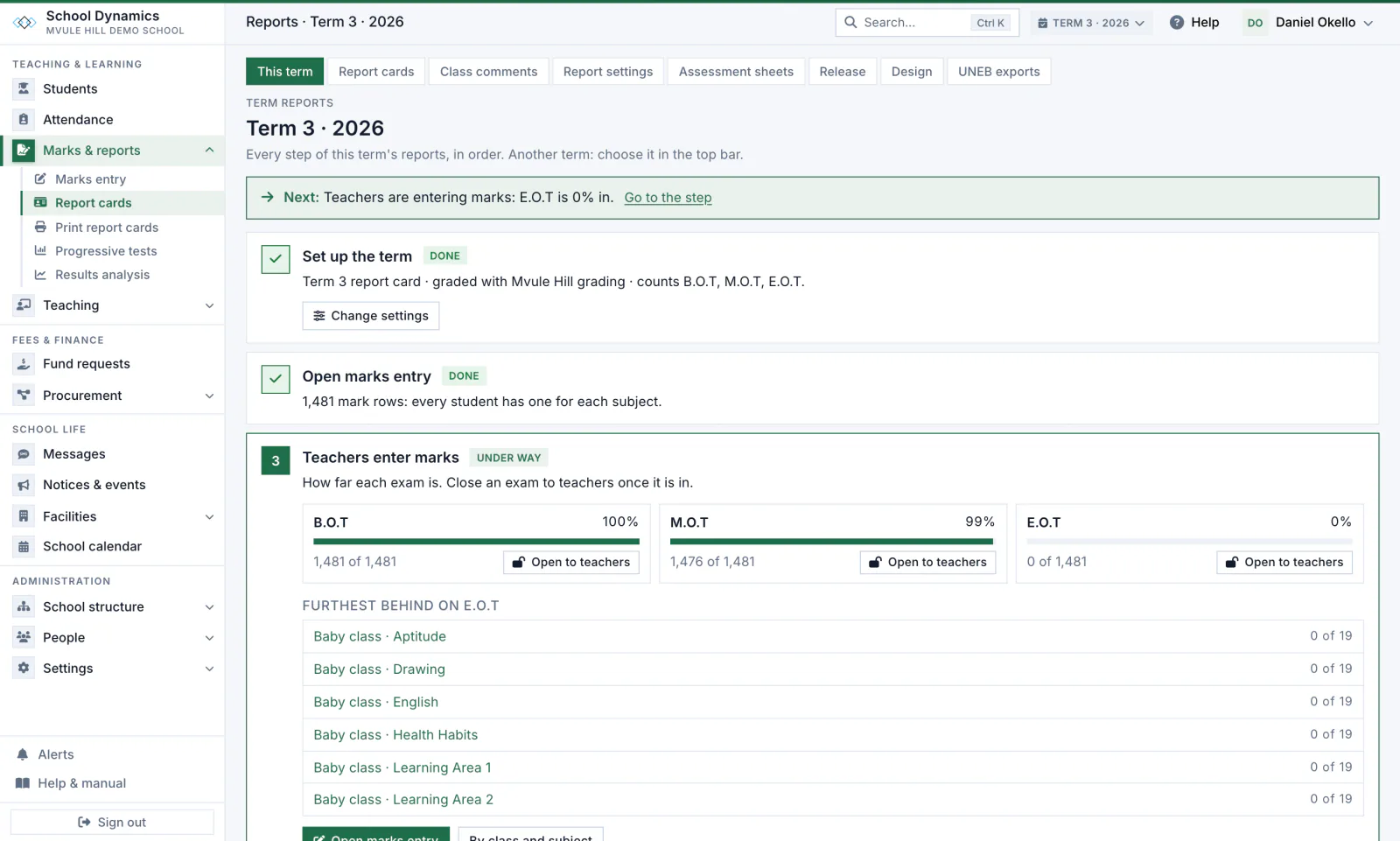
- The term you are working on. To work on another term, choose it in the top bar.
- Next: the one thing to do now, with a link to its step.
- Each step's state: Done, Under way, To do or Needs attention.
- A step that is done says what it did.
The term's name is at the top 1. The page always shows the term chosen in the top bar. Choose another term there to look back at an old one.
The Next: line 2 is the one thing to do now. Its link scrolls down to that step. While a long job runs (making cards for every class), the line becomes a progress bar instead, and you can leave the page: the job carries on.
Each step carries its state 3:
| State | Means |
|---|---|
| Done | Nothing left to do here. |
| Under way | Started: teachers are still entering marks. |
| To do | Ready for you now. |
| Needs attention | Something changed after the step was done (new students, or marks changed after the cards were made). Do it again. |
| After the steps above | Waiting for an earlier step. |
A step that is done tells you what it did 4, for example Marks entry is ready: every student is listed in each of their subjects (1,214 in all).
The seven steps
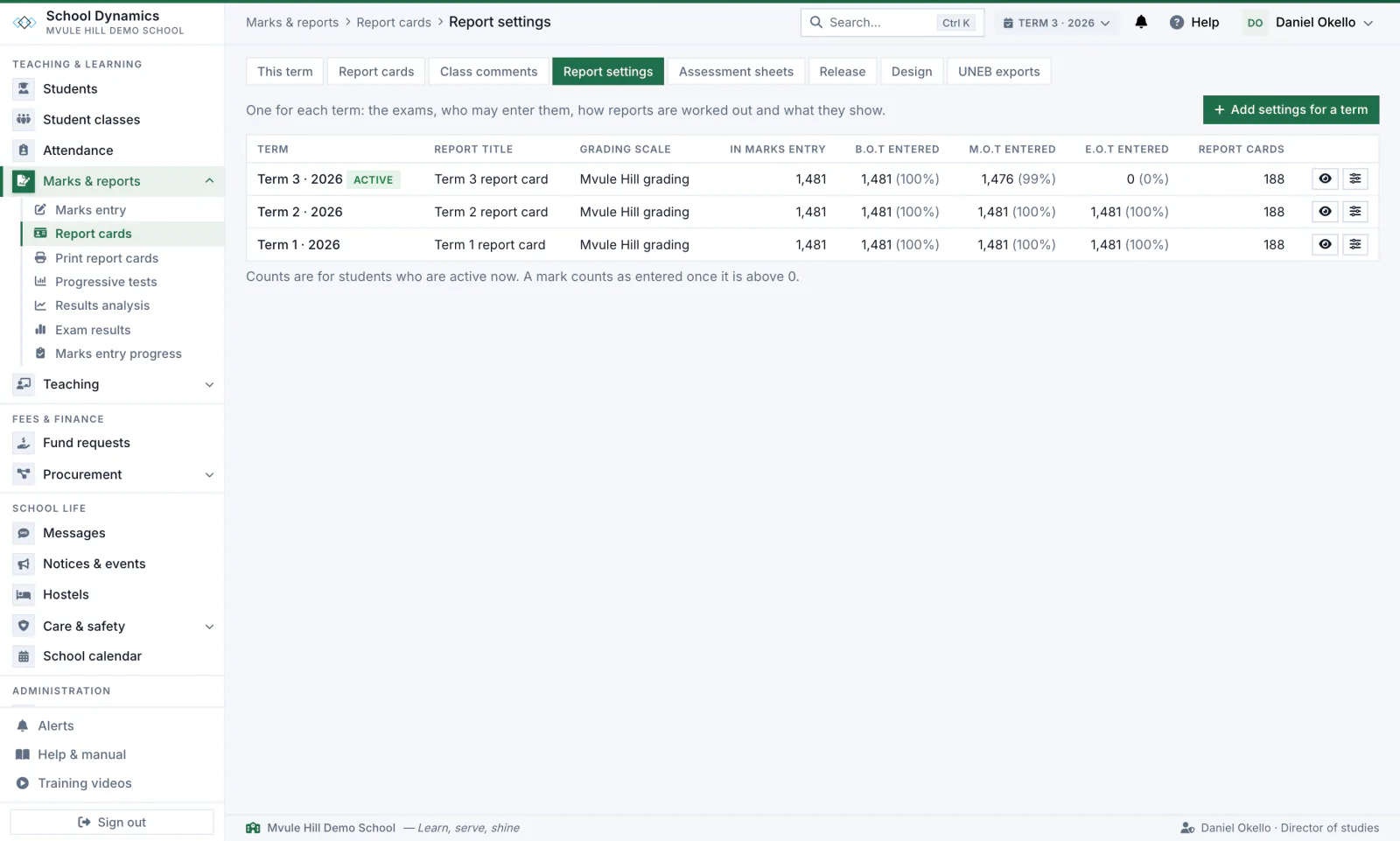
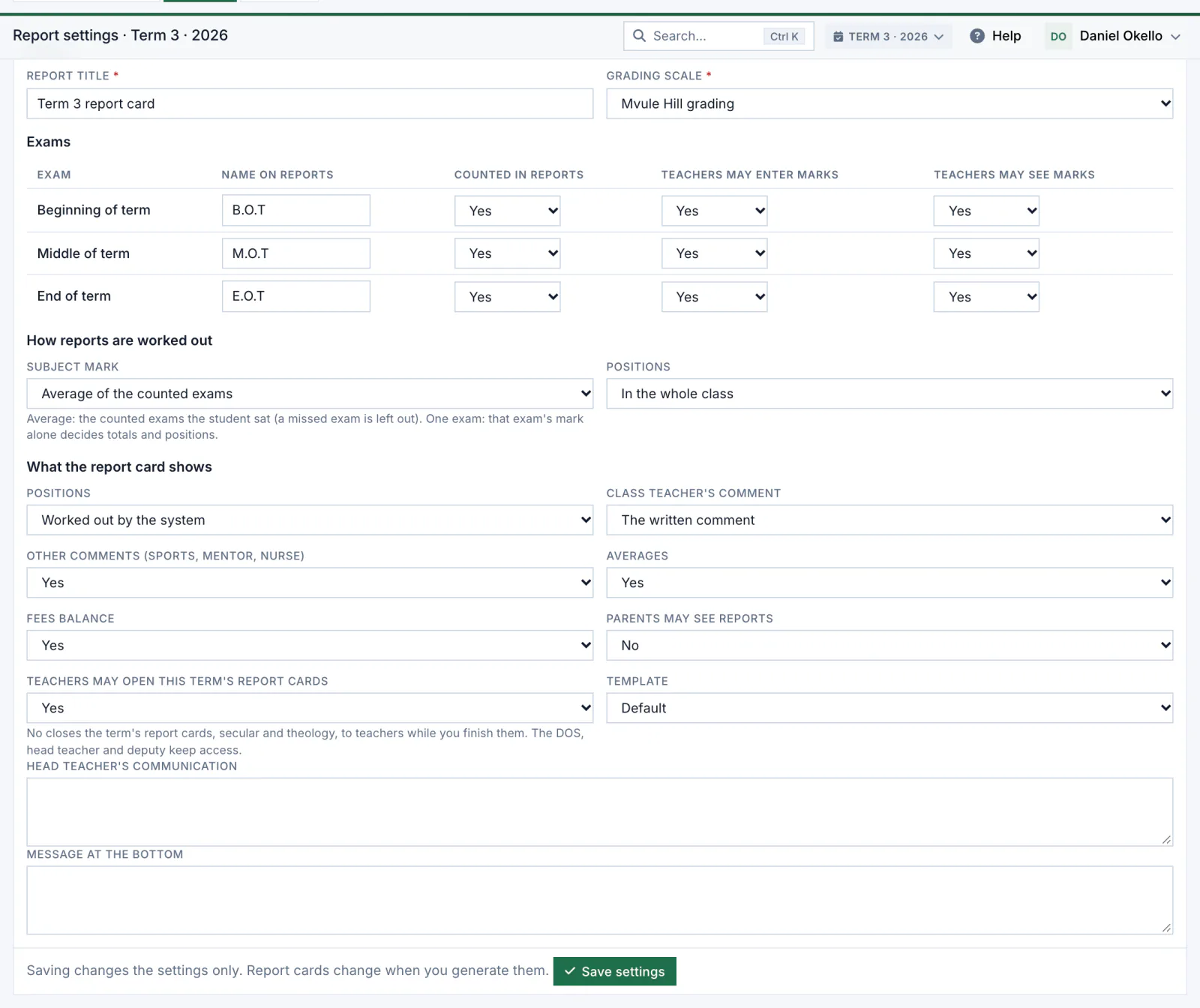
- Set up the term. Type the report title (End of Term 2 report) and choose the grading scale, then press Set up (the button names the term, for example Set up Term 2 · 2026). Everything else is copied from last term: which exams count, who may enter them, how positions are worked out and what the cards show. The head teacher's message and the note at the bottom are not copied, because they belong to one term. Write them under Change settings.
- Open marks entry. Press Prepare marks entry. Every active student is listed in each of their subjects (each one a student subject), so teachers can type marks. If students or subjects are added later, the step says Needs attention and offers Add the missing ones. Marks already entered are never touched.
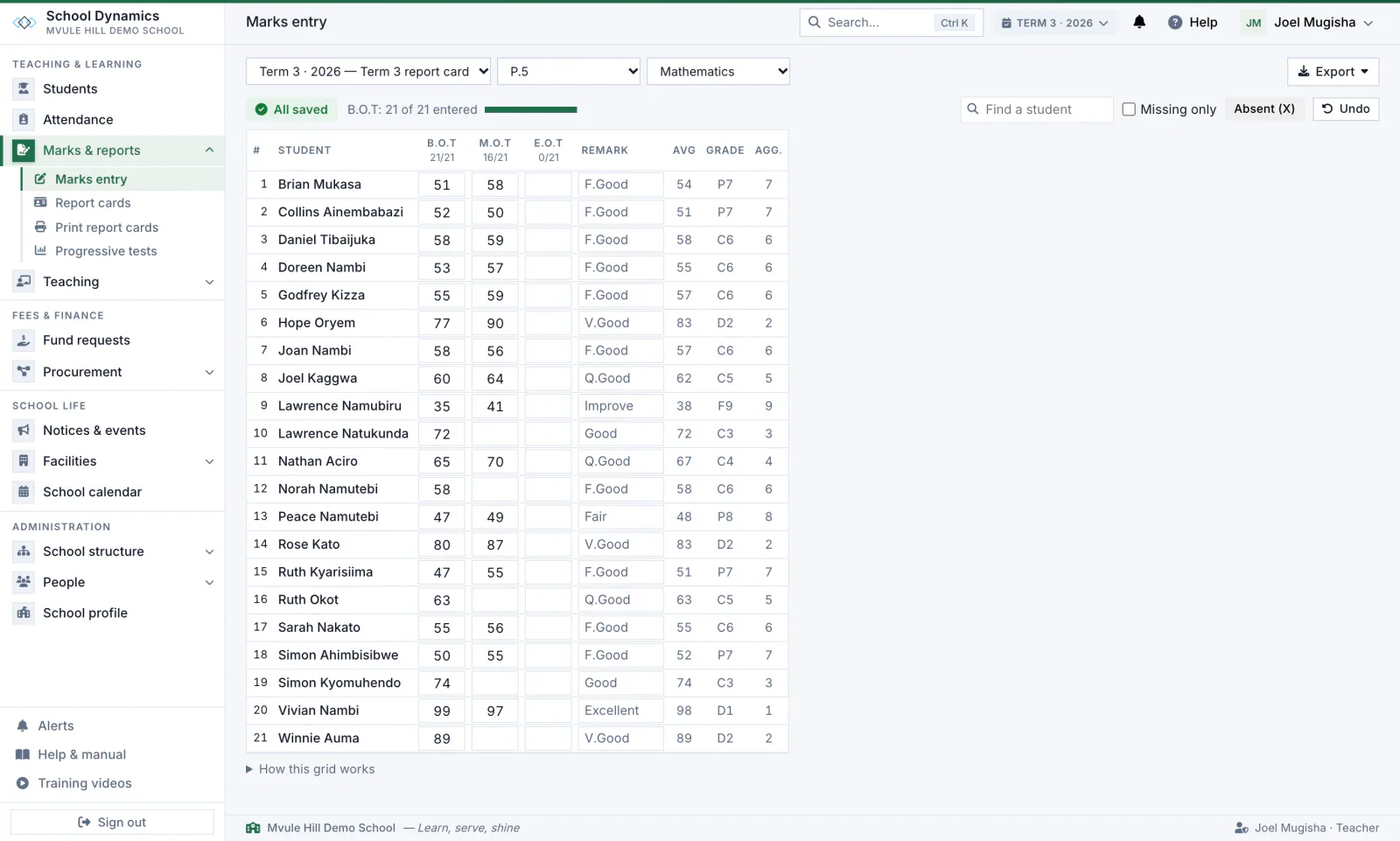
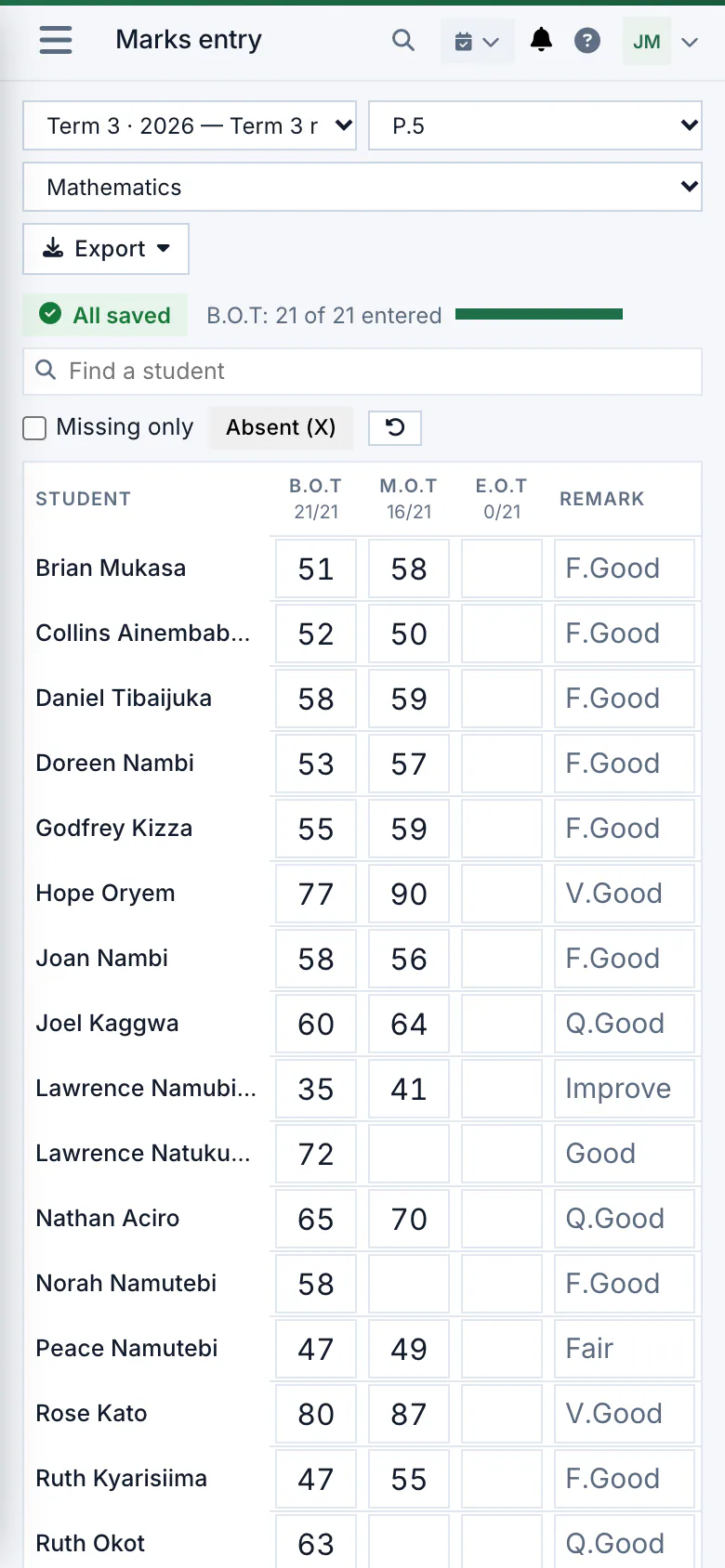
- Teachers enter marks. Teachers enter marks under Marks entry. Follow their progress here (see below). When an exam is complete, close it to teachers so no one changes it by mistake.
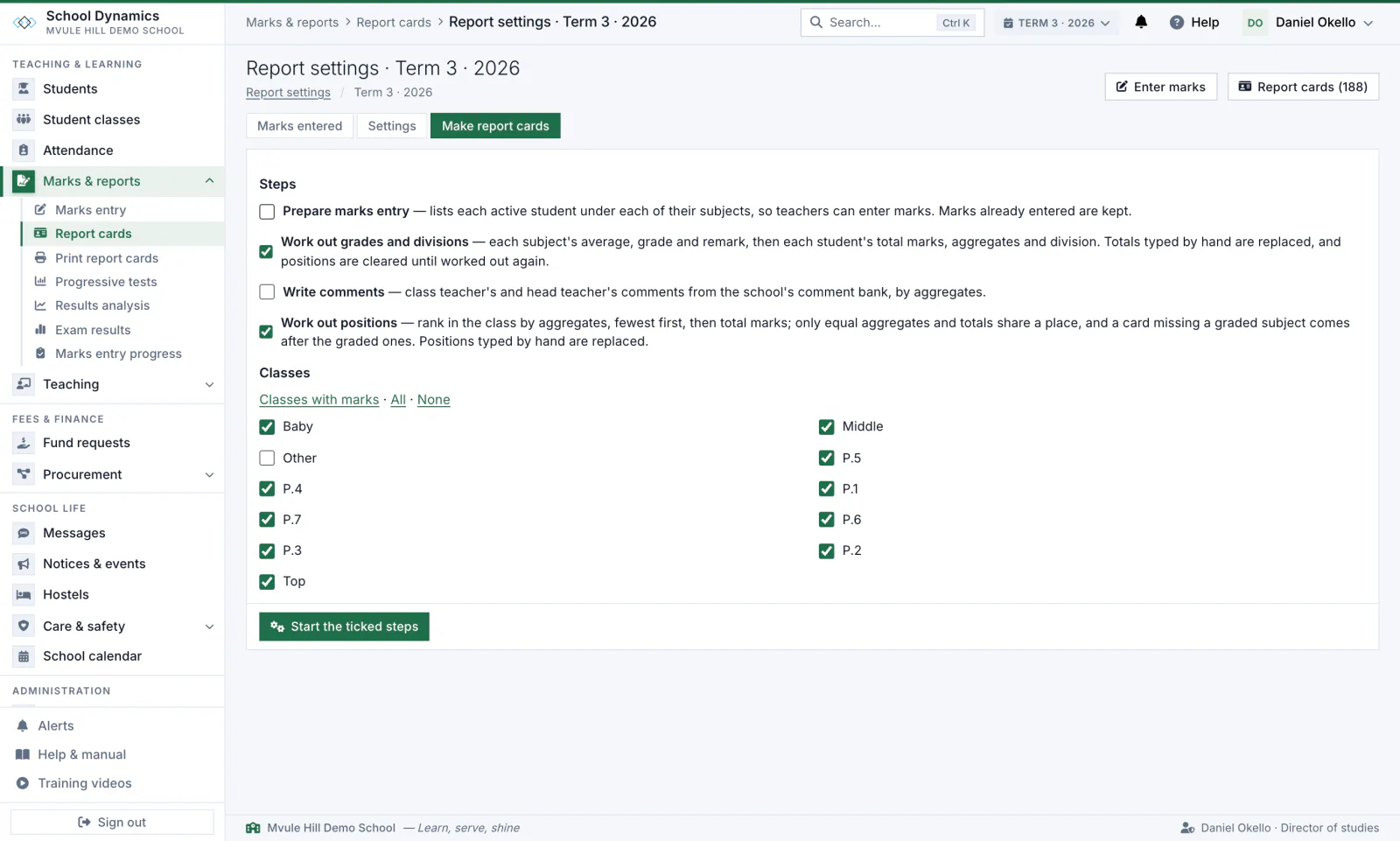
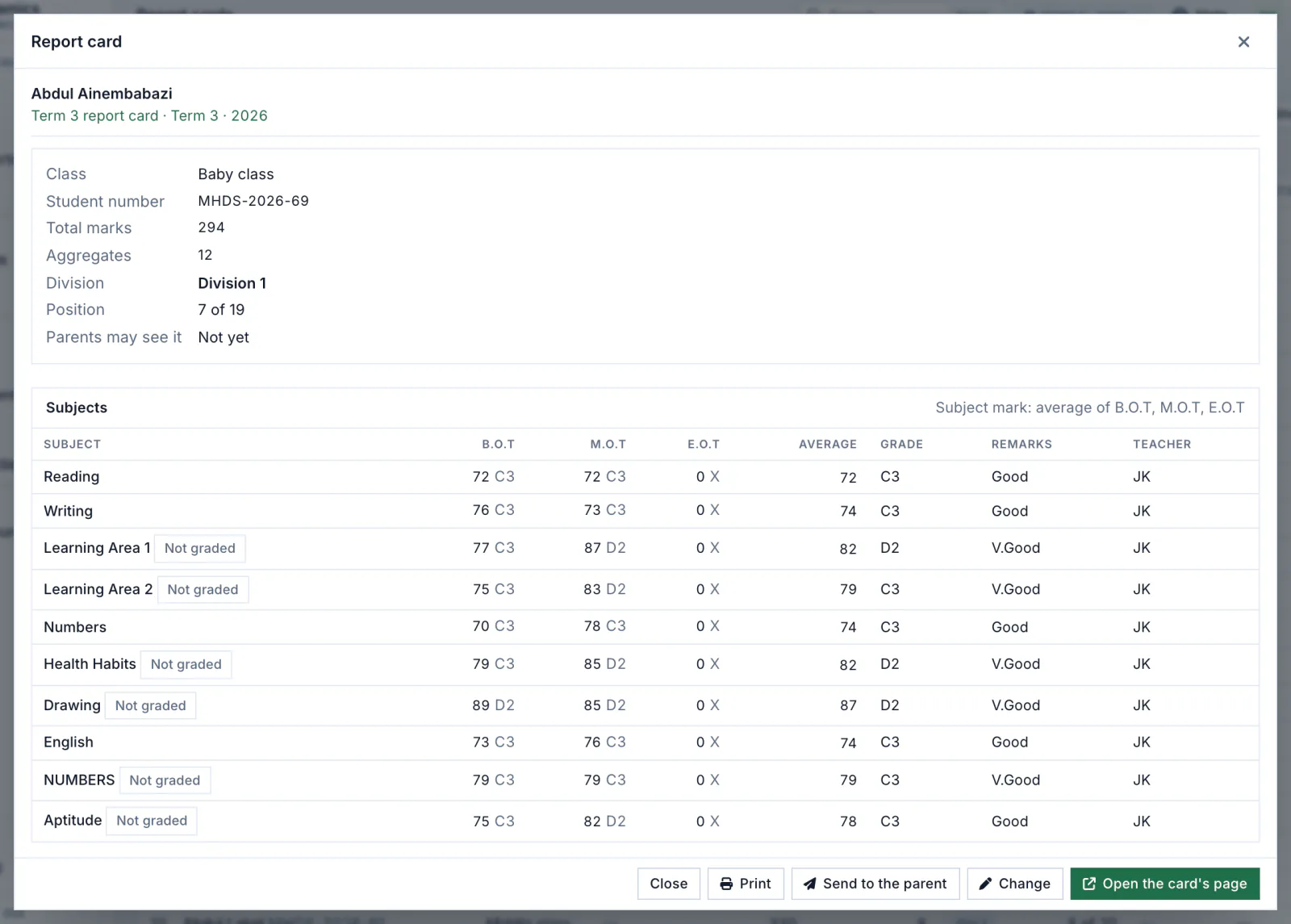
- Make the report cards. Press Make the report cards. This works out every subject's grade, then each student's totals, aggregates, division and position. Tick Also write comments from the comment bank to fill empty comments at the same time. If marks change afterwards, the step says Needs attention: press Make them again.
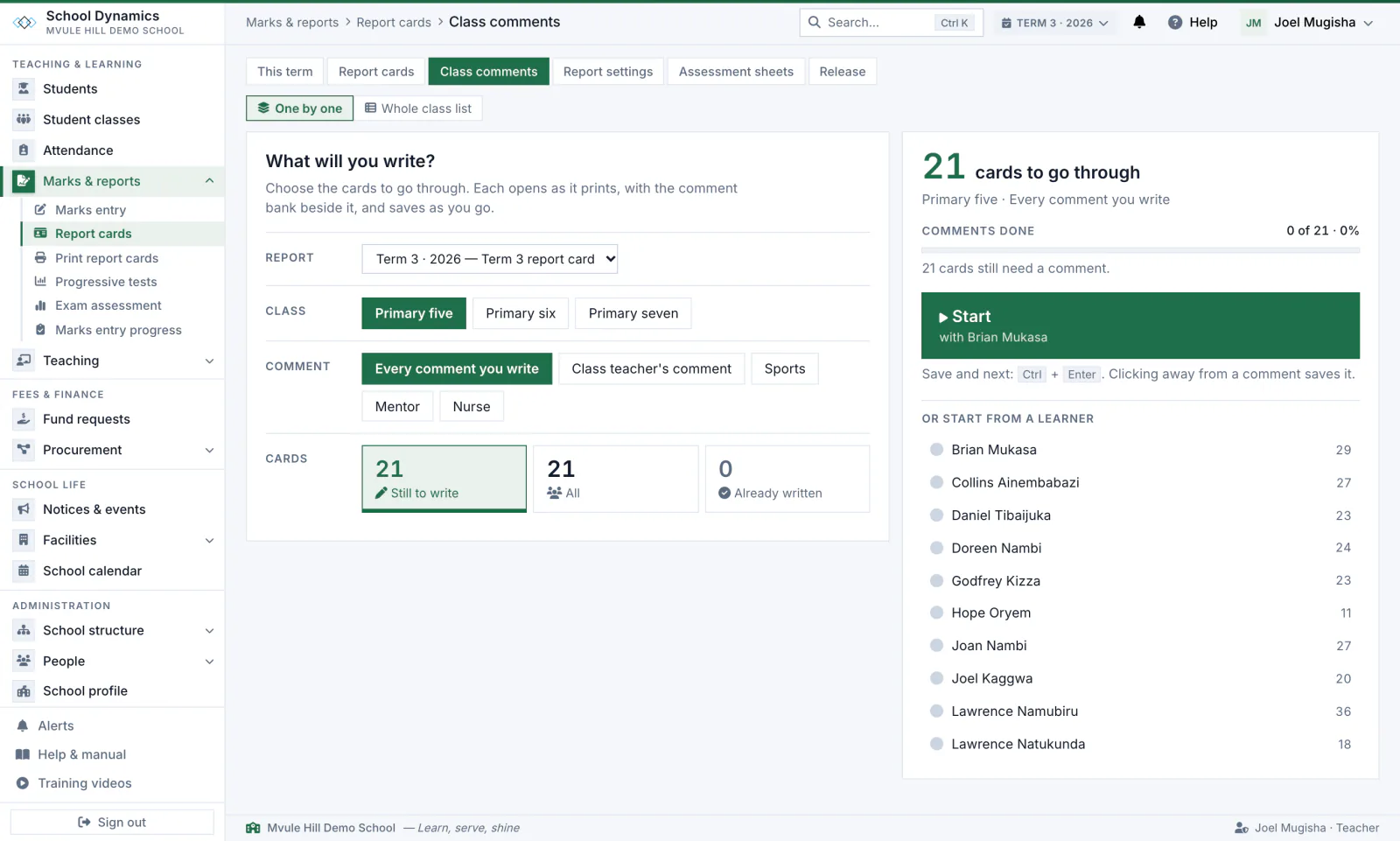
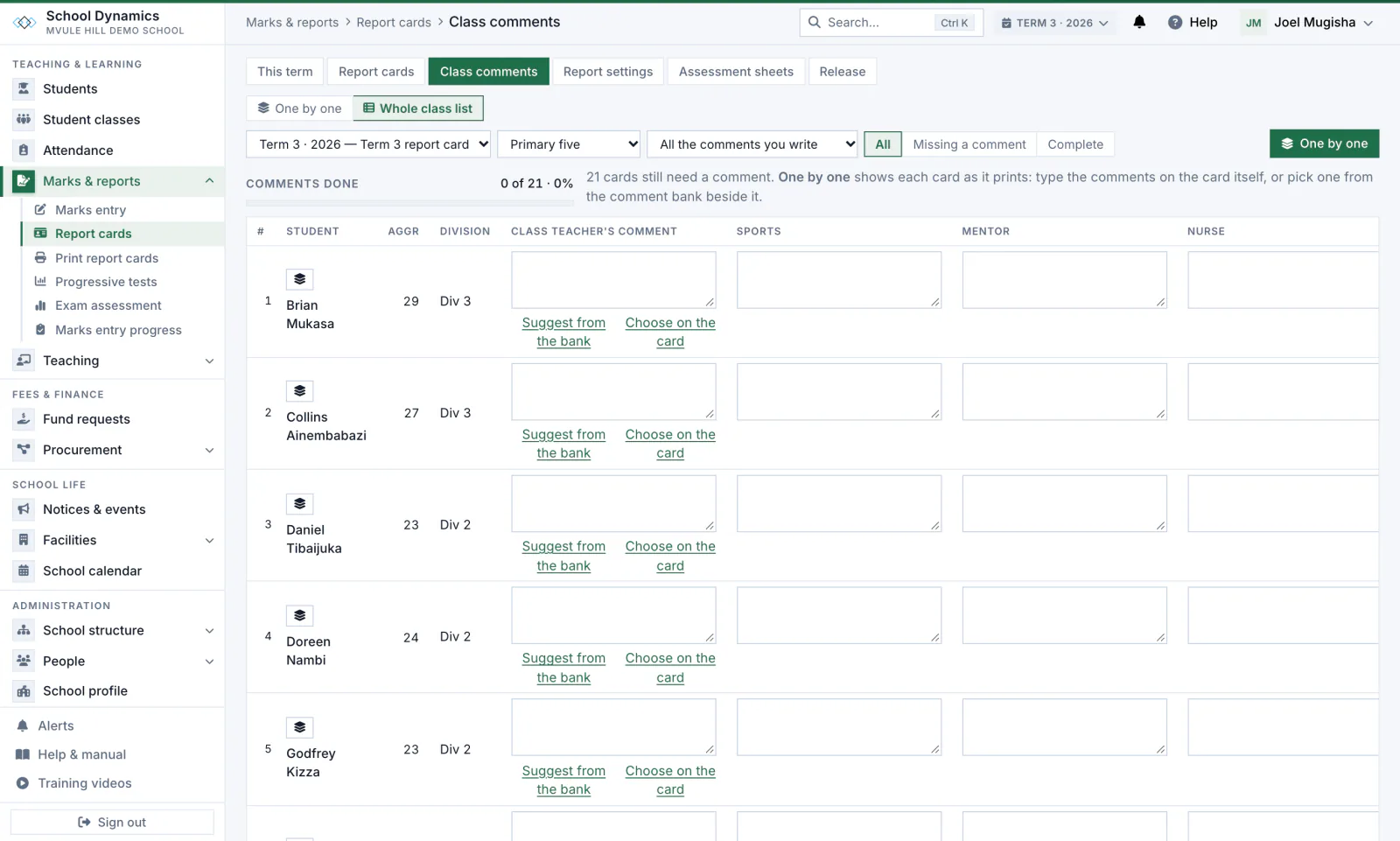
- Comments. The step counts the cards that have no class teacher's or head teacher's comment. Press Write the missing ones from the comment bank, or Write or change comments to write them yourself.
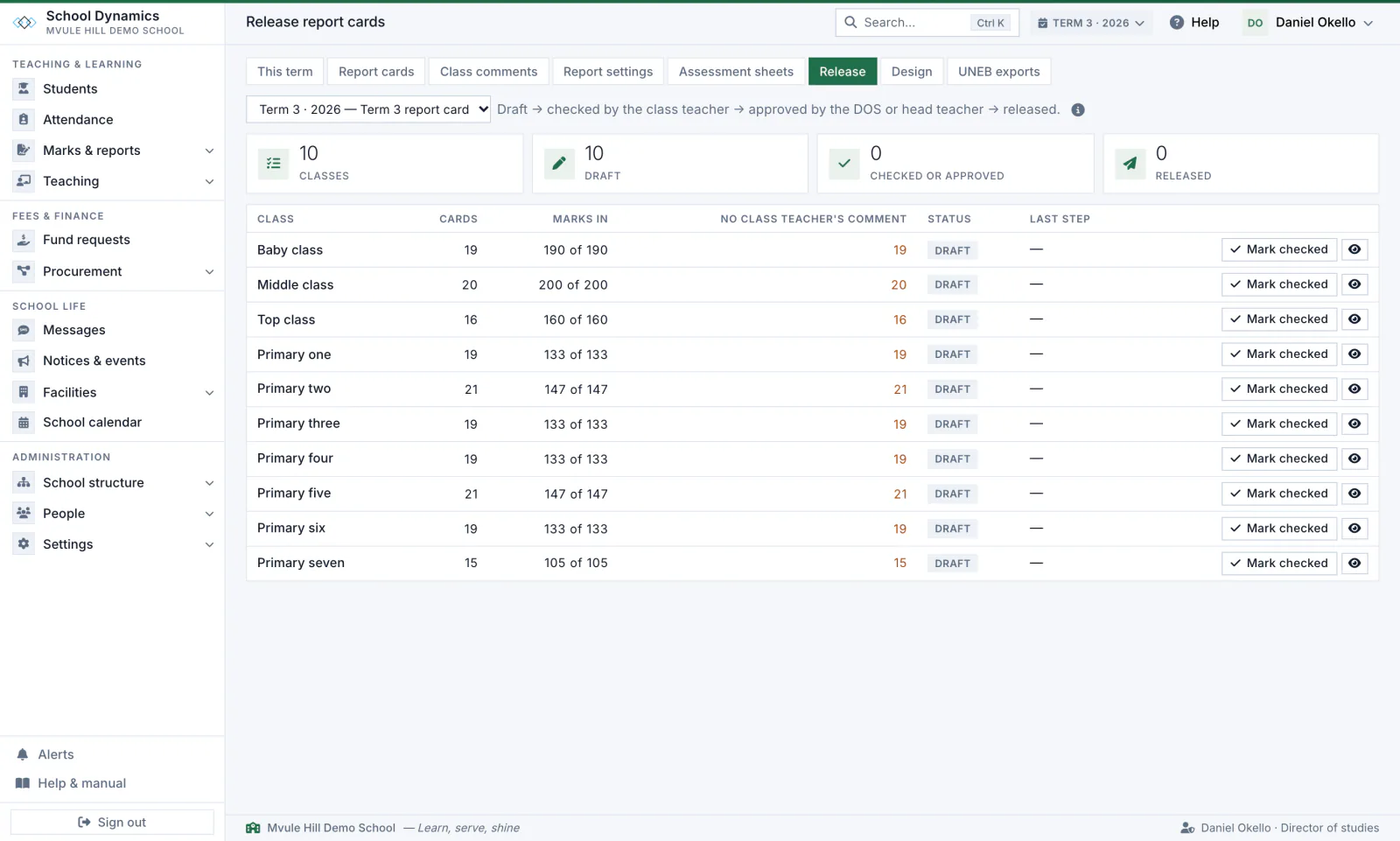
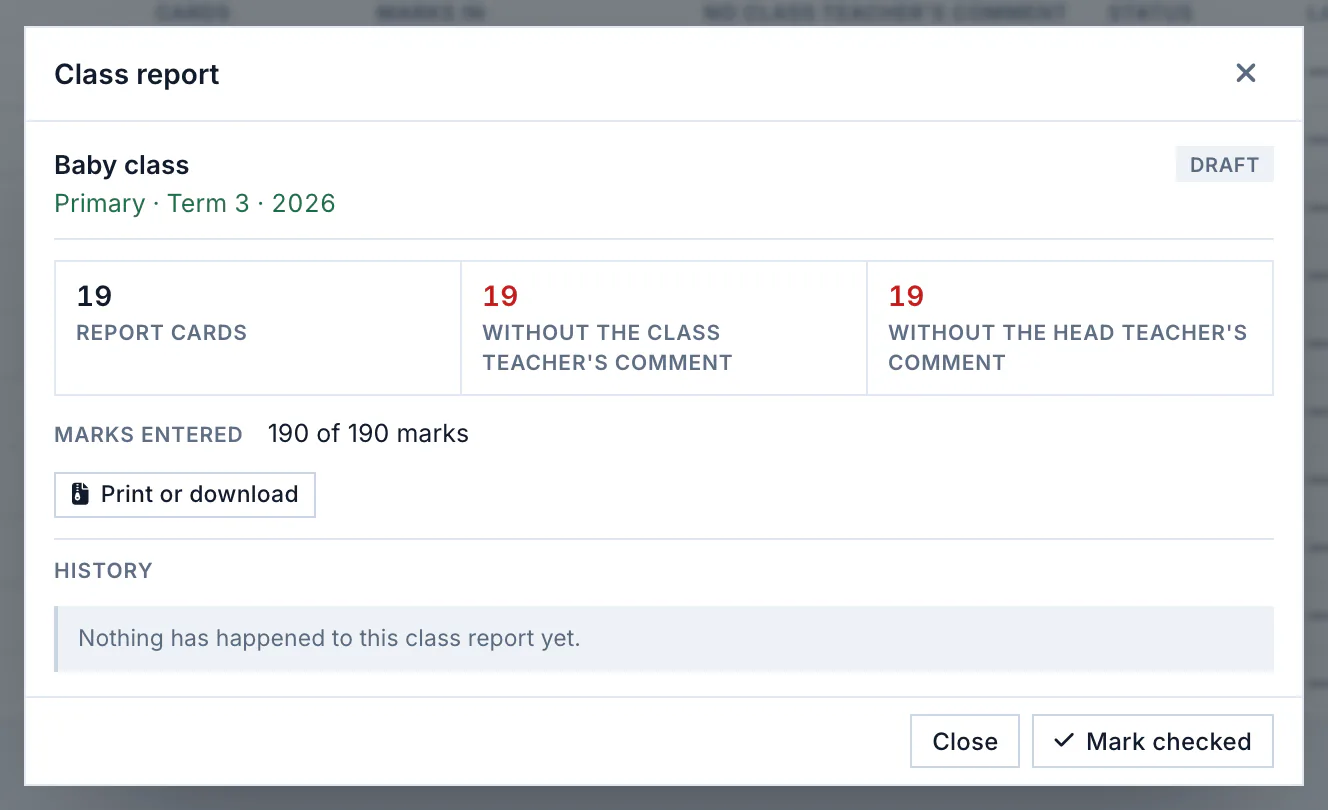
- Check, approve and release. Each class's cards are checked, then approved, then released. Parents see a class's cards only after it is released. The step counts how many classes are at each stage. Its button opens the release page.
- Print. Print a class at a time (see below).
Following marks entry
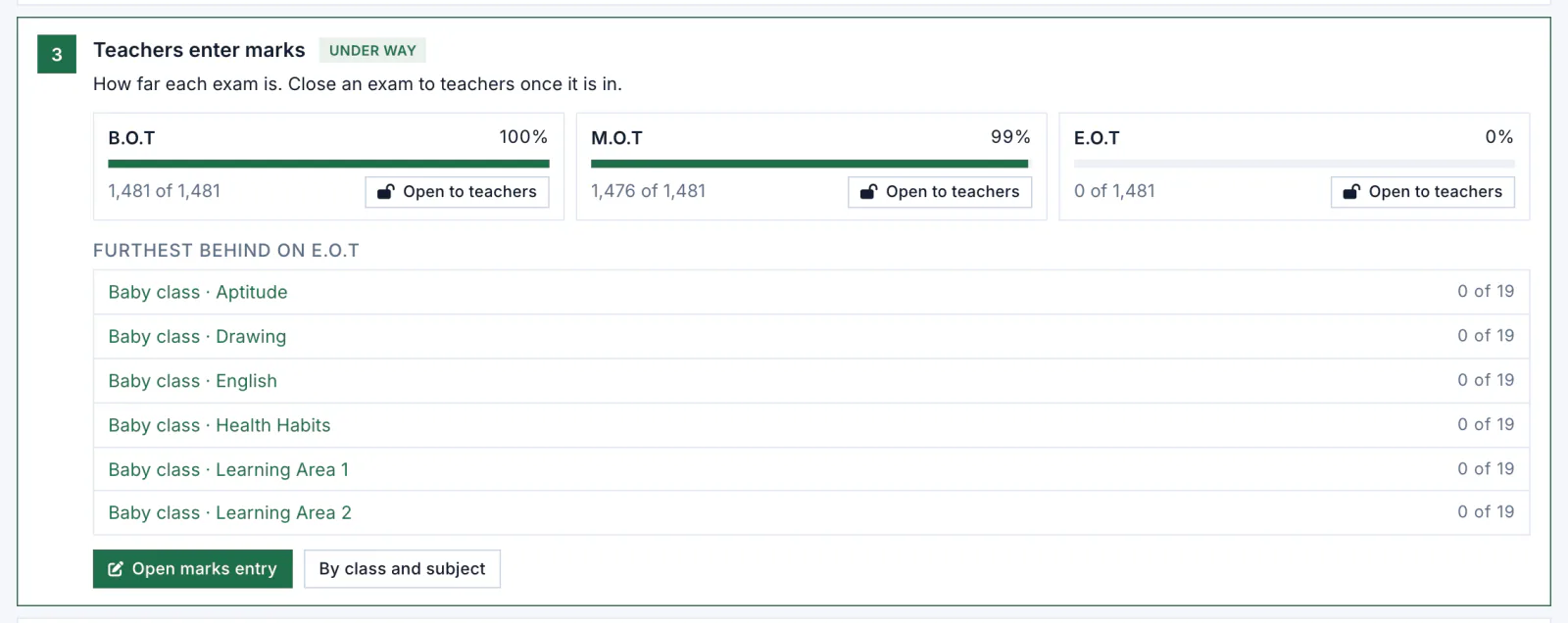
- How far each exam is: marks in, out of marks expected.
- Open or close an exam to teachers.
- The classes and subjects furthest behind. Click one to open its marks.
- Marks entry, for every class and subject.
While teachers enter marks, step 3 shows each exam that counts this term 1: how many marks are in, out of how many are expected. A mark counts as in when the teacher has submitted it, or has recorded the student as absent. A mark of 0 that was never submitted does not count.
- Open to teachers / Closed 2 opens or closes an exam for marks entry. Close the beginning-of-term exam once it is complete, so marks entered by mistake go nowhere.
- Furthest behind 3 lists the classes and subjects with the fewest marks in for the last exam. Click one to open its marks directly, then remind the teacher or enter the marks yourself.
- Open marks entry 4 opens Marks entry for every class and subject.
Printing a class
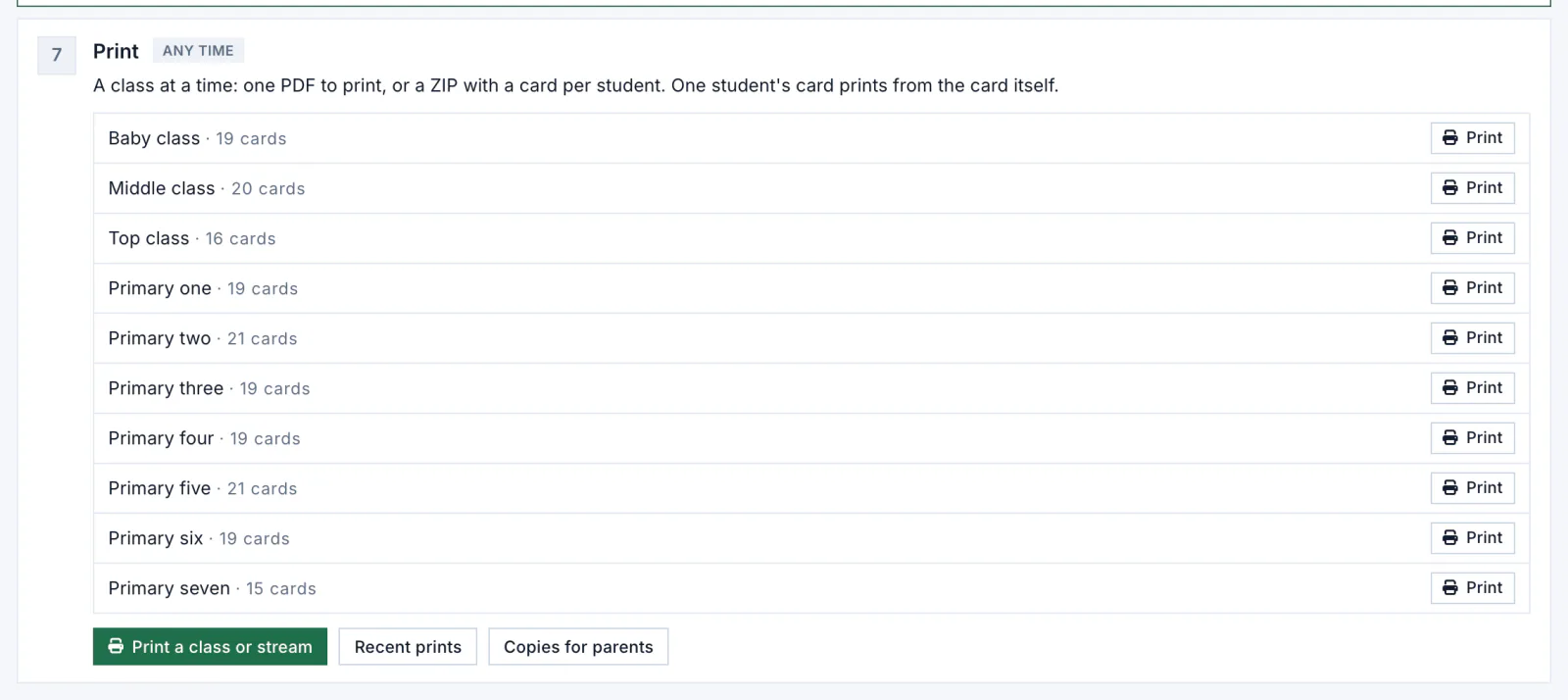
- Print one class's cards: the print window opens with that class chosen.
- Choose any class or stream, and the kind of file.
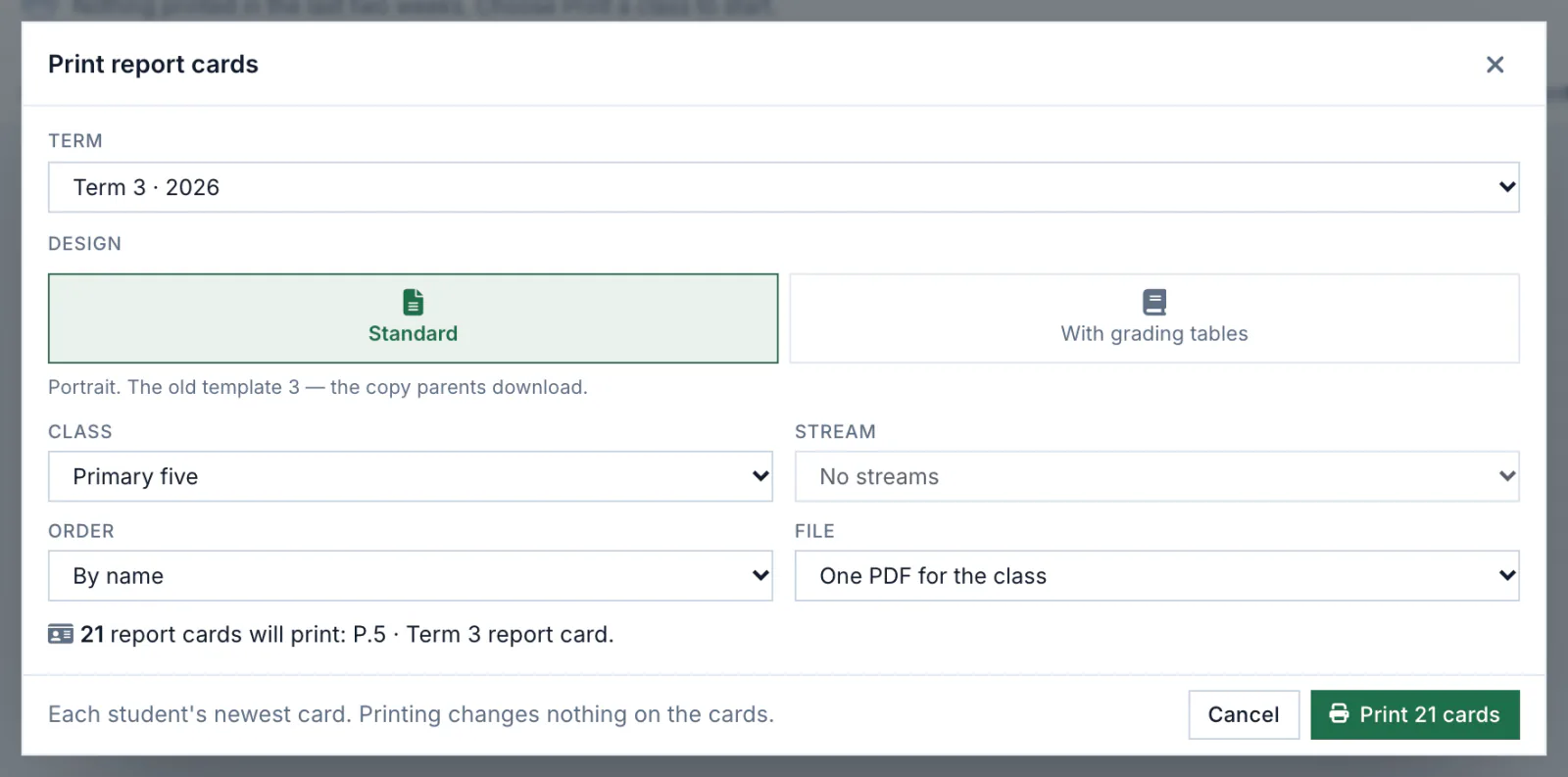
Every class with report cards is listed with its number of cards. Print beside a class 1 opens the print window with that class already chosen: pick the layout and press print. Print a class or stream 2 lets you choose any class or stream, and whether you want one PDF to print or a ZIP with one file per student. To print one student's card, open that card and print it from there.
What happens next
- Teachers see the exams you opened under Marks entry, and can enter marks only while an exam is open.
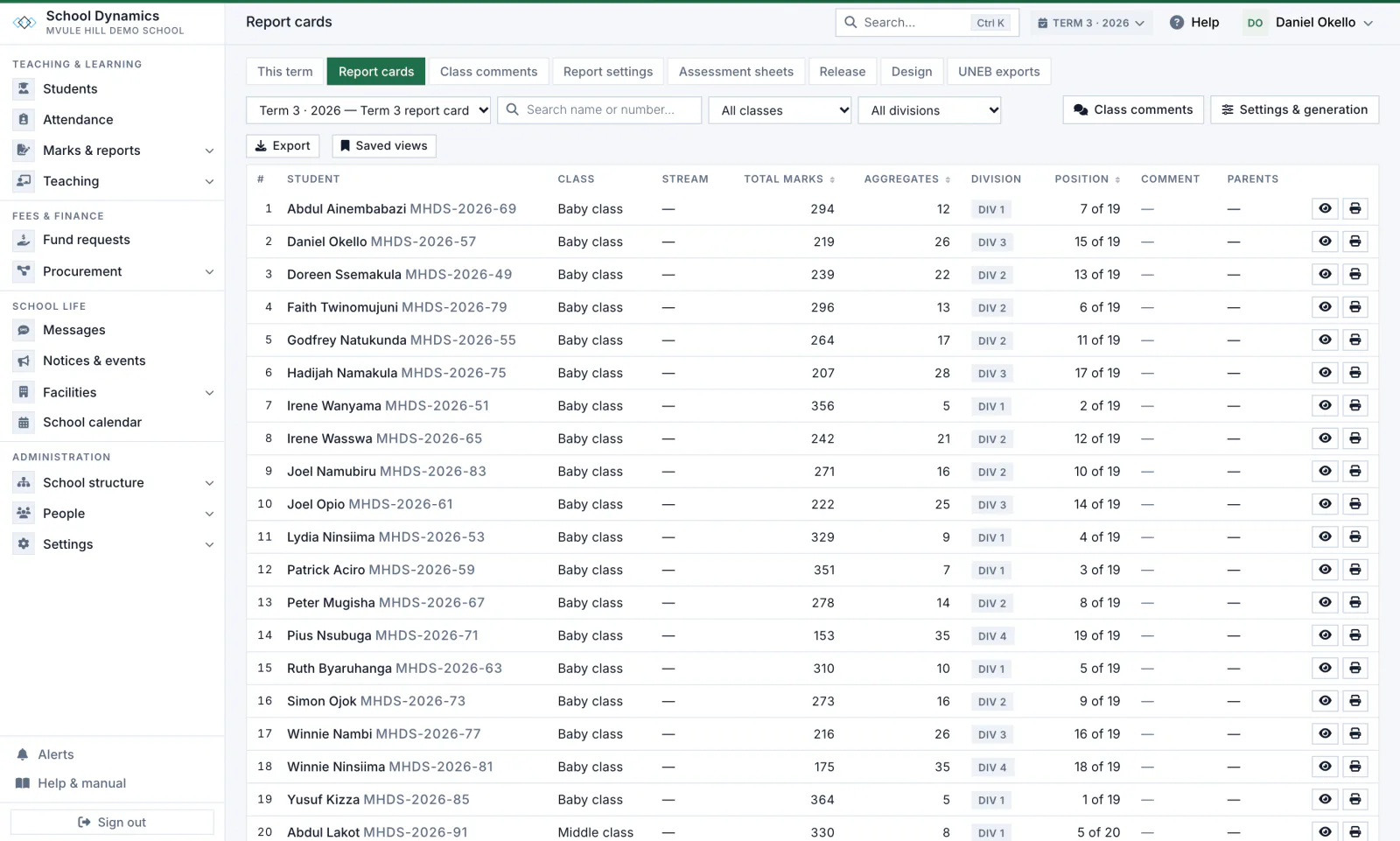
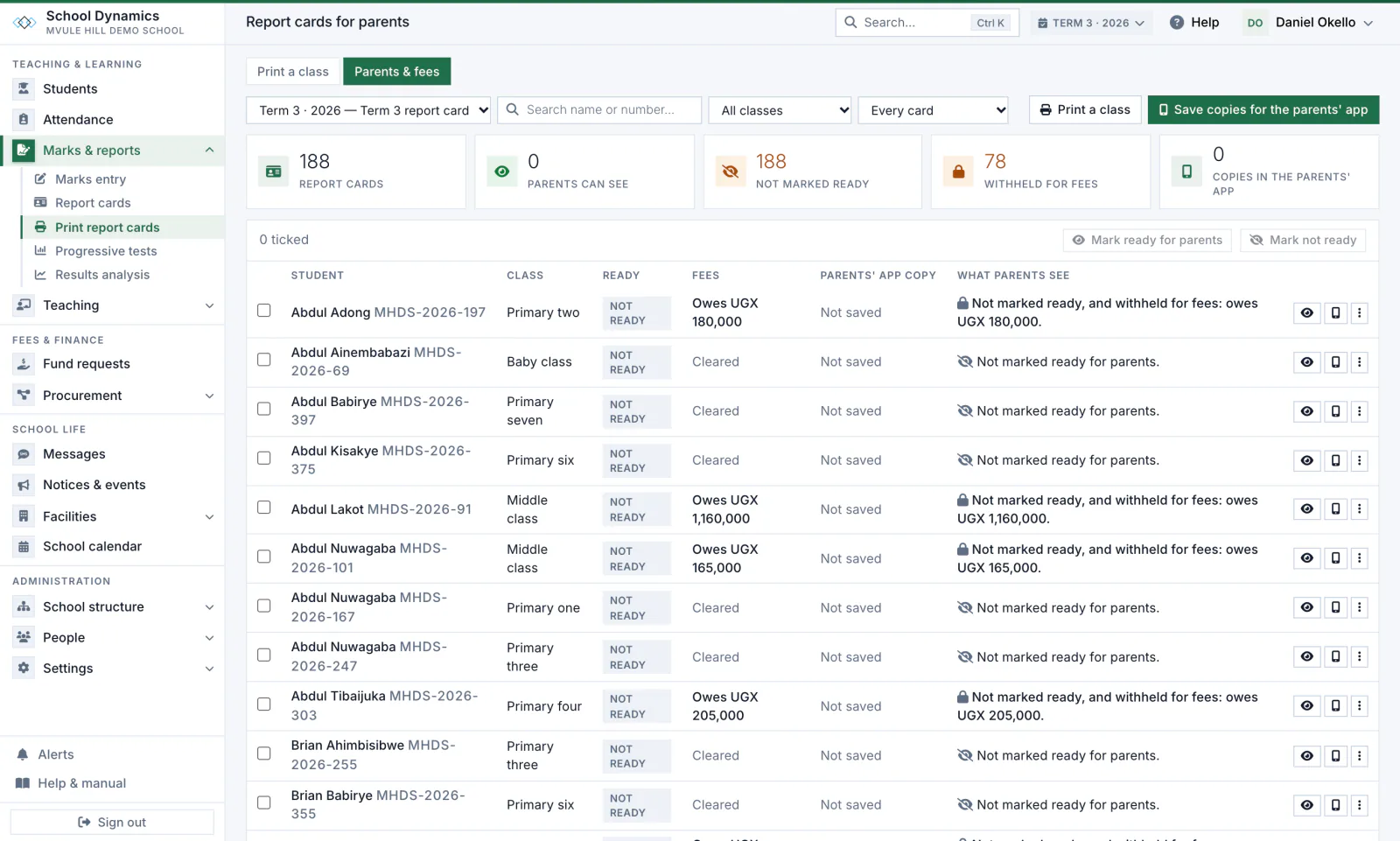
- When a class is released, its parents can see the report cards in the parents' app and on the parents' pages, unless the student owes fees (see What parents see). The cards also show on the Report cards list.
- Next term, the page starts again at step 1, with everything copied from this term.
Questions
- Where do I go to start a new term's report cards?
Marks & reports › Report cards. The first step, Set up the term, asks only for the report title and the grading scale. Everything else is copied from last term.
- Do I have to follow the steps in order?
Mostly yes, because each step needs the one before it. Print works at any time for classes that already have cards. You can make the cards again whenever marks change.
- Can teachers see this page?
Yes. Teachers see how far every step is, but only the director of studies, the head teacher, the deputy and the school administrator can set up, make or release anything here. A class teacher can print their own class's cards from step 7.
- What about theology report cards?
Schools with theology classes see a Secular / Theology switch at the top. The theology page has the same seven steps, for the theology classes.