Procurement · print edition of 23 November 2026 Back to the manual
School Dynamics
The School Dynamics manual · Chapter 9

Procurement

Buy for the school with a trail: requests, quotations, auctions, orders, goods received and supplier invoices.

1chapter
10lessons
4screens
Nov 2026edition

Edition of 23 November 2026. The latest version, with search and questions answered by the team, is at app.schooldynamics.ug/help.
Screens show the demo school: every name and figure is invented. © 2026 Newline Technologies Limited, Kampala.

Contents

  1. 09Procurement
    1. How buying works
    2. Ask for something to be bought
    3. Ask suppliers for quotes and choose the best
    4. Run a reverse auction
    5. Write, approve and send a purchase order
    6. Receive goods and write the goods received note
    7. Check, approve and pay supplier invoices
    8. Shop the supplier catalogue
    9. Keep the list of suppliers
    10. The supplier portal
09

Procurement

Buy for the school with a trail: requests, quotations, auctions, orders, goods received and supplier invoices.

Buying, step by step, with every approval recorded: from a purchase request to quotations or a reverse auction, a purchase order, the goods received and the supplier's invoice. Suppliers have their own portal.

  1. How buying works4 min
  2. Ask for something to be bought3 min
  3. Ask suppliers for quotes and choose the best3 min
  4. Run a reverse auction4 min
  5. Write, approve and send a purchase order3 min
  6. Receive goods and write the goods received note2 min
  7. Check, approve and pay supplier invoices3 min
  8. Shop the supplier catalogue3 min
  9. Keep the list of suppliers3 min
  10. The supplier portal5 min
Chapter 9 · Procurement

How buying works

The road from a purchase request to a paid supplier, who does each step, and the paper each step prints.

For: Store keeper, Bursar, Head teacher, School administrator · app.schooldynamics.ug/help/procurement/how-buying-works

Procurement is how the school buys from suppliers with a trail: someone asks, a leader approves, procurement buys, the store counts what arrives, and finance checks the invoice and pays. Every step is recorded with who did it and when, gets a number, and prints.

Open it from Fees & finance › Procurement › Overview.

The steps

Step Who Where What it prints
1. Ask Any member of staff Purchase requests Purchase requisition (REQ-…)
2. Approve the request Head teacher, deputy or school administrator, never their own The request —
3. Find the price Procurement Quotations or Auctions, or skip to an order RFQ, comparison sheet, auction record
4. Order Procurement writes it; an approver who did not write it approves it Purchase orders Local purchase order (LPO-…)
5. Accept The supplier, on the supplier portal — —
6. Receive The store keeper (or procurement) Goods to receive Goods received note (GRN-…)
7. Invoice The supplier on the portal, or finance types in a paper one The order —
8. Check and approve Finance Supplier invoices —
9. Pay Finance, in full or in parts Supplier invoices Payment voucher (PV-…)
10. Close Automatic, once received, invoiced and paid in full — Supplier statement

Every document has its own number, one series a year: REQ-2026-0001, RFQ-…, AUC-…, LPO-…, GRN-…, INV-…, PV-…. A number is never given twice, even when its document is cancelled.

Who does what

Role May
Every member of staff Ask for things (purchase requests) and browse the Supplier catalogue
Head teacher, deputy, school administrator Approve or reject requests and purchase orders, never their own
Bursar, finance officer, purchaser, school administrator ("procurement") Ask for quotes, run auctions, write and send purchase orders, look after suppliers
Store keeper, purchaser, bursar, school administrator Receive goods and write the goods received note
Bursar, finance officer, school administrator ("finance") Enter, approve, reject and pay supplier invoices

The head teacher, the deputy and the store keeper can also look at the procurement pages (supplier invoices only for those who see the school's finance). The school's owner may do everything.

The overview page

The top of Procurement › Overview shows three figures: Ordered this year, On open orders (approved and not yet closed) and Paid to suppliers this year.

What waits lists only what is waiting for someone, and only the rows you may act on: requests waiting for approval, approved requests to buy, quotations to compare and award, auctions live now or ended, orders to approve or send, deliveries announced, orders late for delivery, invoices to check, invoices overdue for payment, and suppliers' new bank details to confirm. Click a row to open that list. When nothing waits, the page says so.

Largest suppliers this year lists the six suppliers with the most ordered from them.

Use New purchase request to ask for something. Procurement also sees Ask for quotes.

Rules that protect the school

How it joins the rest of the system

  • Budget. A request and an order name a budget account. When approving a request, the approver sees that account's budget for the term, what is spent, and what is already committed in open orders.
  • Stores. Goods received against a store item go into Stores at the order's price.
  • Spending and creditors. Approving a supplier's invoice records it as spending bought on credit, on the order's budget account and term. It then shows under Budget & expenditure and Creditors, and in the committee reports. Paying the invoice pays that creditor.

Printing

Each page has its print button, which opens a PDF: Print on a request, Print the request for quotation and Comparison sheet on a quotation, Auction report (PDF) on an auction, Print LPO on an order, Goods received note beside a delivery, and the payment voucher, which opens by itself after a payment. A supplier's statement prints from Suppliers (Statement (PDF) in the row's menu).

Questions

Can one person ask for something, approve it and pay for it?

No. Nobody approves their own request or an order they wrote, and only finance approves and pays invoices. On your own documents, the buttons do not show.

Is a purchase request the same as a fund request?

No. A fund request asks finance for money. A purchase request asks for goods or services that the school buys from a supplier, with quotes, an order and a delivery.

Where do the figures go once a supplier is paid?

An approved invoice is recorded as spending on credit on the order's budget account. It shows under Budget & expenditure and Creditors, and in the committee reports, with no second set of figures.
Chapter 9 · Procurement

Ask for something to be bought

Write a purchase request, send it for approval, and follow it until it is ordered. For approvers, how to approve or reject one with its budget in view.

For: Everyone, Head teacher, School administrator · app.schooldynamics.ug/help/procurement/purchase-requests

A purchase request is how anyone on the staff asks for goods or services: kitchen supplies for the term, chemicals for the lab, a repair. A leader approves it, then procurement buys it.

Open it from Fees & finance › Procurement › Purchase requests.

Before you start

  • Every member of staff can write a purchase request.
  • The head teacher, the deputy and the school administrator approve or reject requests. Nobody approves their own.
  • To file the request under a budget item, the school's budget accounts must be set up. The account is optional, but without it the approver sees no budget.

Ask for something

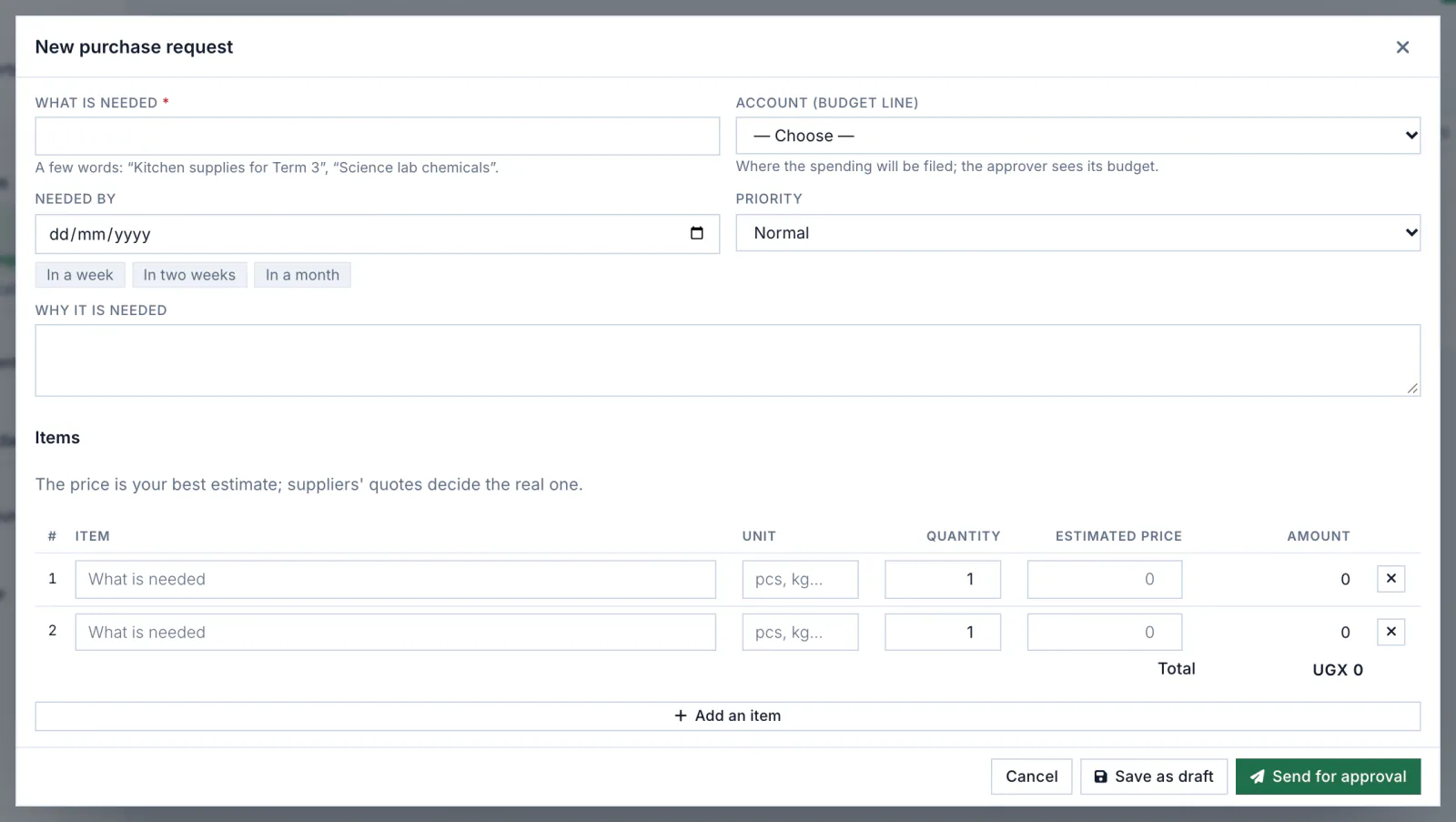
Screenshot: Ask for something to be bought. The numbered marks are explained below the picture.
The demo school · invented names and figures
  1. Say in a few words what is needed.
  2. The budget item the spending will be filed under. The approver sees its budget.
  3. When it is needed, and below it the priority.
  4. The items: unit, quantity and your best estimate of the price.
  5. Send it to an approver. Save as draft keeps it for later.
  1. Press New purchase request.
  2. Under What is needed 1, type a few words: Kitchen supplies for Term 3.
  3. Choose the Account (budget item) 2 the spending belongs to.
  4. Choose Needed by 3 (or press In a week, In two weeks, In a month) and the Priority: Normal or Urgent.
  5. Under Why it is needed, say what it is for.
  6. List the items 4: what is needed, the unit (pcs, kg…), the quantity and the estimated price. Press Add an item for more items. If the store keeps the item, choose it in the list under it (Store: …): its name and unit fill in, and the goods go into Stores when they arrive.
  7. Press Send for approval 5, or Save as draft to finish later.

The request gets its number, for example REQ-2026-0014, and opens so you can check it. The price is only your best estimate; the suppliers' quotes decide the real one.

Following your request

The list has chips: My requests, and for those who see procurement, Waiting for approval, Approved, to buy and All. Search by number or by what is needed. Click a request to open it.

Status Means
Draft Saved, not sent. You can change it.
Waiting for approval Sent; an approver decides.
Approved Procurement can buy it.
Rejected Sent back with a note. You can change it and send it again.
Ordered A purchase order made from it has been approved.
Cancelled Stopped, with the reason. Kept, never deleted.

An open request shows the estimate, the status, who decided, the items, any purchase orders made from it, and its History. Print gives the purchase requisition as a PDF.

Approving or rejecting

When requests wait, approvers land on Waiting for approval. Open one.

A box shows the budget item's money this term: the budget, what is spent, what is committed in orders (approved orders on that account not yet invoiced), what is left, and what would be left After this request. When that goes below nothing it turns red and says over budget. You may still approve it.

  • Press Approve request to let procurement buy it.
  • To reject, type the reason in Note first, then press Reject request. The note is required: the person needs to know what to correct.

The buttons do not show on a request you wrote yourself.

Changing or cancelling a request

  • Change request works on a draft or a rejected request, for the person who asked (and for procurement). A rejected request you change becomes a draft again: send it again when it is ready.
  • Cancel request stops a request that is not yet ordered, for the person who asked and for procurement. Type the reason in Note first; it is required and kept.

What happens next

An approved request waits for procurement under Approved, to buy, and appears as Approved requests waiting to be bought on the Quotations, Auctions and Purchase orders pages. On the request, procurement chooses one of three ways to buy:

When an order made from the request is approved, the request becomes Ordered. If that order is later cancelled, and no other order stands on it, the request goes back to Approved.

Questions

Can I approve my own request?

No. Nobody approves their own request, even the head teacher. Ask another approver: the head teacher, the deputy or the school administrator.

My request was rejected. What now?

Open it and read the Note. Press Change request, correct what was asked, and press Send for approval again.

Who can see my request?

You, and the staff who see procurement: the head teacher, the deputy, the school administrator, the bursar, the finance officer, the purchaser and the store keeper. Other members of staff see only their own requests.

Can a request go over the budget?

Yes. The approver sees what the request would leave on the budget item, and the words over budget when it goes below nothing. Approving it anyway is their decision.

Chapter 9 · Procurement

Ask suppliers for quotes and choose the best

Send a request for quotation to several suppliers, take their quotes (on the portal or on paper), compare them side by side after the closing time, and award one.

For: Bursar, Store keeper, School administrator · app.schooldynamics.ug/help/procurement/quotations

A request for quotation asks several suppliers to price the same list before a closing time. Their quotes stay sealed until then. After closing, the page sets them side by side, and the one you award becomes a draft purchase order.

Open it from Fees & finance › Procurement › Quotations.

Before you start

  • The bursar, the finance officer, the purchaser and the school administrator ask for quotes and award them. The head teacher, the deputy and the store keeper can look.
  • The suppliers must be on the Suppliers list and active. A suspended or blacklisted supplier cannot be invited.
  • Suppliers with portal access quote themselves on the supplier portal. For the others, print the request and type in their paper quotes.

Ask suppliers to quote

Start from an approved purchase request (its Ask suppliers for quotes button, or its number under Approved requests waiting to be bought): its title, purpose and items are copied in. Or press Ask for quotes to write one from nothing.

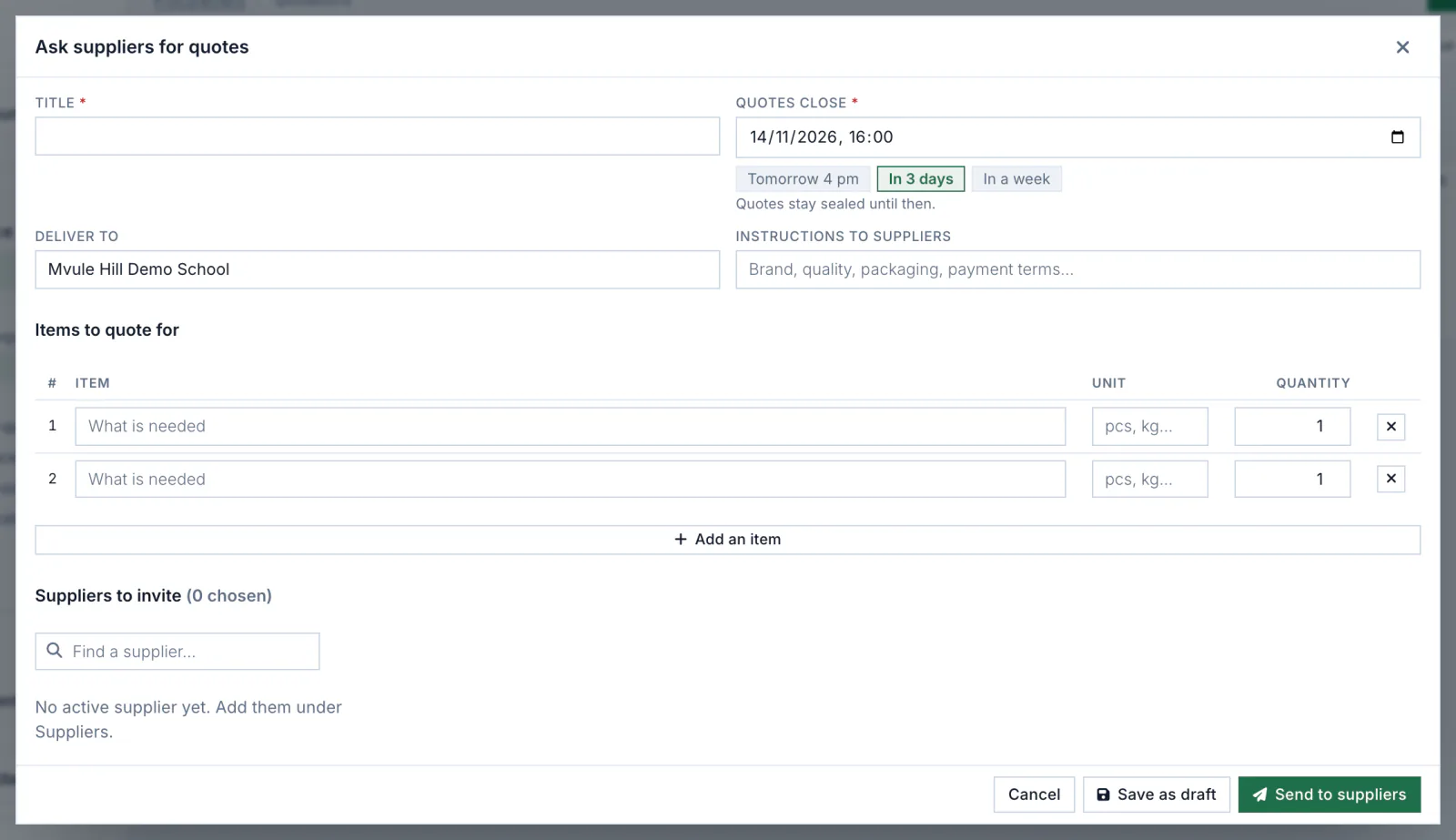
Screenshot: Ask suppliers for quotes and choose the best. The numbered marks are explained below the picture.
The demo school · invented names and figures
  1. When quotes close. They stay sealed until then.
  2. What suppliers must know: brand, quality, packaging, payment terms.
  3. The items and quantities, without prices.
  4. Tick the suppliers to invite.
  5. Open it to the invited suppliers.
  1. Check the Title.
  2. Set Quotes close 1: at least half an hour from now. Tomorrow 4 pm, In 3 days and In a week fill it for you.
  3. Check Deliver to (the school's name is filled in) and write the Instructions to suppliers 2.
  4. List the items to quote for 3: what, unit and quantity. No prices here.
  5. Tick the suppliers to invite 4. Find a supplier narrows the list.
  6. Press Send to suppliers 5, or Save as draft.

The request opens on its own page with its number (RFQ-2026-0003). Invited suppliers see it on their portal. Print RFQ gives a PDF for a supplier who does not use the portal.

While quotes come in

Suppliers invited shows each supplier's answer: Quoted (with on paper when you typed it in), Declined with their reason, Looked, or Not yet. The items card says Sealed until … and how many quotes are in.

  • Type in a paper quote records a quote that came on paper: choose the supplier, their quote number, the delivery days, the date it is valid until, and a unit price for each item (leave blank what they do not offer). Press Record the quote.
  • Close and compare stops taking quotes now, before the closing time, and opens the sealed quotes.

Compare and award

After the closing time, or after Close and compare, the card becomes Quotes compared: one column per supplier, with each item's unit price and amount, and the delivery days and validity under the supplier's name.

  • The cheapest price for each item is highlighted.
  • The total row says all items or some items missing. The cheapest quote that prices every item is marked cheapest, and its Award button is the main one.

To award:

  1. If you choose a quote that is not the cheapest complete one, type why in Note (why a quote is chosen, or why cancelled).
  2. Press Award under the chosen quote and confirm.

The other quotes become Not chosen, and a draft purchase order is made from the winning prices (only the items that supplier priced). The order opens: check it, then it goes for approval as usual. The suppliers are told on their portal: the winner that the order follows, the others that another quote was chosen.

Comparison sheet prints every quote side by side, with the reason for the choice.

Cancelling

Type the reason in the Note box and press Cancel this request. Every invited supplier is told why. A request already awarded cannot be cancelled.

If nobody quoted, the page says No supplier quoted: cancel it, or write another and invite other suppliers.

Statuses

Status Means
Draft Saved, not sent. Press Send to suppliers on its page.
Open for quotes Suppliers can quote until the closing time.
Closed Closed early; quotes can be compared.
Awarded A quote was chosen and its order drafted.
Cancelled Stopped, with the reason.

Questions

Can I see the prices before the closing time?

No. Until the closing time you see who has quoted, never the prices. To compare earlier, press Close and compare: no more quotes are taken after that.

A supplier brought a quote on paper. How do I enter it?

While the request is open, press Type in a paper quote, choose the supplier, type their prices and press Record the quote. Only invited suppliers can be chosen.

Must I award the cheapest quote?

No, but choosing another needs a reason. Type it in the Note box before pressing Award. It is kept and printed on the comparison sheet.

Can I change a request for quotation after saving it as a draft?

Not on this page. A draft can be sent or cancelled. If something is wrong, or its closing time has passed before you sent it, cancel it and write another.

Chapter 9 · Procurement

Run a reverse auction

Invite suppliers to bid their prices down, live, until an end time. Set the rules, follow the bids, enter a phone bid, and award the winner.

For: Bursar, School administrator · app.schooldynamics.ug/help/procurement/auctions

In a reverse auction the suppliers you invite bid their prices down, live, until the end time. The lowest bid usually wins and becomes a draft purchase order. Use it for a large order where several suppliers sell the same thing: food for the term, fuel, stationery.

Open it from Fees & finance › Procurement › Auctions.

Before you start

  • The bursar, the finance officer, the purchaser and the school administrator run auctions. The head teacher, the deputy and the store keeper can look.
  • Invite at least two active suppliers. They bid on the supplier portal, so they need portal access (see Suppliers). A bid made by phone can be entered for them.

Set up an auction

Start from an approved purchase request (its Put out to auction button, or its number under Approved requests waiting to be bought): its items are copied and its estimate becomes the starting price. Or press New auction. A basket from the Supplier catalogue can also become a draft auction.

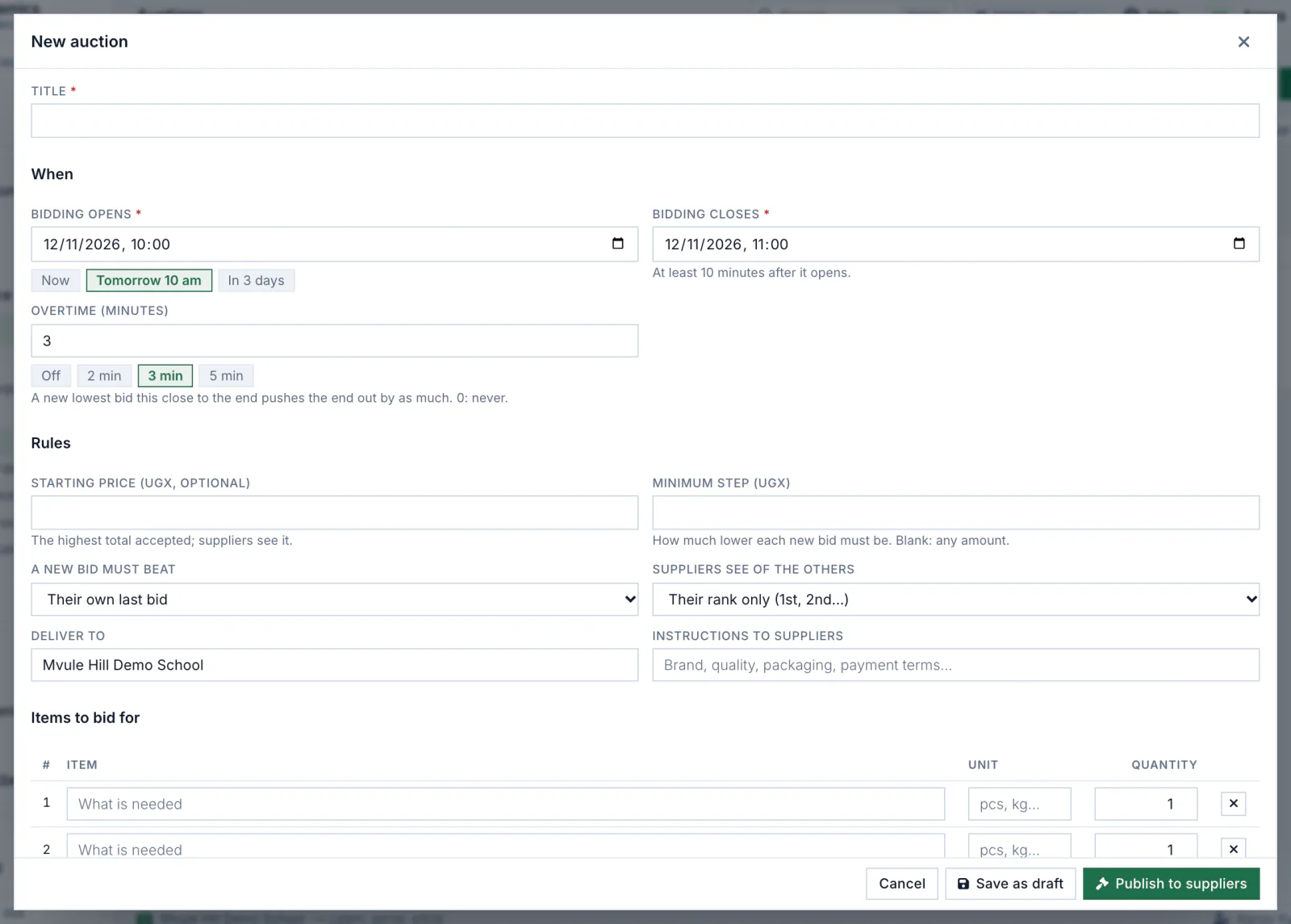
Screenshot: Run a reverse auction. The numbered marks are explained below the picture.
The demo school · invented names and figures
  1. When bidding opens.
  2. When it closes: at least 10 minutes later, at most 30 days.
  3. Overtime: a new lowest bid this close to the end pushes the end out.
  4. Starting price: the highest total accepted. Optional.
  5. How much lower each new bid must be.
  6. What suppliers see of the others' bids.
  1. Type the Title.
  2. Set Bidding opens 1 (Now, Tomorrow 10 am or In 3 days) and Bidding closes 2.
  3. Set the Overtime (minutes) 3: 0 to 30. 0 means the end never moves.
  4. Set the Starting price (UGX, optional) 4. Suppliers see it; no total above it is accepted.
  5. Set the Minimum step (UGX) 5. Blank means any amount lower.
  6. Choose what A new bid must beat: Their own last bid or The lowest bid so far.
  7. Choose what Suppliers see of the others 6: Their rank only, Their rank and the lowest bid, without names, or Nothing of the others: a sealed-bid auction.
  8. Check Deliver to and write the Instructions to suppliers.
  9. List the items to bid for: what, unit and quantity (40 at most).
  10. Tick the suppliers to invite. Selling … shows only suppliers whose catalogue products are in that category; Invite these … ticks every supplier shown.
  11. Press Publish to suppliers, or Save as draft.

The lowest bid so far only works when suppliers can see it, so choosing it sets Their rank and the lowest bid.

A draft opens on its own page with Change the auction and Publish the auction. Once published, the invited suppliers are told and it can no longer be changed.

Following it live

The auction's page refreshes itself every few seconds while it runs.

  • The clock shows Time left (or Until bidding opens), and how many times the end was extended.
  • Lowest bid, Suppliers bidding, and how far the lowest bid is below the starting price (or the estimate).
  • Standings: every supplier's standing bid, lowest first, with names. Equal totals: the earlier bid ranks first.
  • Lowest bid over time, from the second bid.
  • Prices by item, for the six lowest bids.
  • Suppliers invited, with each answer: Bidding, Declined, Agreed to the rules, Looked or Not yet.
  • Every bid, newest first: Standing, Replaced or Struck out.

What you can do while it runs:

  • Enter a phone bid (while live): choose the supplier, type a unit price for every item, and say in How the bid came when and how it came. It follows the same rules as a bid on the portal.
  • Give more time: 5 minutes to a week more, with the reason. Every invited supplier is told the new end and why.
  • Strike out a bid (the eraser beside it in Standings): for a bid made in error, never to favour anyone. The supplier's bid before it stands again, and they are told why.
  • Cancel the auction (in the ⋮ menu): every invited supplier is told why.

How bidding works

  • A bid prices every item. Its total is what ranks.
  • A supplier's new bid replaces their last and must be lower by at least the minimum step. With The lowest bid so far, a supplier who is not leading must also go below the lowest bid by the step.
  • No total above the starting price is accepted.
  • A bid binds: a supplier cannot take it back.
  • A bid more than 30% below the supplier's last bid (or the lowest bid, or the starting price) asks to be confirmed, in case of a missing zero.
  • With overtime set, a new lowest bid in the last minutes moves the end to that many minutes after it.
  • A supplier who loses the lead is told on the portal, except in a sealed auction.

Award the winner

When bidding closes, the auction says Ended, to award.

  1. Press Award beside the chosen bid. The lowest one's button is the main one.
  2. If it is not the lowest bid, type why in Note (needed when not the lowest).
  3. Press Award and draft the order.

A draft purchase order is made at the bid's prices, with Won in auction AUC-… in its terms, and opens for you to check and send for approval. The winner is told the order follows once the school approves it; the others are thanked.

To end it without a winner, choose Close without an award in the ⋮ menu and give the reason.

Auction report (PDF) prints the bids, the standings and the history.

Statuses

The list's buttons filter by them: Live, Starts soon, To award, Drafts, Awarded, Cancelled.

Status Means
Draft Not published; suppliers know nothing of it.
Starts soon Published; bidding has not opened.
Live Suppliers are bidding.
Ended, to award Bidding closed; choose the winner.
Awarded A bid won; its order is drafted.
Cancelled Stopped, with the reason.

Questions

How many suppliers must I invite?

At least two. An auction needs someone to bid against.

A supplier says they typed a wrong price. Can it be taken back?

A supplier cannot take a bid back. Procurement can void a bid made in error: press the eraser beside it in Standings and give the reason. The supplier's bid before it stands again, and they are told why.

Why did the end time move?

Overtime. A new lowest bid in the last minutes pushes the end out, so nobody wins by bidding at the last second. Give more time also moves it, with a reason every supplier sees.

Must I award the lowest bid?

No, but choosing another needs a reason, which is kept and printed on the auction record.

Chapter 9 · Procurement

Write, approve and send a purchase order

Make a local purchase order (LPO) from an award or directly, have it approved by someone who did not write it, send it to the supplier, and follow it to closing.

For: Bursar, Head teacher, School administrator · app.schooldynamics.ug/help/procurement/purchase-orders

A purchase order (LPO) is the school's written order to one supplier: the items, the prices, the delivery date and the budget account it is paid from. It is approved by a leader who did not write it, sent to the supplier, received at the store, invoiced and paid.

Open it from Fees & finance › Procurement › Purchase orders.

Before you start

  • The bursar, the finance officer, the purchaser and the school administrator write and send orders.
  • The head teacher, the deputy and the school administrator approve them, never one they wrote.
  • The supplier must be active (see Suppliers).

Three ways an order is made

  • From quotes. Awarding a quotation drafts the order at the winning prices. See Quotations.
  • From an auction. Awarding the winning bid drafts the order at the bid's prices. See Auctions.
  • Directly. Press Order directly on an approved purchase request (or its number under Approved requests waiting to be bought), or New order for an order of its own.

Write an order directly

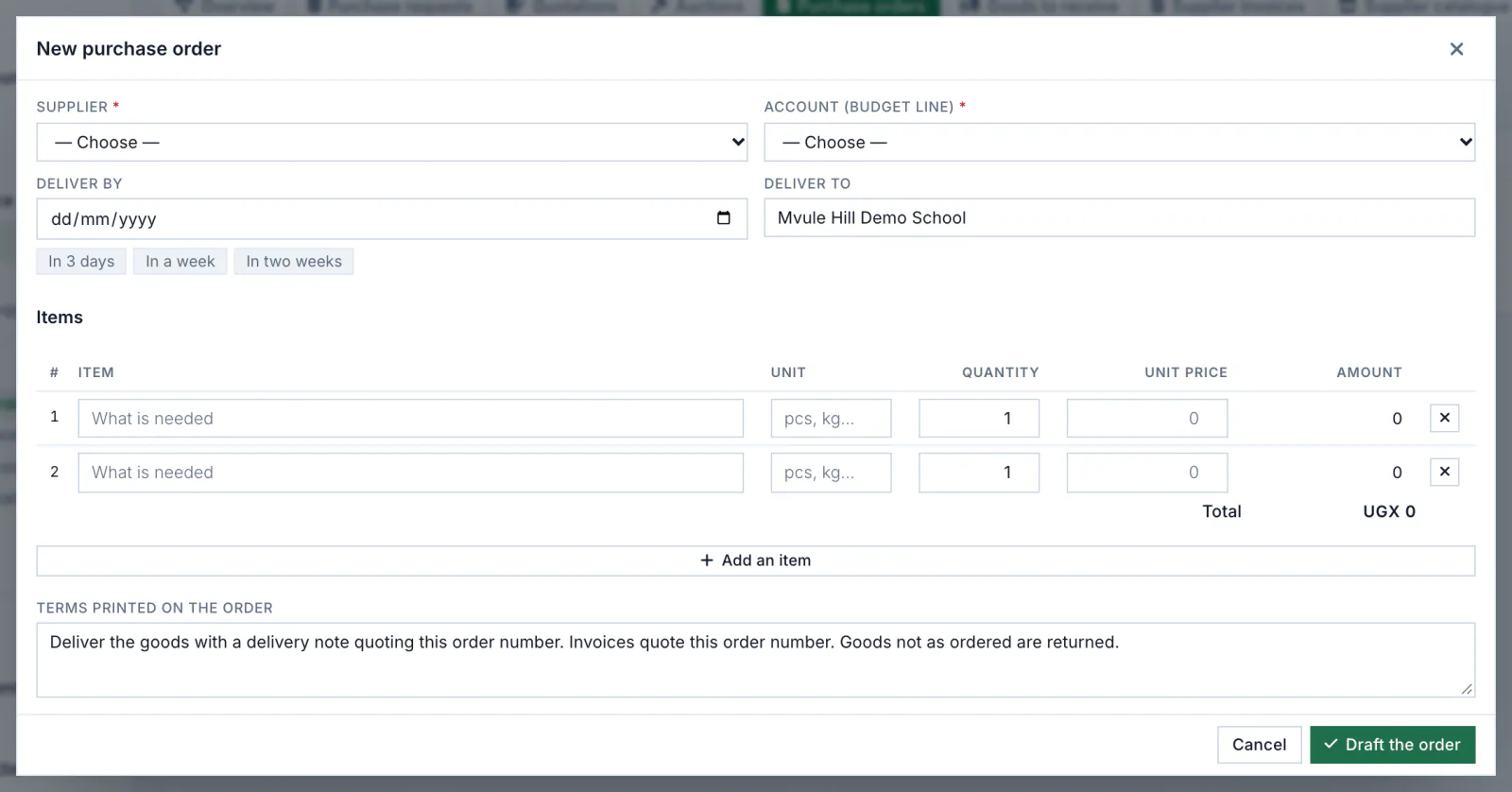
Screenshot: Write, approve and send a purchase order. The numbered marks are explained below the picture.
The demo school · invented names and figures
  1. The supplier. Only active suppliers are listed.
  2. The budget account the spending is filed under.
  3. When the goods must arrive.
  4. Items, quantities and the agreed unit prices.
  5. Save it as a draft, for approval.
  1. Press Draft an order (or Order directly on an approved request: its account, date and items are copied, with the estimated prices).
  2. Choose the Supplier 1.
  3. Choose the Account (budget item) 2. It is required.
  4. Set Deliver by 3 and check Deliver to.
  5. List the items 4 with the unit prices agreed with the supplier. Choose the store item under each row when the store keeps it.
  6. Check the Terms printed on the order. The usual terms are filled in: deliver with a delivery note quoting the order number, invoices quote the order number, goods not as ordered are returned.
  7. Press Draft the order 5.

The order gets its number (LPO-2026-0008) and opens. It is a Draft until approved.

Approve and send

  1. The approver opens the order and presses Approve order, then confirms the amount.
  2. Procurement presses Send to supplier.

After approval the purchase request it came from becomes Ordered. Once sent, the supplier sees the order on their portal and is asked to accept it. Print LPO gives the order as a PDF, for a supplier who does not use the portal.

Reading an order

The top shows four figures: Ordered, Received, Invoiced and Paid. Below them:

  • Items: ordered, unit price, amount, received, and what is Still due. Store items are marked store item.
  • Deliveries: each goods received note (with GRN to print it), and deliveries the supplier announced (On its way).
  • Invoices: each invoice with its status. Supplier invoices opens the finance page.
  • History: who did what, from the school and from the supplier.

If the supplier asked a question about the order, it shows at the top: From the supplier: and their words.

The list

The list shows Waiting for approval, Approved, to send and With suppliers (with the value ordered). Filter by status and by supplier, or search by order number or supplier. A delivery date that has passed on an order still waiting for goods shows in red.

Status Means
Draft Written, waiting for approval. Can be changed.
Approved Approved; procurement sends it.
Sent to supplier Waiting for the supplier to accept it.
Accepted by supplier The supplier will deliver.
Partly received Some goods counted in.
Received Everything counted in.
Closed Received, invoiced and paid in full.
Cancelled Stopped, with the reason.

Change or cancel

  • Change the order works only on a draft.
  • To cancel, type the reason in Reason (to cancel the order) and press Cancel order. This works until goods have been received on it. A supplier who already had the order is told why, any delivery they announced is cancelled, and the purchase request goes back to Approved if no other order stands on it.

What happens next

The store receives the goods on this order: see Receive goods. Then the supplier invoices it, and finance checks and pays: see Supplier invoices.

Questions

I wrote the order. Why can I not approve it?

Nobody approves an order they wrote. The page says You wrote this order, so another approver approves it. Ask the head teacher, the deputy or the school administrator.

Can I change an order after it is approved?

No. Items and prices are fixed once approved. If it must change, cancel it with the reason (while no goods have been received) and write a new one.

The supplier does not use the portal. How do they get the order?

Send it as usual, then press Print LPO and give them the paper.

When is an order closed?

By itself, once everything is received, invoiced in full and every invoice is paid.

Chapter 9 · Procurement

Receive goods and write the goods received note

See what suppliers are delivering, count what arrives against the order, accept or reject each item, and write the goods received note (GRN).

For: Store keeper, Bursar · app.schooldynamics.ug/help/procurement/receiving-goods

When a supplier delivers, the store counts what arrived against the purchase order and writes a goods received note. Only what was accepted can be invoiced, so this count is what the school pays for.

Open it from Fees & finance › Procurement › Goods to receive.

Before you start

  • The store keeper, the purchaser, the bursar and the school administrator receive goods.
  • The order must have been sent to the supplier (its status is Sent to supplier, Accepted by supplier or Partly received). An order that is only approved cannot be received.

See what is coming

Goods to receive has two lists:

  • Announced by suppliers: deliveries a supplier said are on their way, on the supplier portal, with the order, the expected day, their delivery note number and how many items are coming. Press Receive to open the order.
  • Orders waiting for goods: every order still waiting, the earliest delivery date first. A date that has passed is red and says late. Still due says how many of the order's items are not yet in. Press Open to open the order.

Count what arrived

  1. Open the order.
  2. Press Receive goods. For a delivery the supplier announced, press Receive it beside it under Deliveries instead: the quantities they said they sent are filled in.
  3. Type the Supplier's delivery note number.
  4. For each item, type the quantity Accepted. If some are damaged, wrong or short-dated, type them under Rejected and say Why rejected.
  5. Leave Put accepted store items into Stores ticked, unless the goods are not going into the store.
  6. Add Notes if needed.
  7. Press Write the goods received note.

The note gets its number, for example GRN-2026-0005.

The note is refused when:

  • an item's accepted quantity is more than is still due (Only 20 of "Maize flour" is still due on this order);
  • something is rejected with no reason;
  • nothing at all is typed.

What happens next

  • The order becomes Partly received, or Received when nothing is still due. Rejected goods are not counted in: they stay due.
  • Each accepted line that names a store item goes into Stores as a new batch, at the order's unit price, with the GRN and order numbers in its description.
  • The supplier sees the goods received note on their portal. GRN beside the delivery prints it.
  • The supplier can now invoice up to the value received. Finance checks the invoice against it: see Supplier invoices.

Questions

More arrived than the order says. Can I accept it?

No. You can accept only what is still due on the order. Reject the extra, or ask procurement for another order.

Some items were damaged. What do I do?

Type the good ones under Accepted and the damaged ones under Rejected, with the reason. Rejected goods stay due on the order, and the supplier sees why.

Do received goods go into Stores by themselves?

Yes, for lines that name a store item, when Put accepted store items into Stores is ticked. They come in at the order's unit price.

Chapter 9 · Procurement

Check, approve and pay supplier invoices

Enter a paper invoice, check every invoice against what was ordered and received, approve it so it is owed, and pay it with a payment voucher.

For: Bursar, School administrator · app.schooldynamics.ug/help/procurement/supplier-invoices

A supplier invoice is the supplier's bill for goods the school has received on a purchase order. Finance checks it, approves it (the school now owes it), then pays it in full or in parts. Each payment writes a payment voucher.

Open it from Fees & finance › Procurement › Supplier invoices.

Before you start

  • The bursar, the finance officer and the school administrator enter, approve, reject and pay invoices. The head teacher and the deputy can look.
  • An order is invoiced only after goods on it have been received: see Receive goods.

Where invoices come from

Most suppliers send theirs on the supplier portal, from the order. For a paper invoice:

  1. Open the order and press Enter an invoice.
  2. Type Their invoice number and the Amount (UGX). The amount starts at what was received and not yet invoiced.
  3. Set the Invoice date (not in the future) and Due for payment (or press 14 days or 30 days).
  4. Attach a Copy of the invoice (PDF or photo).
  5. Press Record the invoice.

The invoice gets a number of the school's own (INV-2026-0004) and waits under To check. It is refused when its amount is more than was received and not yet invoiced, when the due date is before the invoice date, or when that supplier's invoice number was already recorded.

Check and approve

The page shows Waiting for checks, Approved, still to pay and Paid in full. The chips To check, To pay, Paid and Rejected choose the list; search by invoice number or supplier.

  1. Under To check, press Check beside the invoice.
  2. Read The three-way check: what was ordered, what was received (goods received notes), what is already invoiced on other invoices, what Can still be invoiced, and This invoice. A green line says it is within what was ordered and received; a red one says it is not.
  3. Open the invoice copy if one is attached.
  4. Press Approve for payment and confirm. Or type a Reason (to reject) and press Reject invoice.

This three-way check is why an invoice for goods that never came cannot be approved: Approve for payment is greyed out when the invoice is more than the goods received and not yet invoiced.

Pay an invoice

  1. Under To pay (the soonest due first), press Pay invoice.
  2. Check the Amount (UGX): it starts at what is still owed. Lower it to pay part.
  3. Set Paid on (not in the future).
  4. Choose Paid by: Bank Transfer, Cheque, Mobile Money or Cash.
  5. Type the Cheque number or Transaction reference (not needed for cash).
  6. Press Pay and write the voucher.

The payment voucher (PV-2026-0007) opens in a new tab to print. The supplier sees the payment on their portal. The amount can never be more than is still owed on the invoice.

Statuses

Status Means
Waiting for checks Received from the supplier or typed in; finance checks it.
Approved, not paid Owed to the supplier.
Partly paid Some paid; the rest is still owed.
Paid Paid in full.
Rejected Not accepted; the supplier was told why.

A due date that has passed on an unpaid invoice shows in red, and the Procurement overview counts it under Invoices overdue for payment.

What happens next

When an order has been received in full, invoiced for all of it and every invoice is paid, the order closes by itself. Each supplier's statement (invoices approved, payments and the running balance) prints from Suppliers.

Questions

Why is Approve for payment greyed out?

The invoice is for more than was received and not yet invoiced. Reject it with the reason, or receive the rest of the goods first.

Can I pay part of an invoice?

Yes. Type the amount paid now. The invoice becomes Partly paid, and Pay invoice stays on it until it is paid in full.

Can I pay a supplier invoice from Creditors?

No. Creditors refuses and sends you here, so the payment voucher, the invoice and its order all follow.

The same invoice came twice. What happens?

The second one is refused: the same invoice number from the same supplier can be recorded only once.

Chapter 9 · Procurement

Shop the supplier catalogue

Browse what the school's suppliers sell, compare prices and quantity prices, and turn a basket into a purchase request or a draft auction.

For: Everyone, Store keeper, Bursar · app.schooldynamics.ug/help/procurement/supplier-catalogue

The supplier catalogue is what the school's suppliers sell, posted by them on the supplier portal with prices and pictures. Anyone on the staff can browse it, compare prices, and pick items into a basket that becomes a purchase request.

Open it from Fees & finance › Procurement › Supplier catalogue.

Before you start

  • Every member of staff who may ask for purchases can browse it and fill a basket.
  • The bursar, the finance officer, the purchaser and the school administrator can also take a product off the catalogue, and turn a basket into an auction.
  • The catalogue fills only when suppliers post their products on the portal.

Browse and compare

The top shows Products, Suppliers selling, New this month and Prices changed this month.

  • Search by product, code or supplier, and narrow by category or supplier.
  • Sort by Name, Lowest price, Highest price or Newest.
  • Price for: type a quantity (say 50) and every card shows the price for that quantity, with the supplier's quantity price and the saving.
  • In stock hides what is out of stock. Clear removes every filter.

Each card shows the picture, the supplier, the price per unit, down to … from … when the supplier gives a lower price for bigger orders, whether it is in stock, the delivery days, and the smallest order.

Look at a product

Click a product to open it:

  • its pictures and price, and a table of quantity prices (Quantity, Each, Saving);
  • the supplier, with phone, email and TIN, and links to their other products;
  • the smallest order, the delivery time and the supplier's code;
  • the description, and the Price history with each change in per cent.

Type How many to see the total, then press Add to the basket (or Update the basket).

Turn the basket into a request

  1. Press Basket. It shows each product at the price for the quantity you chose, the next quantity price (50 or more: 58,000 each), what quantity prices saved, and the Total, at the listed prices.
  2. Change a quantity, or remove a product, if needed.
  3. Type What the request is for: Kitchen supplies for Term 3.
  4. Press Make a purchase request.

A draft purchase request opens, with each product as a line (the product and supplier's name) at the listed price, and a note saying where the prices came from. Check it, press Change to choose the budget account, then Send for approval. See Ask for something to be bought.

The basket stays with you while you move around the app. Empty the basket clears it. A product with a smallest order cannot be asked for in a lower quantity.

Put a basket out to auction

Procurement sees Put out to auction in the basket. It makes a draft reverse auction of the basket's products, inviting their suppliers and every other active supplier selling in the same categories. It is set to open tomorrow at 10:00 for an hour, with the basket's total as the starting price and 3 minutes' overtime. Check the times and rules, then publish it: see Run a reverse auction.

Take a product off the catalogue

Procurement can remove a product the school does not want offered:

  1. Open the product and press Take off the catalogue.
  2. Say Why (Price too high, Poor quality before…).
  3. Press Take it off.

The supplier sees that it was taken off and why. It is listed under Taken off the catalogue, where Put back returns it.

Questions

Does picking from the catalogue buy anything?

No. The basket becomes a draft purchase request. You send it for approval, and procurement still orders it.

Why is the catalogue empty?

Suppliers post their own products on the supplier portal (My products). Give a supplier a portal password from Suppliers and ask them to add what they sell.

A product disappeared from the catalogue. Why?

The supplier hid or removed it, procurement took it off, or the supplier was suspended or blacklisted. Their products leave the catalogue, and any basket.

Chapter 9 · Procurement

Keep the list of suppliers

Add the businesses the school buys from, open the supplier portal to them, keep their tax and bank details, and suspend or blacklist one.

For: Bursar, School administrator, Store keeper · app.schooldynamics.ug/help/procurement/suppliers

A supplier is a business or person the school buys from. The list keeps their contacts, what was spent with them and what is still owed. Suppliers are chosen when recording spending, a store delivery, a quotation or an order.

Open it from Fees & finance › Procurement › Suppliers.

Before you start

  • The bursar, the finance officer, the purchaser and the school administrator add and change suppliers.
  • The head teacher, the deputy and the store keeper can look.

The list

The top shows the number of Suppliers, what was Spent with them (all terms) and what is Still owed to them (it opens Creditors). Search by name, phone or email; sort by name, spending or what is owed.

Under a supplier's name you may see Portal on, Suspended or Blacklisted, New bank details, and how many products they have on the catalogue.

Click a name (or the eye) for a quick view: spent and still owed, their phone and email, open credits with due dates, and the latest spending. The row's ⋮ menu has Portal access & details, Statement (PDF), their Purchase orders, Their catalogue products, Expenditure with them, Credits, Their products in Orders & products, Their orders in Orders & products, and Delete supplier.

Add a supplier

  1. Press Add supplier.
  2. Type the Name of the business or person and the Phone number. A second phone, the Email and the Address or location are optional.
  3. To let them use the portal now, tick Let them sign in to the supplier portal. Type a password of 8 characters at least, or press Make one. Leave Ask them to choose their own password when they first sign in ticked.
  4. Press Add supplier.

With a password, the dialog then shows where they sign in, their Username and the Password. Pass these on now: the password is not shown again. They can also sign in with their phone number or email. Press Done.

Portal access and details

Choose Portal access & details from the row's menu.

  • Supplier portal: whether the portal is on, the names they sign in with, and when they last signed in. Type or make a New password and press Create password and open the portal (or Reset password). Switch the portal off stops them signing in; Switch the portal back on lets them in again with the same password.
  • Business details: the registered name, contact person, TIN, registration number, and What they supply (the categories).
  • Payment details: bank, branch, name on the account, account number, mobile money number.
  • Standing with the school: the Status, with Why for anything but Active.

Press Save the details.

Status The supplier
Active Can do business with the school.
Suspended Can sign in, but is not invited, gets no new orders, and cannot quote, bid or invoice. Their products leave the catalogue.
Blacklisted Cannot sign in, and cannot be given a password. Their products leave the catalogue.

New bank details from a supplier

A supplier can send new payment details on the portal. They wait for finance. The list then says how many suppliers sent new details, and the supplier's Portal access & details shows them.

Statement and deleting

  • Statement (PDF) lists the supplier's approved invoices and the payments made, with the running balance.
  • Delete supplier works only for a supplier nothing points at. Otherwise the message says what they still have (spending, credits, orders, invoices and so on).

Questions

A supplier forgot their portal password. What do I do?

Open Portal access & details from the supplier's row menu, type or make a new password, and press Reset password. Pass it on; it is shown only once.

What is the difference between suspended and blacklisted?

A suspended supplier can still sign in, but is not invited and cannot quote, bid or invoice. A blacklisted supplier cannot sign in at all. Either way, their products leave the catalogue.

Why can I not delete a supplier?

A supplier with any spending, credits, orders, invoices, payments, deliveries, stock, quotations, auctions or products stays. The message counts what points at them.

Chapter 9 · Procurement

The supplier portal

What a supplier sees and does on the portal at /supplier. Signing in, quoting, bidding, accepting orders, announcing deliveries, invoicing, payments and products.

For: Supplier, Bursar · app.schooldynamics.ug/help/procurement/supplier-portal

The supplier portal is where the school's suppliers do business with it: quote, bid, accept orders, say when goods are coming, send invoices and see payments. It looks like the school's own pages, light or dark. A supplier sees only their own business with the school.

This lesson is for suppliers, and for the school staff who help them.

Signing in

  1. Open the address the school gave you. It ends in /supplier.
  2. Type your Username, email or phone.
  3. Type the Password the school gave you.
  4. Press Sign in.
  5. The first time, My account asks you to choose your own password: type the one you were given under Current password, then your new one twice (8 characters at least), and press Change password.

After five wrong tries in a minute, the page asks you to wait before trying again. The school's bursar or procurement office gives the password, and resets it when it is forgotten: see Suppliers.

Home

The home page shows Requests to quote for, Auctions live or coming, Orders to accept, Orders to deliver and what is Owed to you (approved invoices). Waiting for you lists what needs you, auctions first. From the school lists the school's news to you: invitations, awards, orders, goods received, invoices approved or rejected, payments. Unread news is in bold; Mark … as read clears it.

The menu has Quotations, Auctions, Purchase orders, Invoices & payments, My products and My account.

Quoting

  1. Open Quotations and click a request.
  2. Type Your unit price (UGX) for each item. Leave blank what you do not offer.
  3. Fill Delivery within (days), Prices valid until and Your quotation number. Attach a copy if you like.
  4. Press Send my quote (or Save as draft to finish later).

You can change a sent quote (Send the changes) or Withdraw my quote until the closing time. Not quoting? Press Tell the school I will not quote. Quotes are opened together after closing, and you see only your own. You are told whether yours was chosen. Print the request gives it on paper.

Bidding in an auction

  1. Open Auctions and click the auction. Read the items and The rules.
  2. Press I agree to these rules. You do this once; you can agree before bidding opens.
  3. When it is live, type a unit price for every item. The total is what ranks.
  4. Press Place my bid.

The page counts down and refreshes itself. It shows Your bid, and, as the school chose, Your place and the Lowest bid, and the Starting price when there is one. Under the total it says how low your next bid must be (Bid UGX 4,350,000 or less now). To bid again, lower your prices; the buttons −0.5%, −1% and −2% take that much off every price.

  • A bid far below your last asks you to confirm: Yes, place this bid, or Change the prices.
  • A bid binds. Made one in error? Call the school at once.
  • A new lowest bid in the last minutes pushes the end out, so there is no point waiting for the last second.
  • Not bidding? Press Tell the school I will not bid.

Orders and deliveries

  1. Open Purchase orders and click an order Waiting for you to accept.
  2. Press Accept the order. If something is wrong with it, type it in the note and press Ask the school a question instead.
  3. When you send goods, fill Announce a delivery: how much of each item you are sending now, Your delivery note number and Arriving on. Press Tell the store it is coming.

Deliver with a delivery note quoting the order number. Take back the delivery cancels an announcement the store has not received yet. Under Deliveries you then see what the school counted: what it accepted and what it rejected, and why, with the GRN to print. Print the order gives the order on paper.

Invoices and payments

Once the school has received goods, the order's Invoices card lets you invoice up to what it received and has not yet been invoiced:

  1. Type Your invoice number and the Amount (UGX).
  2. Set the Invoice date and Payment due.
  3. Attach a Copy of the invoice (PDF or photo).
  4. Press Send the invoice.

The school checks it against what it received. Invoices & payments shows what is Approved, owed to you, what is Being checked by the school, and what was Paid to you, every invoice with its status (a rejected one with the school's reason), and every payment with its voucher. My statement prints all of it with the running balance.

My products

Post what you sell the school, so its staff can pick from the Supplier catalogue.

  1. Press Add a product.
  2. Give the Name, the Category, your code if you have one, and a Description.
  3. Say what it is Sold by (a piece, a kg, a bag…), the Price per unit (UGX), the Smallest order and the Delivery time (days). Tick In stock now.
  4. Add quantity prices if you sell cheaper in bulk (Add a quantity price): up to six, each lower than the one before, optionally until an end date.
  5. Add up to six pictures (JPG, PNG or WebP, 5 MB each). The first is the main one.
  6. Press Add to the catalogue.

Each product's ⋮ menu marks it out of stock or in stock, hides it from the school or shows it again, and removes it. Every price change is kept and shown to the school. If the school takes a product off its catalogue, it says Taken off by the school with the reason.

My account

  • Change my password at any time.
  • My details with the school shows your business, sign-in name, phone, TIN and where you are paid. To change your name, phone or TIN, call the school.
  • Change where the school pays me: type the new bank or mobile money details and press Send for the school to confirm. The school calls you on the number it already has before it pays to new details.

Questions

I forgot my password.

Call the school. The bursar or the procurement office sets a new one for you on the Suppliers page; you then choose your own.

Can I see the other suppliers' prices?

No. In a quotation you see only your own quote. In an auction you see what the school chose: your place only, your place and the lowest bid (never who made it), or nothing.

I placed a wrong bid. Can I take it back?

No: a bid binds. Call the school at once. Procurement can strike out a bid made in error, and your bid before it stands again.

When can I invoice?

Once the school has received goods on the order, for up to the value it received and has not yet been invoiced.


School Dynamics
Questions? Ask under any lesson in the app, or write to the team.
app.schooldynamics.ug/help