
Parents · print edition of 23 November 2026 Back to the manual
School Dynamics
The School Dynamics manual · Chapter 13

Parents

What parents can do: sign in with a code, see fees and report cards, pay online, and use the parents' app.

1chapter
5lessons
4screens
Nov 2026edition

Edition of 23 November 2026. The latest version, with search and questions answered by the team, is at app.schooldynamics.ug/help.
Screens show the demo school: every name and figure is invented. © 2026 Newline Technologies Limited, Kampala.

Contents

  1. 13Parents
    1. What parents can do
    2. Sign in to the parents' page with a code
    3. The parents' app
    4. Pay school fees online
    5. Report cards for parents
13

Parents

What parents can do: sign in with a code, see fees and report cards, pay online, and use the parents' app.

For parents, and for the staff who help them: how a parent signs in, what they see, and how they pay and receive report cards.

  1. What parents can do4 min
  2. Sign in to the parents' page with a code4 min
  3. The parents' app2 min
  4. Pay school fees online4 min
  5. Report cards for parents3 min
Chapter 13 · Parents

What parents can do

The parents' page on the web: each child's fees and receipts, report cards, attendance, timetable and things to bring, the school's notices and calendar, and visiting days.

For: Parent, Secretary · app.schooldynamics.ug/help/parents/what-parents-can-do

The parents' page is the school's own web page for parents. It works in the browser of any phone, with no app and no password: the parent types their phone number and gets a sign-in code (see Sign in to the parents' page with a code).

Parents see only their own children, and only what the school has chosen to share.

Your children
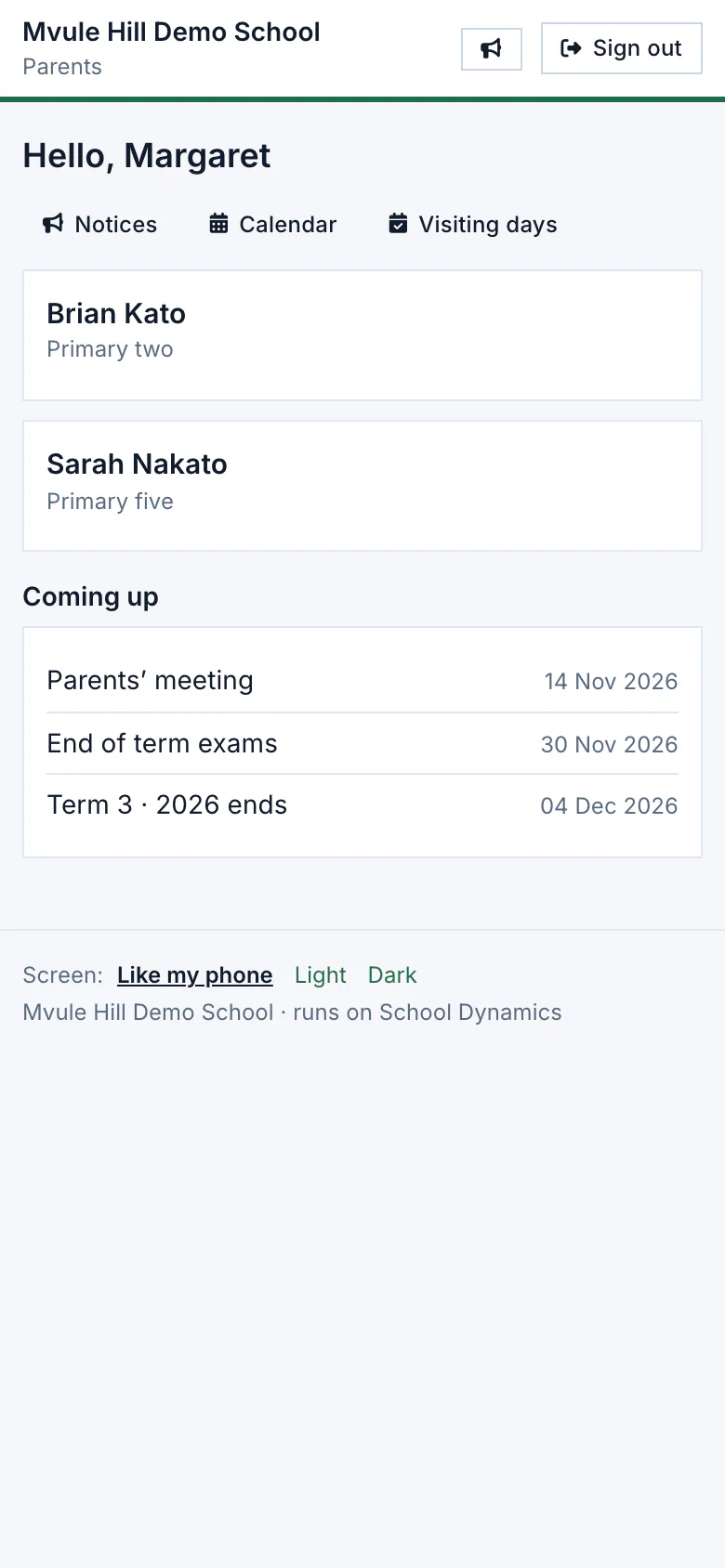
Screenshot: What parents can do. The numbered marks are explained below the picture.
The demo school · invented names and figures
  1. The school's notices, calendar and visiting days.
  2. One card for each child: open it for fees, report cards and more.
  3. Sign out when you finish, especially on a shared phone.
  4. A light or dark screen.

The first page says Hello and the parent's first name. At the top 1 are Notices (with how many are new), Calendar and Visiting days.

Below is one card for each child 2: the name and class, and short notes when they apply:

  • Owes UGX … or Fees cleared, when the school shares the child's fees account;
  • how many report cards can be opened;
  • how many items are still to bring;
  • the next instalment of a payment plan, and when it is due.

A child who has left the school says no longer at the school. Under the cards, Coming up lists the next three dates on the school calendar in the coming month.

A child's page
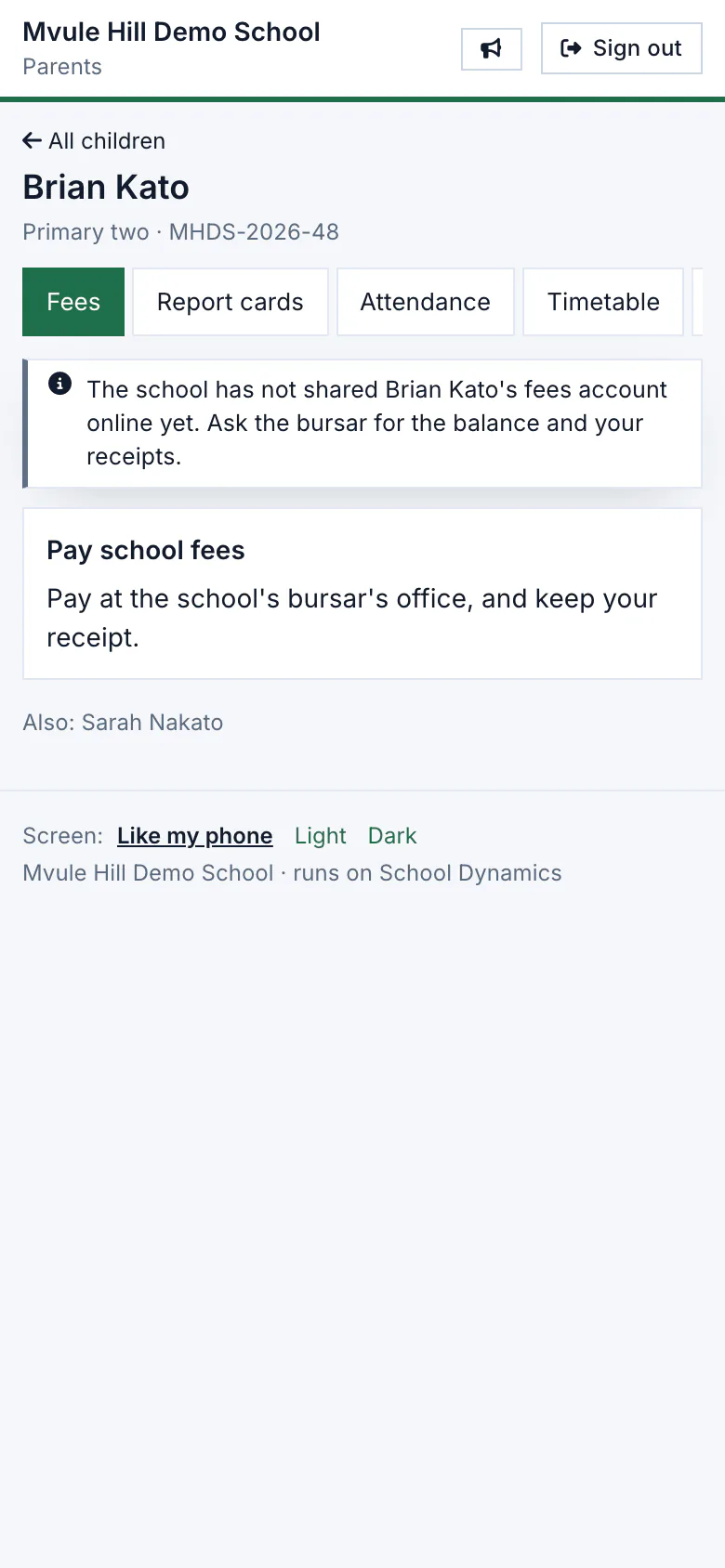
Screenshot: What parents can do. The numbered marks are explained below the picture.
The demo school · invented names and figures
  1. The parts of the child's page: fees, report cards, attendance and more.
  2. How to pay this child's fees.
  3. Back to all your children.

Each child's page has six parts 1. Also: at the bottom opens the same part for a brother or sister. All children 3 goes back.

Part What it shows
Fees What is still to pay (or in credit), billed and paid, and the Statement (PDF). Then Pay school fees 2: how to pay. Then the payment plan if there is one, every receipt as a PDF, and the latest lines of the account.
Report cards Each report card the school has released, to open as a PDF. See Report cards for parents.
Attendance This term's share of roll-calls present, how many present and absent, and the days marked absent.
Timetable The class's lessons for each day: subject, teacher and times.
To bring The term's requirements list: what was brought, and what is still missing (and what it costs in cash instead, where the school allows it).
Get a copy Ask the school for a copy of everything it holds about the child.

If the school has not shared the fees account, the Fees part says The school has not shared (the child)'s fees account online yet. Ask the bursar for the balance and your receipts. The Pay school fees box still shows how to pay. See Pay school fees online.

Asking for a copy of a child's record

  1. Open Get a copy.
  2. Add a note if you want, in Anything to add (optional).
  3. Press Ask for a copy.

The page says when the school will answer: the law gives it 30 days. When the copy is ready, Download appears beside the request, until the date shown. If the school declines, the page shows its reason. To correct something on the record, contact the school.

Notices and the calendar

Notices lists what the school has published for parents, newest first; a notice not yet opened says New. Opening it tells the school it was read.

Calendar lists the dates the school has put on its calendar for parents, for the coming months.

Visiting days

Visiting days lists the coming visiting days, with the school's rules for visitors.

  1. Tick the children you are visiting.
  2. Choose a Time. Each time says how many places are left, or full, or passed.
  3. Type how many People coming and the Name of the person coming.
  4. Press Book this time.

Your booking then shows as Your time: …. Cancel booking is there until the day before. Some visiting days are for the families of boarders only. See Visiting days.

Screen, and signing out

At the bottom of every page, Screen: chooses Like my phone, Light or Dark. Pages are light until the parent chooses otherwise.

Sign out is at the top right. The page says You have signed out. On a shared phone, always sign out.

If the school's account is paused, the parents' pages close and say The school's pages are paused: please contact the school.

For staff

What parents see comes from the school's own records. When a parent says something is missing:

Missing What the school does
A child Link the child to that parent (see Parents and guardians). The page says No child is linked to you at this school.
The fees balance, receipts and statement Share the account: on Student accounts, tick it and press Show balance to parents (see Student accounts).
A report card Release the class's report cards; a child who owes fees has the card withheld (see Report cards for parents).
A notice or a date Publish the notice for parents or everyone (see Notices and events); put the date on the calendar for parents (see School calendar).
The timetable Make the class's timetable active for this year (see Timetable).
Things to bring Set the term's requirements list (see Requirements).

Parents' requests for a copy of a record arrive under Data requests (see Data requests).

Questions

Do parents need the app?

No. The parents' page works in any phone's browser, with no app and no password. The app shows the same things, with notifications.

A parent says the fees part is empty. Why?

The school has not shared that child's fees account with parents yet. The bursar shares it on Student accounts with Show balance to parents.

One child is missing from a parent's page. Why?

The child is not linked to that parent at this school. The office links them on the child's record (see Parents and guardians).

Can a parent see another family's child?

No. A parent sees only the children linked to them, in their own school. Any other child is simply not found.
Chapter 13 · Parents

Sign in to the parents' page with a code

How a parent opens the parents' page with a phone number and a six-digit code, what each message means, and what staff check when no code arrives.

For: Parent, Secretary · app.schooldynamics.ug/help/parents/signing-in-with-a-code

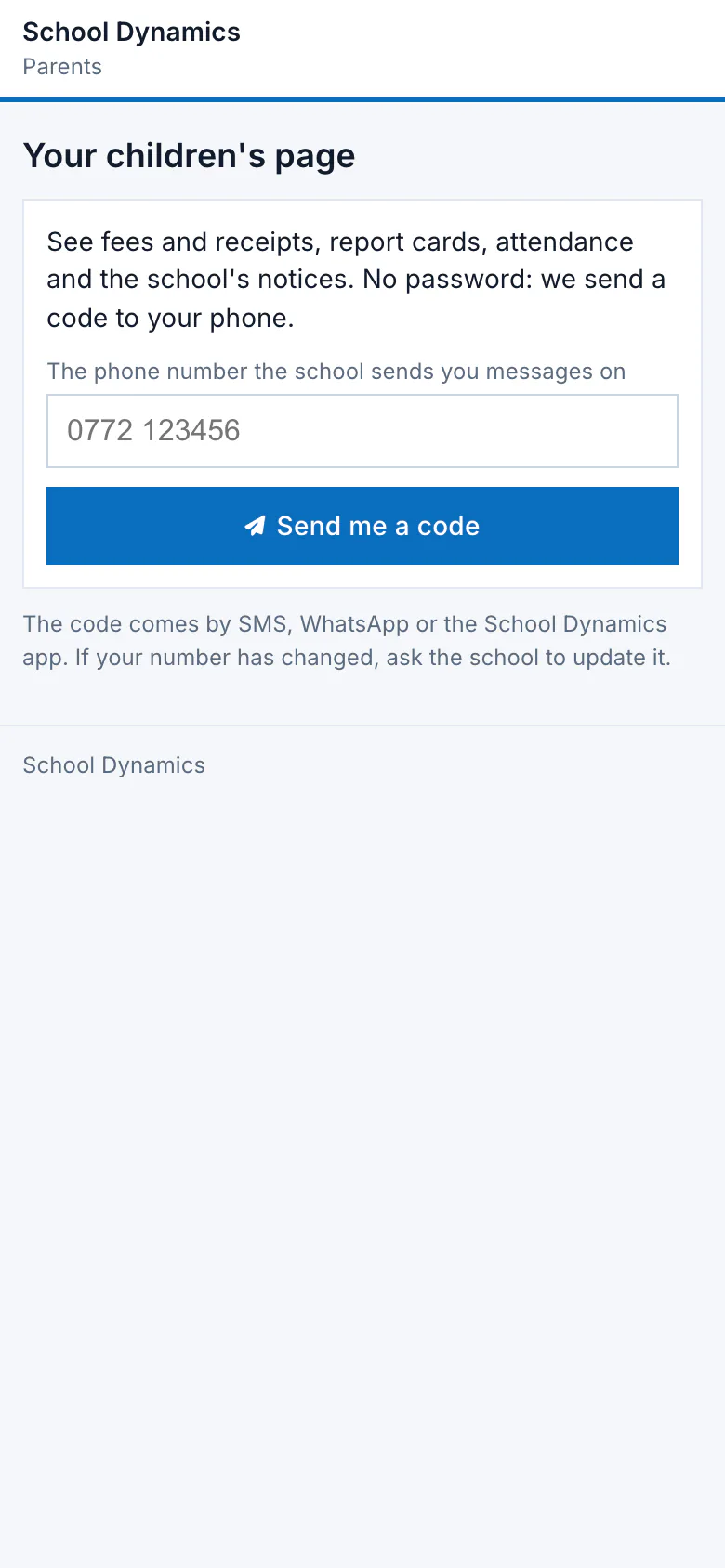
The parents' page has no password. Each time, the parent types the phone number the school has for them, and the school sends a sign-in code to that phone: by SMS, by WhatsApp, or in the School Dynamics app.

Sign in with your phone number

Screenshot: Sign in to the parents' page with a code. The numbered marks are explained below the picture.
The demo school · invented names and figures
  1. The phone number the school sends you messages on.
  2. A six-digit code comes to that phone.
  1. Open the parents' page: app.schooldynamics.ug/parents, the parents' page on your school's own web address, or the link the school sent you.
  2. Type The phone number the school sends you messages on 1, for example 0772 123456.
  3. Press Send me a code 2. The page Enter the code opens: If (your number) is a number the school has for a parent, a 6-digit code is on its way. It works for 10 minutes.
  4. Type the six digits in Code.
  5. Press Open my children's page. Your children's page opens.

If the same number is on more than one family's record (for example, children in two schools), Which family? asks which one to open. Each choice names the children and the school. Press Open on the one you want.

You stay signed in for up to 12 hours, or until you press Sign out.

The school may send you a link to your own page in a message. Open it, check the number it names (We will send a code to …, the number (school) has for you.) and press Send me a code. Then go on from step 4 above.

If the link says This link does not work any more, sign in with your phone number instead.

No code?

  • Wait a minute, then press No code? Send another.
  • Check the number: press Use another number and type it again.
  • If your number has changed, ask the school to update it. The code can only go to the number the school has.

What the messages mean

You see What to do
Enter a Ugandan phone number, for example 0772 123456. Check the number and type it again.
We sent a code a moment ago. Please wait a minute before asking for another. Wait a minute.
Too many codes have been asked for this number. Please try again in an hour. Five codes in an hour is the most. Try again later.
That code is not right. 3 tries left. Check the digits. After five wrong tries the code stops working: ask for a new one.
That code has expired. Ask for a new one. A code works for 10 minutes. Press No code? Send another.
That code has been used. Ask for a new one. Each code works once.
Your school has not opened the parents' page. Please contact the school. The school has switched off the sign-in code message.
You asked the school not to send you messages, so no code can be sent. Please contact the school. Ask the school to record that you agree to messages again.
Your school cannot send messages at the moment. Please contact the school. The school's messaging is off or out of credit.
The school has no phone number for you that can get a code. Please contact the school. The school must add your number to your record.

For staff: when a parent gets no code

Check these, in this order:

  1. The number. The parent's phone number must be on the parent's record, as the number the school texts them on (see Parents and guardians).
  2. The message is on. Under Settings › Message settings, tab Templates, the message Parents' page sign-in code must be on. It is on unless someone switched it off. Switched off, no parent of the school can sign in.
  3. The school can send. Messaging must be switched on for the school and the SMS wallet must hold enough credit: each code is a message the school pays for (see How SMS works).
  4. The parent's consent. A parent who said no to every kind of message gets no code (see Settings › Message settings, tab Parents' consent).

To send every parent the link to their own page, open Settings › Message settings, tab Templates, and press Send now on Your children's page. Each parent gets a private link; they still sign in with a code. See Automatic messages.

Questions

Does a parent need a password?

No. The parents' page uses a code sent to the parent's phone each time. The phone app uses a password.

The parent changed their phone number. What now?

The office puts the new number on the parent's record (see Parents and guardians). Codes only go to the number the school has.

Is the code free for the parent?

The school pays for the message, as for any message it sends. The parent pays nothing.

Can staff see a parent's code?

No. The code is hidden in the school's message log as soon as it has gone.

Chapter 13 · Parents

The parents' app

What parents see in the School Dynamics phone app, how they sign in with a password, and how the app differs from the parents' page on the web.

For: Parent, Secretary · app.schooldynamics.ug/help/parents/parents-app

The School Dynamics app shows parents the same things as the parents' page, on their phone, with notifications when something happens.

Get the app and sign in

  1. Install School Dynamics from Google Play or the App Store. It is free. The Get the app page has the store buttons.
  2. Sign in with the phone number your school has for you and your password. A child's SchoolPay code also works in place of the phone number, with your own password.
  3. If your children are in more than one school with the same number and password, the app lists each school: choose the one to open.

No password yet? The school's office sets one on your record. If the app says you are using the default password, ask the school to set a new one.

What parents see in the app

For each of their children at the school:

  • Fees: the balance, a statement and receipts, the next instalment of a payment plan, and how to pay. Only when the school shares the child's fees account with parents, as on the web.
  • Report cards: those the school has released, when the fees are cleared. Progressive-test reports too.
  • Attendance: this week's days and the term's rate.
  • The timetable and today's lessons.
  • Things to bring: what is still missing from the term's requirements list.
  • Assignments, and the school's notices, calendar and learning resources.
  • Bus trips, for a child who uses the school's transport.
  • Pocket money: the balance, and a daily limit for the canteen that the parent can set.
  • Visiting days: book a time, and cancel it until the day before.

Notifications

The app can bring the school's messages as notifications: fees, attendance, report cards, notices and transport. Each kind can be turned on or off for the phone.

Open the parents' page from the app

The app can open the parents' page in the phone's browser, already signed in, with no code to type. The link works once, for two minutes.

For staff

  • A parent's sign-in to the app is the parent's record under Parents: their phone number and password (see Parents and guardians).
  • The app follows the same rules as the parents' page: fees only when shared with parents, report cards only when released and the fees are cleared (see What parents can do).
  • A parent can ask in the app for their account to be deleted. The request comes to the school's leaders under Account deletions.

Questions

What is the difference between the app and the parents' page?

They show the same children by the same rules. The parents' page works in any browser with a code and no password. The app needs a password, and sends notifications.

A parent forgot their app password. What does the school do?

The office sets a new password on the parent's record under Parents (see Parents and guardians). Meanwhile the parent can use the parents' page with a code.

My children are in two schools. Do I need two sign-ins?

No. If both schools have your number and the same password, the app lists each school and you choose which to open.

Chapter 13 · Parents

Pay school fees online

How a parent pays a child's fees by mobile money or card on the school's secure payment page, gets the receipt, and the other ways to pay.

For: Parent, Bursar · app.schooldynamics.ug/help/parents/paying-online

Schools that take payments online have a secure page where a parent pays a child's fees by mobile money or card. The money goes to the school through Pesapal, and the payment is entered on the child's fees account.

Where to find it

  • On the parents' page, open the child, then Fees. The box Pay school fees has Pay online when the school takes payments online.
  • The school may also send you a pay link for one child. It works for a limited time; if it no longer opens, ask the school for a new one, or use Pay online on the parents' page.
  • In the School Dynamics app, the child's fees show how to pay too.

Pay

  1. Press Pay online, or open the link. The page Pay school fees names the child, the class and the student number. When the school shares the child's balance with parents, it also shows what is owed.
  2. Type the Amount to pay (UGX). The page says the smallest and the largest amount it takes. When the balance is shown, the amount owed is already filled in: change it to pay part.
  3. Type Your name, as the payer.
  4. Type the Phone number you will pay from with mobile money.
  5. Type an Email (optional) if you want Pesapal's own receipt by email.
  6. Press Continue to pay with Pesapal. Pesapal's page opens: pay there by mobile money or card.

After paying, Pesapal sends you back to the school's page for this payment. It shows the amount, the time and a reference, and what became of it:

The page says What it means
Payment received. Thank you — (the child)'s fees account is updated. Done. Press Download the receipt for the school's receipt.
Your payment is being confirmed. Pesapal has not answered yet. The page checks again on its own; it usually takes a few minutes.
Pesapal confirmed the payment; the school is checking it before it shows on the account. Keep your mobile money message. The school will put it on the account.
The payment did not go through. No money was taken for it. Try again from the link or the parents' page.
Pesapal cancelled this payment, so it does not count on the fees account. The money went back. Contact the school if you did not expect this.

When the page says no

You see What to do
Online payment is not available for this school yet. Pay through SchoolPay with the code the page shows, or at the bursar's office.
Enter an amount between … and …. Change the amount.
Enter the phone number you are paying from. Fill in Phone number.
That email address does not look right. Leave it empty if you have none. Correct the email, or empty the box.
The payment could not be started. Please try again in a few minutes. Wait a little and try again.
This student has no fees account yet. Please pay at the school. The school has not opened the child's fees account. Pay at the school.

Other ways to pay

The Pay school fees box always says how the school takes fees:

  • SchoolPay: Pay with MTN MoMo, Airtel Money or M-Sente (School fees, then SchoolPay), or at a SchoolPay bank, with the payment code below. The box shows the child's SchoolPay payment code. See SchoolPay.
  • At the school: Pay at the school's bursar's office, and keep your receipt.

Every payment the school records shows on the child's Fees part, with its receipt, when the school shares the account with parents.

For staff

  • The school connects its own Pesapal account and tests it under Settings › Online payment settings. Until it is connected, live and tested, parents see no Pay online button. See Online payments.
  • To send one parent a pay link, open Fees & finance › Fees › Online payments and press Pay link for a student. Choose the student, then Copy the link and send it. The dialog says how many days it works.
  • Every online payment is listed on the Online payments page.
  • A parent sees the balance on the pay page only when the child's account is shared with parents (Show balance to parents on Student accounts).

Questions

Is it safe to pay on this page?

Yes. The money is paid on Pesapal's own secure page, straight into the school's account. School Dynamics never sees your mobile money PIN or card details.

I paid but the page still says it is being confirmed. What do I do?

Wait a few minutes: the page checks again on its own. Keep your mobile money message. If it does not change, contact the school's bursar with the reference shown on the page.

The school does not offer online payment. How else can I pay?

Through SchoolPay with the child's payment code, or at the bursar's office. The Pay school fees box on the parents' page says which the school takes.

Can I pay part of the balance?

Yes. Type any amount between the smallest and largest the page allows.

Chapter 13 · Parents

Report cards for parents

How a parent opens a child's report card on the parents' page or from the school's message, why a card can be withheld for fees, and how to check a printed card is genuine.

For: Parent, Secretary, Director of studies · app.schooldynamics.ug/help/parents/report-cards-for-parents

A child's report card reaches the parent once the school has released it. The parent opens it on the parents' page, in the app, or from the link in the school's Report card ready message.

Open a report card

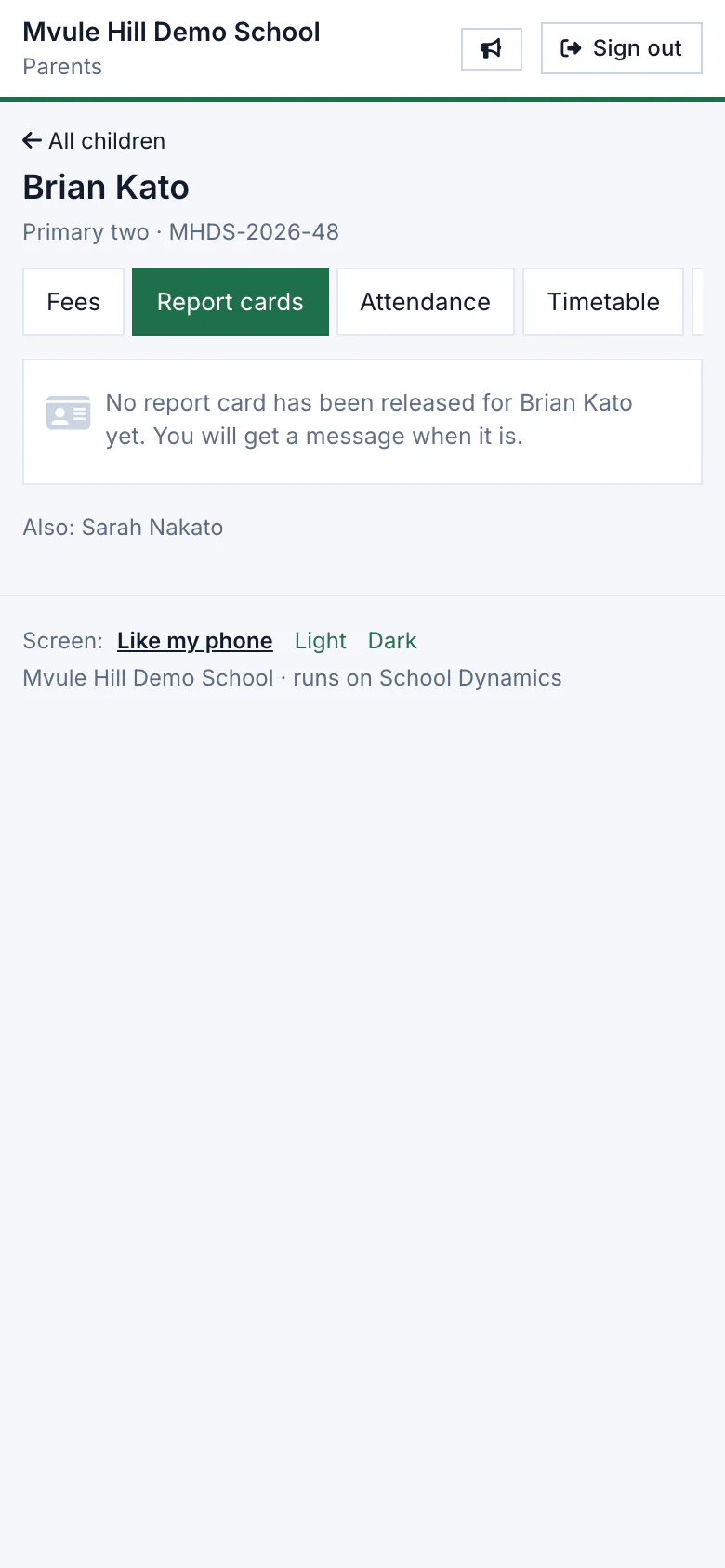
Screenshot: Report cards for parents. The numbered marks are explained below the picture.
The demo school · invented names and figures
  1. The child's report cards.
  2. Each released card: open it, or see why it is withheld.
  1. On the parents' page, open the child.
  2. Open Report cards 1.
  3. Each card the school has released is listed with its title, the term and the class 2. Press Open the report card. The card opens as a PDF, the same one the school prints.

If no card is listed, the page says No report card has been released for (the child) yet.

When a card is withheld for fees

A released card stays closed while the child owes school fees. Instead of the button, the card says:

Report card is locked. Outstanding school fees of UGX … must be cleared before the report card for this student can be viewed. Please contact the school bursar.

How to pay jumps to the Pay school fees box below (see Pay school fees online). As soon as the fees are cleared, the same card opens. Nothing more needs to be done.

From the school's message

When the school releases a class, it may send the Report card ready message with a private link to the child's card. The link opens a page that names the child, the term and the class:

  • Open the report card shows it; Save it on this phone downloads it.
  • Withheld for school fees: the same fees message as above. Once the fees are cleared, this same link opens the card.
  • This report card is being corrected: the school took it back to correct something. A new message comes when it is ready again.
  • This link has expired: links work for a set number of days, which the page says. Open the card on the parents' page or in the app instead.

The link is for that parent alone. Do not forward it.

Check that a printed card is genuine

Every report card printed by School Dynamics carries a square code (a QR code), with its code printed under it. Scan it with a phone's camera. The page that opens says:

  • This report card is genuine, with the school, the student's initials, the class, the term and the day it was issued. It never shows the marks or the full name;
  • This card was issued, then corrected: ask the school for the corrected card, whose code is different;
  • We cannot find this report card: check the code was typed exactly as printed, or ask the school that issued it.

For staff

  • Parents see a class's report cards only after it is released (see Checking, approving and releasing). What a parent sees, card by card, is in What parents see.
  • The fees gate: any amount owed withholds the card from the parent. Staff always see every card.
  • The Report card ready message goes from the release page, or from Settings › Message settings, tab Templates, with Send now.
  • Each time a parent opens a card on the parents' page, the school's activity log notes it.

Questions

Why can I not open my child's report card?

If it says Report card is locked, the child still owes school fees. Once the fees are cleared, the same card opens. If there is no card at all, the school has not released it yet.

I paid the fees. When does the card open?

As soon as the payment is on the child's fees account and nothing is owed. Ask the bursar if it has not been entered yet.

Can I open it from the school's text message?

Yes. The Report card ready message carries a private link to the card. It works for a set number of days; after that, use the parents' page or the app.

How do I know a printed report card is real?

Scan the square code on the card with your phone. The page says This report card is genuine, with the school, the class and the term, or that it cannot find it.


School Dynamics
Questions? Ask under any lesson in the app, or write to the team.
app.schooldynamics.ug/help