
Leaders and owners · print edition of 23 November 2026 Back to the manual
School Dynamics
The School Dynamics manual · Chapter 14

Leaders and owners

The dashboard, alerts that need you, and running several schools as a group.

1chapter
3lessons
2screens
Nov 2026edition

Edition of 23 November 2026. The latest version, with search and questions answered by the team, is at app.schooldynamics.ug/help.
Screens show the demo school: every name and figure is invented. © 2026 Newline Technologies Limited, Kampala.

Contents

  1. 14Leaders and owners
    1. The dashboard
    2. Alerts that need you
    3. Run several schools as a group
14

Leaders and owners

The dashboard, alerts that need you, and running several schools as a group.

For head teachers, directors and owners: the dashboard that shows the school at a glance, the alerts that need a decision, and the view across a group of schools.

  1. The dashboard4 min
  2. Alerts that need you4 min
  3. Run several schools as a group4 min
Chapter 14 · Leaders and owners

The dashboard

The first page after signing in. Your most used actions, and the figures your role acts on, from today's attendance and fees collected to marks entered and alerts.

For: Head teacher, School owner, Bursar, Director of studies, Teacher · app.schooldynamics.ug/help/leaders/dashboard

The dashboard is the first page after you sign in. It opens on what to do and what to look at, for your role: no greeting, no clutter. Go back to it at any time by clicking the school's name at the top of the menu.
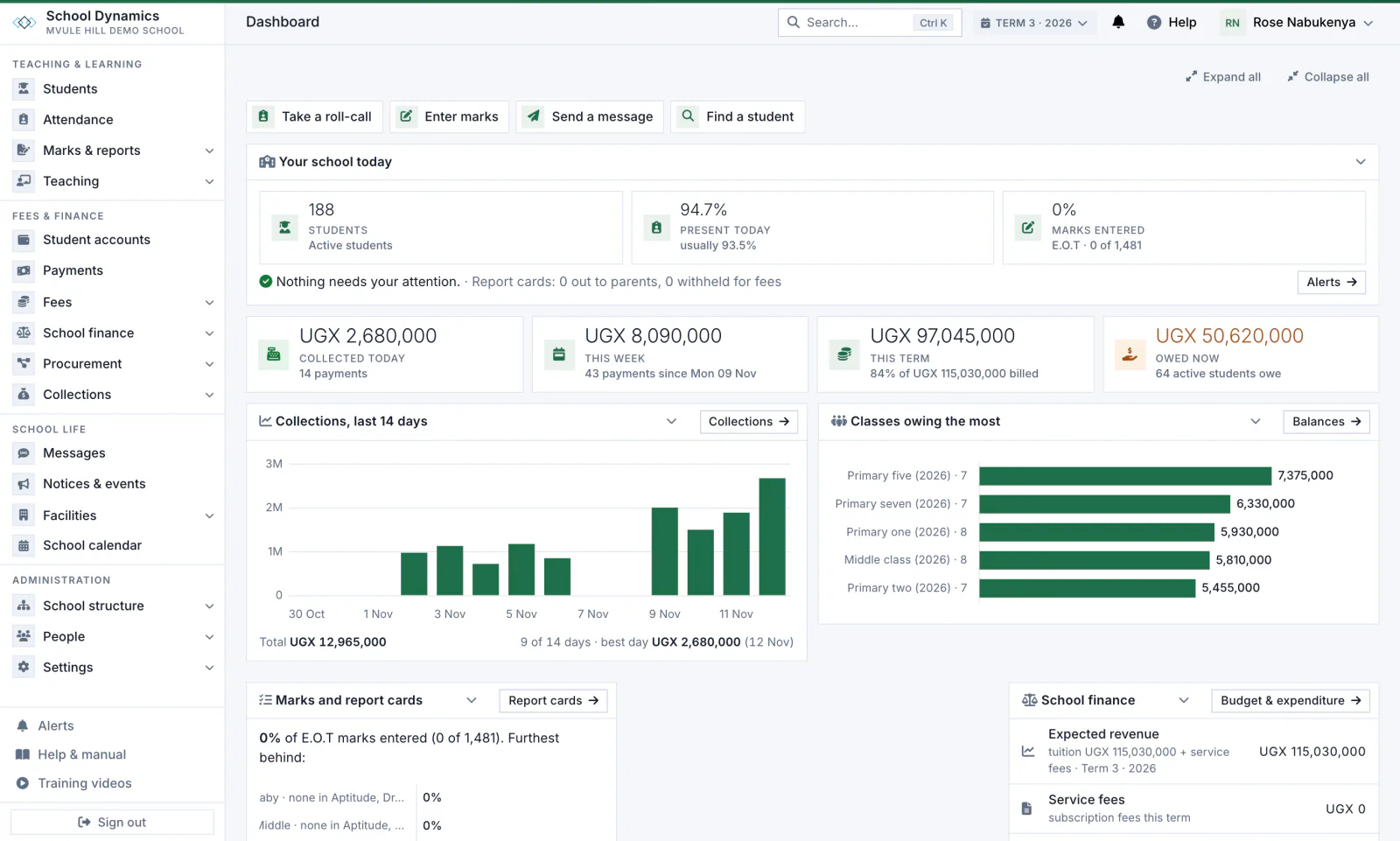
Screenshot: The dashboard. The numbered marks are explained below the picture.
The demo school · invented names and figures
  1. Your most used actions: each opens its dialog or page.
  2. Your school today: students, attendance, marks and what needs you.
  3. Fees: collected today, this week, this term, and owed now.
  4. Fold or open every card at once.

Quick actions

The buttons at the top 1 are the jobs your role does most, up to four of them; any more are under the ⋯ button beside them. Each one opens its dialog or page straight away:

Record a payment · Admit a student · Take a roll-call · Enter marks · Send a message · Sign in a visitor · Sick-bay visit · Lend a book · Find a student

You see only those your roles allow, in that order.

Your school today

The head teacher, deputy and school administrator start with Your school today 2:

  • Students: active students, and how many joined this term.
  • Present today: the share of students present in today's closed class roll-calls, against what is usual for the school. It is marked in amber when today is more than 5 points below the usual. No roll-call closed yet means none is finished today.
  • Marks entered: how far marks entry is for this term's exams.
  • A line with how many things need attention (and how many to act now), and how many report cards are out to parents or withheld for fees. Alerts opens the list (see Alerts).

Fees at a glance

Everyone who may see fees (the school administrator, head teacher, deputy, bursar and finance officer) gets the fees figures next 3:

  • Collected today, This week and This term (with the share of the term's bills paid);
  • Owed now: what active students owe, and how many owe;
  • Collections, last 14 days: a small chart of each day's payments;
  • Classes owing the most, which opens the balances report.

The cards

Below come cards for your work, the most useful for your role first. The button on a card's title bar, such as All alerts or Report cards, opens its full page.

Card Shows Who sees it
Needs attention The six most pressing alerts for you Everyone, except leaders (their alerts are in Your school today)
Marks entered this term Each exam's progress, with a link to the report settings Director of studies (leaders have it in Your school today)
Marks and report cards Marks entered, the classes and teachers furthest behind, report cards out to parents, withheld for fees and not ready Director of studies, leaders
Class attendance Present today and this week, and who missed most this week Those who see students (not leaders, who have it in Your school today)
Students Active students by class, students with no class, online applications waiting Those who see students (not leaders)
Collections by channel Today's and this week's payments by channel, SchoolPay payments (working or not), promises to pay and plan instalments overdue Bursar, finance officer, school administrator
Promises to pay Promises overdue and due this week (only while one is open) Those who see fees
School finance Expected revenue, spending against the budget, stock held, bursaries this term, students cleared, accounts not yet verified Those who see fees
My class today Your class's roll-calls today and marks still due A class teacher
My lessons today Today's lessons and invigilation, and My week Anyone with lessons on this year's timetable
My marking Marks due and work waiting to be marked Teachers who teach a subject
Waiting for your review Lesson plans and schemes of work sent for review Leaders, director of studies
Messages The SMS wallet, and messages sent and failed this month Those who send messages
Around the school Visitors on site, sick-bay visits, library loans overdue, hostel beds free, store items low The staff who look after each
Transport Students riding, routes, vehicles and trips this month Those who manage transport
Semester enrolment Who is enrolled this semester Universities only

A card with nothing to show stays out of the way: Promises to pay appears only while a promise is open.

Fold the cards you do not need

Click a card's title to fold it away; click again to open it 4. Folded cards stay folded on this computer. Collapse all and Expand all fold or open every card at once.

Notices at the top

The dashboard puts the school's urgent notices above everything:

  • This school has no active term: fees, roll-calls and marks have nowhere to go until one is set (see Years and terms).
  • A new school's set-up checklist, until it is done (see First-week checklist).
  • A licence bill that is due, for the people who handle it, with See the bill (see Licence and billing).

Questions

Why does my dashboard look different from the bursar's?

Each card shows only to people whose roles can act on it, and each role sees its own cards first. A head teacher starts with Your school today, a bursar with collections, a teacher with their lessons and marking.

Are the figures live?

They are worked out from the school's records each time the page loads, and may be a few minutes old. Open a card's page for the up-to-the-minute list.

A card I do not need takes up space. Can I hide it?

Click its title to fold it away. It stays folded on this computer until you open it again. Collapse all folds every card.

The dashboard says the school has no active term. What do I do?

Set the term the school is in now as the active one under Academic years (see Years and terms). Until then, fees, roll-calls and marks have nowhere to go.
Chapter 14 · Leaders and owners

Alerts that need you

Alerts: what the school's own figures say needs attention — students at risk, marks or roll-calls behind, fees collections, SchoolPay and the SMS wallet — and how to act on each.

For: Head teacher, School owner, Director of studies, Bursar, Teacher · app.schooldynamics.ug/help/leaders/alerts

An alert is something the school's own figures say needs attention: a class far behind in marks, a roll-call not taken this morning, a student whose attendance and marks are both falling. Each alert says why, in figures you recognise, and has a button to the page that fixes it.

Open Alerts at the foot of the menu. The number beside it is how many are open for you. The dashboard shows the most pressing ones too (see The dashboard).

Read the page

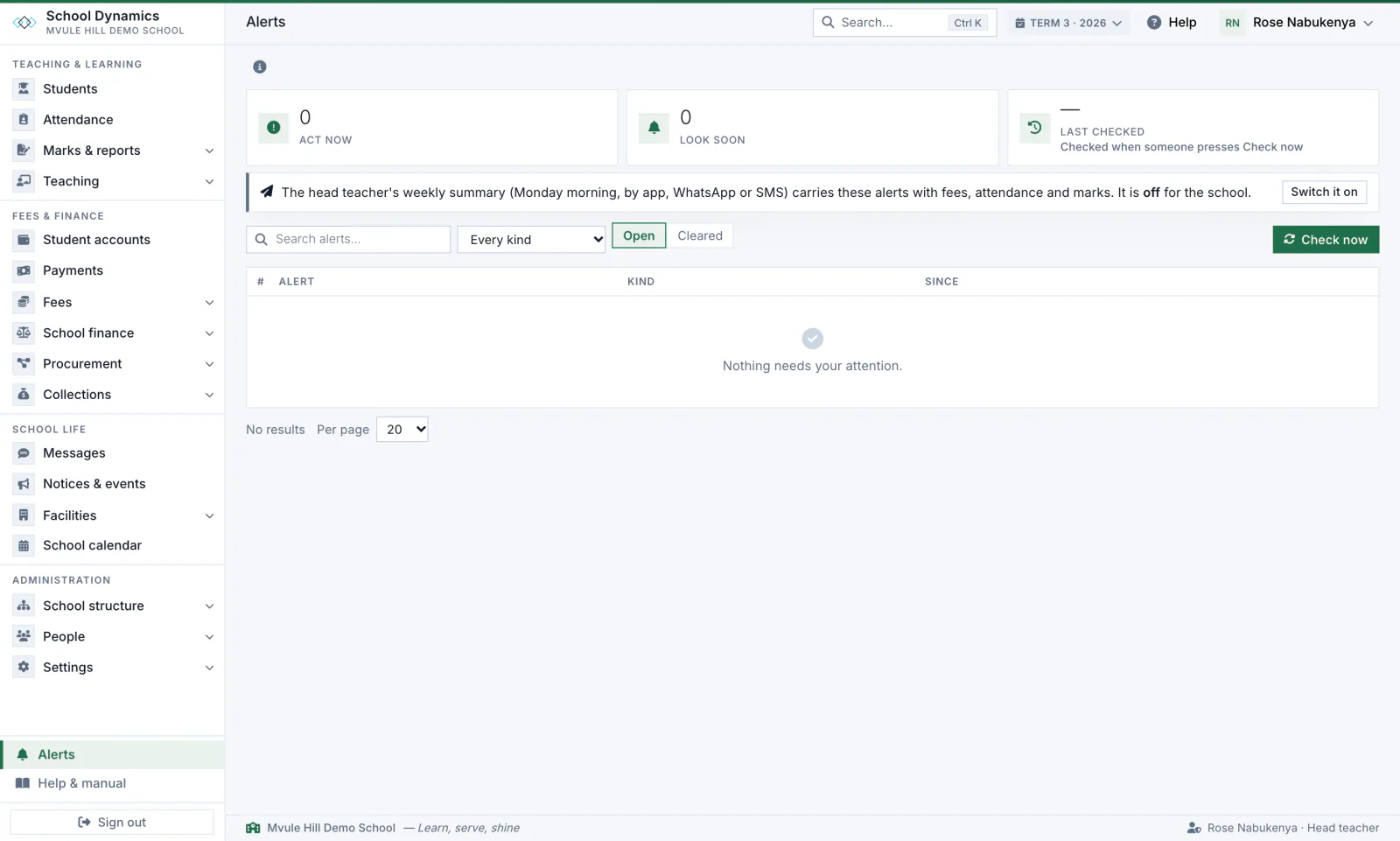
Screenshot: Alerts that need you. The numbered marks are explained below the picture.
The demo school · invented names and figures
  1. How many to act on now, how many to look at soon, and when the school was last checked.
  2. Show one kind of alert.
  3. Open alerts, or those cleared in the last 30 days.
  4. Check the school now (head teacher and administrator).
  5. Each alert, most pressing first, with the button that fixes it.

At the top 1:

  • Act now: the most urgent;
  • Look soon: worth a look this week;
  • Last checked: when the school was last checked, and how often.

The list 5 puts the most pressing first. Each row has the alert, its first reason, its kind and since when. Its button (Enter the marks, Take a roll-call …) opens the page that fixes it. The eye button opens the alert's quick view: every reason, when it was first seen and last checked, and who it is for.

To narrow the list, type in Search alerts…, choose a kind 2, or press Cleared 3 to see what was put right in the last 30 days.

The kinds of alert

Kind When it appears Who sees it Its button
Students at risk An active student shows at least two of three signs: attendance falling (the last two weeks 10 points below the six weeks before, or under 75%), marks dropping (the latest exam's average 10 points below the one before), fees overdue (owes at least UGX 50,000 and nothing paid for 30 days). All three is Act now. Leaders, the director of studies, and the class teacher Open the student
Marks entry behind A class's share of marks entered for the exam now being entered is 25 points or more below the school's own share. The director of studies, leaders, and the class teacher Enter the marks
Roll-call not taken On a school day, after 10:00, a class or stream whose roll-call is usually taken has none today. If no class has one at all, there is one alert for the whole school. The class or stream teacher, leaders and the director of studies. The alert for the whole school goes to everyone who takes roll-calls. Take a roll-call
Collections behind From the 7th day of the term: the share of this term's bills collected so far is 10 points or more behind the share collected by the same day of the last three terms. Those who see fees See collections
SchoolPay No payments fetched for 24 hours, the last five tries to fetch them failed, or payments fetched more than two days ago are still not imported. Those who see fees Open the sync log or Import payments
SMS wallet The SMS wallet is below its low line. Those who send messages Top up the wallet

Act on an alert

  1. Press the alert's button, or open its quick view and press the button there.
  2. Fix what it is about on that page: enter the marks, take the roll-call, import the payments.
  3. The next time the school is checked, the alert moves to Cleared on its own.

If the same problem comes back later, the alert opens again as new.

Check now

The head teacher, the school administrator and the school's owner have Check now 4. It checks the whole school at once and says what it found: Checked. 4 alerts open, 2 cleared. Use it after fixing several things, or when Last checked says the school is checked only when someone presses it.

The weekly summary

The head teacher and the school administrator see a note about the head teacher's weekly summary: a message every Monday morning (by the app, WhatsApp or SMS) with the week's figures for students, attendance, fees and marks, and the alerts. It says whether it is on or off for the school; Switch it on or Change it opens the message templates (see Automatic messages).

AI suggestions

Where School Dynamics has it set up, the head teacher and the school administrator also see AI suggestions. It lets teachers ask for a draft report-card comment, or exam questions on a topic. A person edits and approves every draft before it reaches a report card or the question bank. Only marks, grades, attendance rates, subjects, the class level and topics leave the school's system: never a name, a number or the school's name. Tick Allow AI suggestions in this school and press Save the choice.

Questions

How do I close an alert?

Fix what it is about. Alerts close themselves the next time the school is checked and the problem is gone. There is no button to dismiss one.

Why does a teacher see fewer alerts than the head teacher?

Each alert shows to the people whose work it is. A teacher sees those about their own class; leaders and the director of studies see all of them.

How often are alerts checked?

The page says it under Last checked: every 30 minutes when the automatic check is on, otherwise when someone presses Check now.

Does the alert show how much a student owes?

Only to people who may see fees. Others see fees overdue as one of the reasons.

Chapter 14 · Leaders and owners

Run several schools as a group

School groups: an owner's schools side by side (students, fees and results), moving between campuses without a second account, and deciding who works where.

For: School owner, Head teacher, Bursar · app.schooldynamics.ug/help/leaders/school-groups

A school group is several schools with the same owner. The group's people see the schools side by side, and staff who work across campuses move between them without a second account.

School Dynamics sets a group up and puts the schools in it. Until then, the page says There are no school groups yet.

Before you start

The School group entry at the top of the menu shows only to people with a group role:

Group role Sees
Group owner Every figure: students, money and results. Decides who works where, and names the group bursar and academic head.
Group bursar Students and money.
Group academic head Students and results.

A group role shows the group's figures only, never another school's records. School Dynamics names the group owner.

The schools side by side

Open School group. The first tab, Schools side by side, shows each school with its own active term. Every figure comes from that school's own reports, and no student is ever named.

  • At the top: Active students across the group (boys and girls), and, for the owner and the group bursar, Billed this term, Collected this term and Owed now. The group academic head sees Students with results and Students to watch instead.
  • Schools: one row per school and its term: active students, joined this term, and (owner and bursar) billed, collected, the rate collected and owed now. The last row is the Group total. The school you are working in says Working here.
  • Collected this term, by channel (owner and bursar): each payment channel, each school and the group.
  • Results (owner and academic head): each school's latest results, its average, the performance index, the divisions and the students to watch. A school with no results this term shows its latest earlier ones, marked Earlier term.

Click a school's name, or its eye button, for its quick view: its students, what it collected and is owed, how it was paid, its results and your roles there.

  • Work out again recalculates the figures now. Otherwise they are kept for a few minutes.
  • CSV downloads the same figures as a spreadsheet file.

Move to another school

If you hold roles at another school of the group, the top bar has a school switch beside the term.

  1. Press the school switch. It lists the group's schools, with your roles in each.
  2. Press the school to work in. The dashboard of that school opens.
  3. You now work there, with the roles you hold there only: a bursar at home may be only a director of studies at the other campus. The switch says In and the school's name, so you do not forget.
  4. To go back, open the switch and press your own school (Your own school).

The quick view of a school also has Work in this school, or Back to my school.

Who works where

The group owner has a second tab, Who works where.

Give someone access to another school

  1. Press Give access.
  2. In Person, type a name and choose the member of staff (from any of the group's schools).
  3. In May work in, choose the school.
  4. Tick the Roles there: school administrator, head teacher, deputy head teacher, director of studies, bursar, finance officer or secretary. They hold these roles at that school only.
  5. Press Give access.

To change someone's roles there, click their name or the pen button. To take the access away, press the bin button and confirm.

Their roles in their own school are set on that school's Staff page, not here: This is (their) own school: their roles there are set on the school's Staff page.

Name a group role

  1. Press Name a group role.
  2. Choose the Person and the Group role (group bursar or group academic head).
  3. Press Name the role.

The bin button on a row removes a group role. Only School Dynamics names or removes the group owner.

Questions

How do we become a group?

School Dynamics sets the group up and puts the schools in it. Ask support (see Get help), and say which schools and who owns them.

Do I need a separate account for each campus?

No. Your account stays in your own school. The group owner gives you roles at the other schools, and you move between them from the top bar.

Can the group bursar see students' names at the other schools?

No. The group page shows only totals per school; no student is ever named there. To see a school's records, a person needs roles at that school.

Why can I not move to one of the group's schools?

Either you have no role there (You have no role at that school), or its licence has expired. The group owner gives roles; the licence is paid by that school.


School Dynamics
Questions? Ask under any lesson in the app, or write to the team.
app.schooldynamics.ug/help