School Dynamics
Take a roll-call
Start a roll-call for a class, a stream or the whole school, mark each student present, late or absent (or scan their ID cards), close it, and text the parents of absent students.
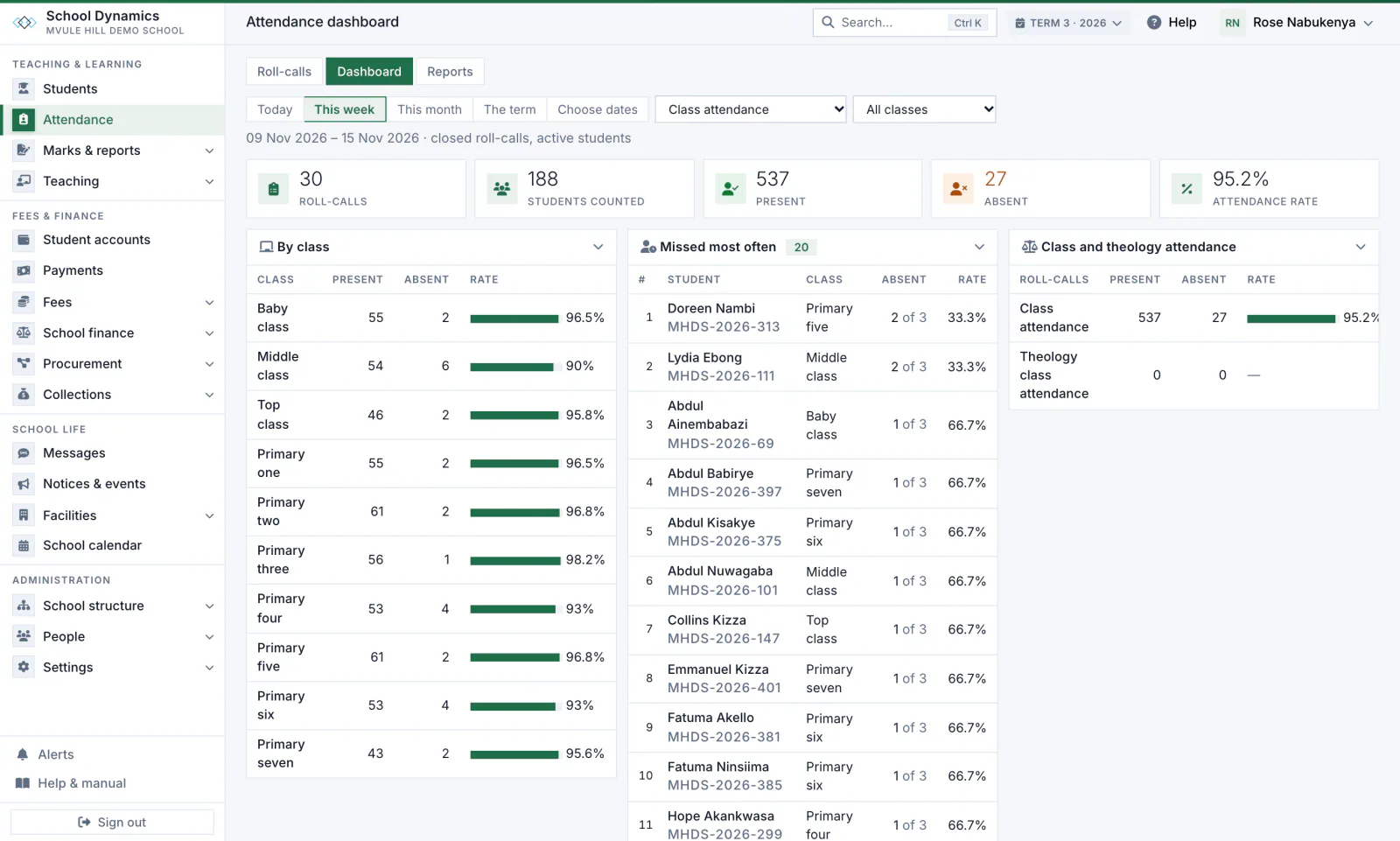
A roll-call records who is here: a class in the morning, a stream for a lesson, the students taking lunch, or everyone reporting at the start of term. You start it, mark each student, and close it. Closed roll-calls feed the attendance dashboard, each student's Attendance tab and the reports.
Open Teaching & learning › Attendance. The first tab, Roll-calls, lists every roll-call taken.
Before you start
- Teachers, wardens, the director of studies, the head teacher, the deputy and the school administrator can take roll-calls. Others who may see students can read them.
- The school needs an active term: every roll-call is filed under it. Without one, the dialog says There is no active term. Make a term active in Academic years first.
- Only active students are expected on a roll-call.
Start a roll-call
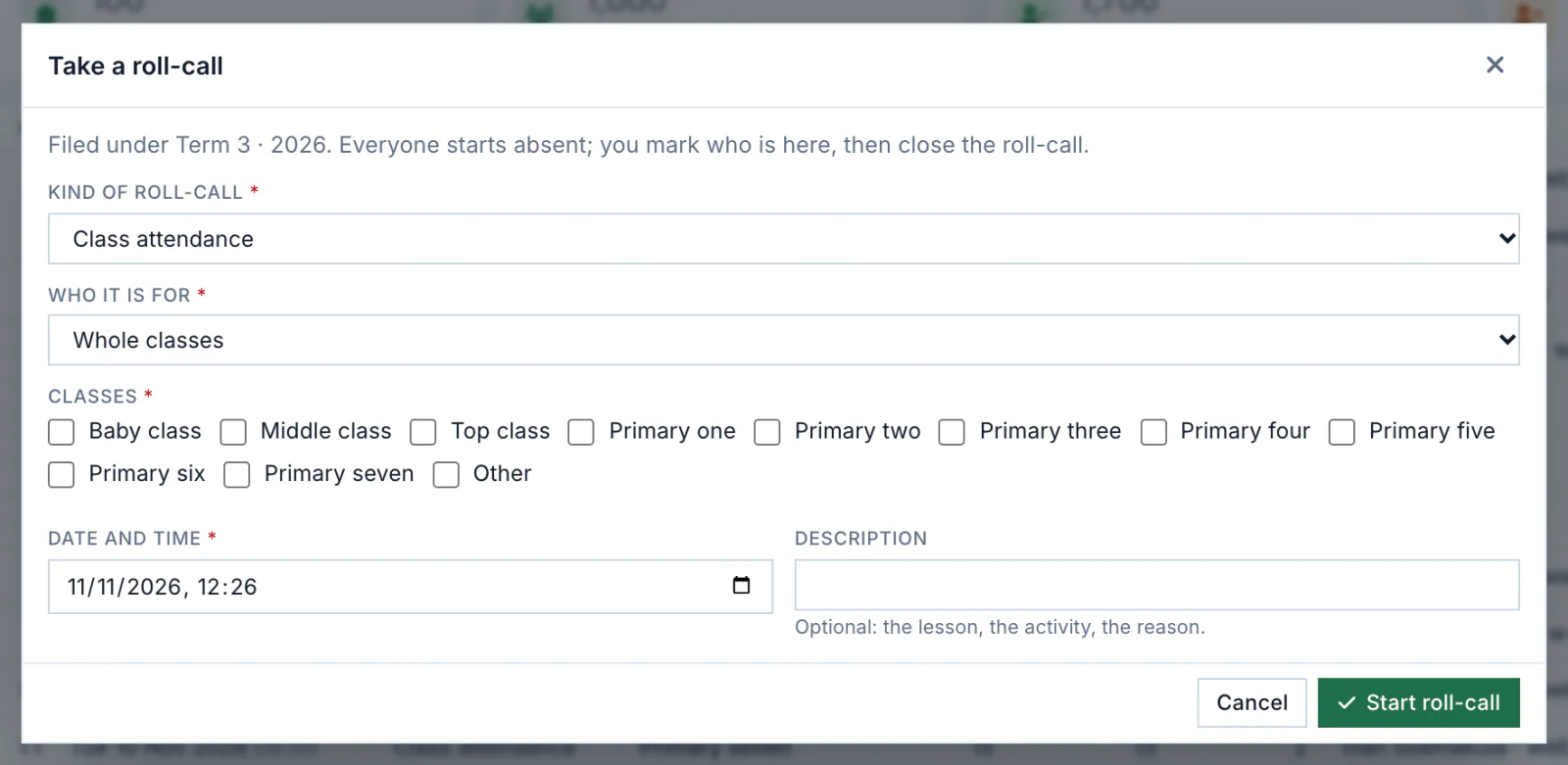
- The kind of roll-call: class attendance, meals, reporting at school …
- Who it is for: whole classes, one stream, a service or the whole school.
- Tick the classes.
- When: now, unless you change it.
- Start: everyone begins absent.
- Press Take a roll-call.
- Choose the Kind of roll-call 1: Class attendance, Reporting at school, Leaving school, Meals, Activity participation, Service attendance or Theology class attendance.
- Choose Who it is for 2: Whole classes, One stream, Students who take a service (the students taking that service this term) or All active students. Schools with theology classes can also choose theology classes or one theology stream.
- Tick the classes 3, or choose the stream or service.
- Check the Date and time 4, and add a Description if it helps (the lesson, the activity).
- Press Start roll-call 5.
The message says how many students are expected, and the marking page opens. Everyone starts absent.
Mark the students
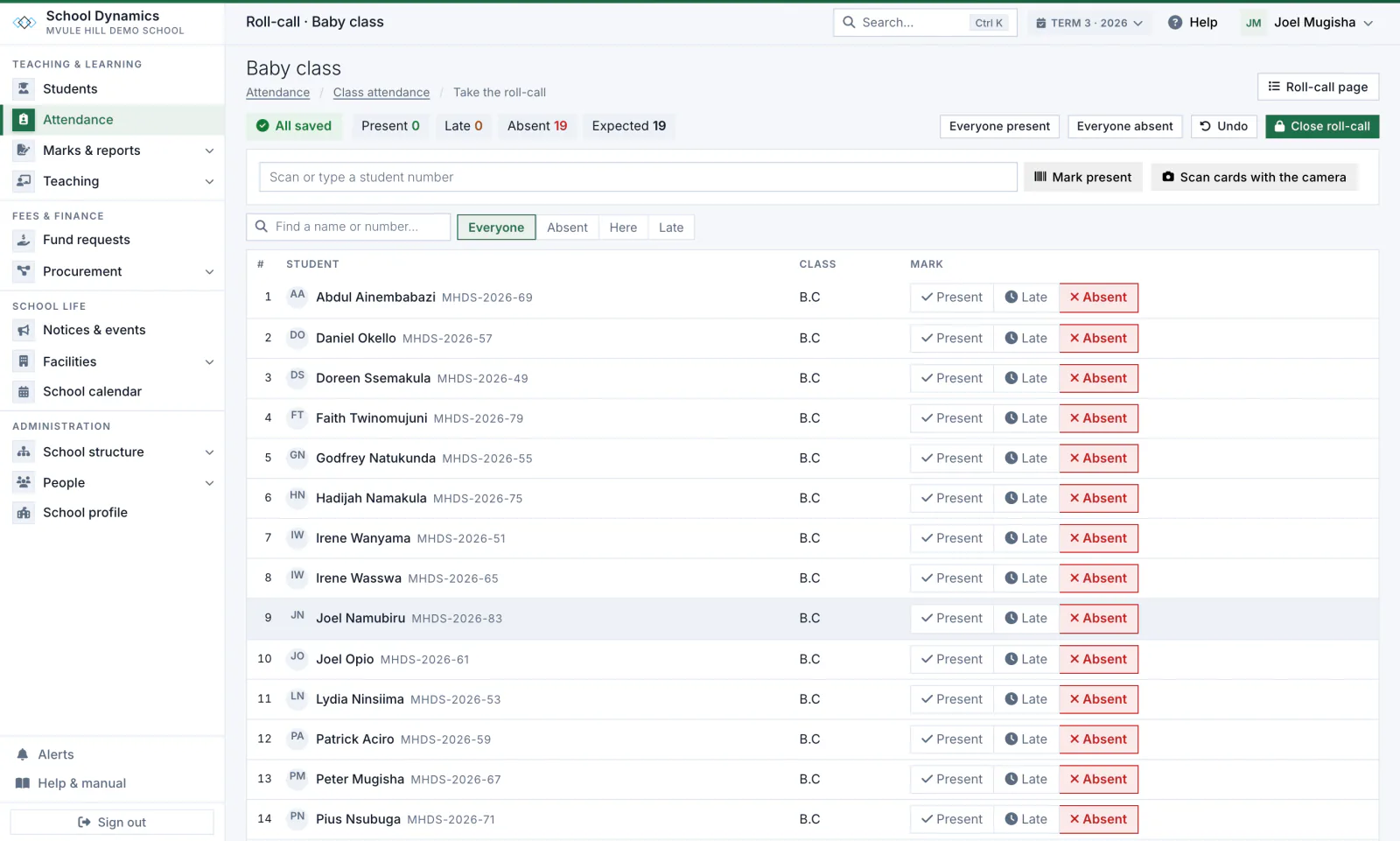
- Present (late included), late, absent and expected, as you mark.
- Mark everyone present, then mark the few who are not.
- Scan an ID card or type a student number.
- Present, late or absent, one tap per student.
- Close it when you are done. It cannot be changed afterwards.
The totals at the top 1 change as you mark.
- In a full class, press Everyone present 2, then mark the few who are not. Everyone absent does the opposite.
- On each row 4, press Present, Late or Absent.
- To scan ID cards, click in the box 3 and scan the card with a barcode scanner, or type the student's reg no. and press Mark present. Scan cards with the camera uses the device's camera instead. A student who was not expected is added and marked present.
- Find a student with the search box, and show Everyone, Absent, Here or Late.
- Undo (or Ctrl + Z) takes back the last change.
On a laptop, the keys are quicker: on a row, P present, L late, A absent, Space switches present and absent, and Up, Down or Enter move between rows.
Each mark saves by itself. While the internet is down, marks wait on the device and are sent when it returns; the line at the top says what is not sent yet.
Close the roll-call
Press Close roll-call 5 and confirm. The message says how many were present and absent.
Until it is closed, a roll-call counts everyone not marked as absent, and it is left out of the dashboard and the reports.
The list of roll-calls
Each row shows the date, the kind, who it was for, the numbers expected, present and absent, who took it (on the web or the app) and whether it is Open or Closed. Filter by kind, class, open or closed, and dates; the figures above the list add up what you see.
Click a roll-call for its quick view: the figures and the absent students. Mark and close continues an open one; Open the roll-call shows a closed one in full.
The roll-call's own page shows every student with their mark, and has Export (a spreadsheet of the students and their marks) and Delete. On the list, Export roll-calls and Export attendance by student download what your filters show.
Text the parents of absent students
After a roll-call is closed, those who send messages (the head teacher, the deputy, the director of studies, the bursar, the secretary and the school administrator) can tell parents.
- Open the closed roll-call and press Text parents of absent students (or Text parents in its quick view).
- Read or change the Message. Keep
[STUDENT_NAME]: it becomes each child's name. - Check who it goes to, the cost and what is in the SMS wallet. Students with no phone on record, and parents who asked not to get SMS, are listed and left out.
- Press Send … messages.
Each parent is texted once per roll-call: a parent already told is not texted again. It is not offered for Leaving school roll-calls, where absent means still at school.
The message is the school's Absence today message when the school has written one. If that message is switched off, or the school's messaging is off, or the wallet is short, the dialog says so and nothing is sent. See Automatic messages and How SMS works.
Questions
- The internet went off while I was marking. Are my marks lost?
No. Each mark waits on your device and is sent when the connection returns. Close roll-call waits until every mark is saved.
- I closed a roll-call with a mistake. Can I change it?
No. A closed roll-call cannot be changed. Check the marks before you close.
- Does a late student count as absent?
No. Late students count as present on every report, and the roll-call also notes that they were late.
- Can I take the roll-call on the phone app?
Yes. Roll-calls taken on the app appear on the same list, marked app beside who took them.
- Who can delete a roll-call?
An open roll-call can be deleted by whoever started it or by a leader. A closed one only by the head teacher, the deputy or the school administrator.